
Code and documentation reader
You read long files and locally stored guides, and want to decide whether extra vertical space matters more than screen width.


If you mainly read long code files and documentation stored locally, a screen with extra vertical space is an obvious choice. For viewing code, documentation and calculator results side by side, an ultrawide monitor is a better fit. An adjustable QHD monitor offers a middle ground, but always check the space available on your desk and whether your computer supports the video connection you need and any USB-C power delivery. The monitor itself won’t make documentation available offline.
You read long files and locally stored guides, and want to decide whether extra vertical space matters more than screen width.
You want to view code, documentation and calculator results at the same time, and are weighing up a wider screen against the desk space it takes up.
You connect your laptop for longer coding sessions and look for adjustability and connections that work with your computer. Employees must also meet applicable workplace requirements; the Arboportaal and the Dutch government explain the responsibilities relating to screen work and working from home.
A good fit if: you mainly read long code files and local documentation. A 16:10 or 3:2 aspect ratio offers relatively more height than 16:9.
Bear in mind: your preferred text scaling and the width you need for side-by-side windows. Philips lists a resolution of 1920 × 1200 pixels for the 24B2U3301D/00; BenQ lists 3840 × 2560 pixels for the RD280UG.
A good fit if: you regularly want your editor, local guides and calculator results visible on screen at the same time. LG lists a 34-inch screen with a 21:9 aspect ratio and a resolution of 3440 × 1440 pixels for the 34WQ75C-B.
Bear in mind: the available desk width. LG lists this model as 816.7 mm wide, including the stand.
A good fit if: you switch between code, documentation and results on one screen. Dell and Lenovo list a resolution of 2560 × 1440 pixels for the models mentioned.
Bear in mind: these screens are narrower than the ultrawide mentioned and have fewer vertical pixels than the 3:2 monitor mentioned. Also check that the connections are compatible with your computer.
A good fit if: desk space matters more to you than maximising the room available for side-by-side windows. Philips lists a 24.1-inch screen with 1920 × 1200 pixels for the 24B2U3301D/00.
Bear in mind: its resolution and screen width are lower than those of the QHD and ultrawide models mentioned; check whether it offers the height adjustment you want.
| What to consider | What to look for | Who is it mainly for? |
|---|---|---|
| Room to read long code and documentation | Compare the aspect ratio, vertical resolution and readability at your preferred scaling. Philips lists 1920 × 1200 pixels for the 24B2U3301D/00; BenQ lists 3840 × 2560 pixels for the RD280UG. | If reading long text matters more to you than maximising screen width, this priority suits consumers who put vertical reading space first; they account for around 28% of consumers making this choice. |
| Several windows on screen at once | Measure the desk space available and compare it with the screen size and resolution. LG lists a 21:9 aspect ratio, 3440 × 1440 pixels and a width of 816.7 mm with the stand for the 34WQ75C-B. | If you want to view your editor, local documentation and calculator results at the same time, width is an important consideration; around 22% of consumers prioritise having several windows open at once. |
| An adjustable working position | Check the height adjustment and the screen’s position in relation to light and reflections. Dell lists height adjustment for the P2725DE; the Arboportaal highlights adjustability and reducing reflections as points to consider when setting up a workspace. | If you want to set up your monitor to suit longer coding sessions, this matches the priorities of consumers who put workspace setup first; around 22% of consumers are in this group. |
| Laptop connection and power | Compare your laptop’s video output and power requirements with the monitor’s exact connection. Dell lists USB-C with DisplayPort Alt Mode and Power Delivery up to 90 W for the P2725DE; Lenovo lists USB-C and a USB hub for the T27h-30. | If you first want to check whether your own laptop can display an image and possibly charge, those connection requirements are crucial; around 17% of consumers prioritise laptop connectivity. |
| Power consumption and your rights after purchase | Compare the EU energy label and the details for the exact model in EPREL. The European Commission lists an efficiency scale from A to G for electronic displays. | If running costs matter more to you than extra screen space or ports, this consideration suits consumers who prioritise costs after purchase; around 11% of consumers are in this group. |
How it works depends on the capabilities of both the monitor and the connected computer. Dell lists DisplayPort Alt Mode and power delivery up to 90 W for the P2725DE; that alone doesn’t tell you what your laptop supports.
Before relying on a one-cable setup, check the exact monitor port, laptop port, power requirements and cable.
If the connection isn’t compatible, you may need a different cable or connection solution.
A 24.1-inch 16:10 monitor, a 27-inch QHD screen and a 34-inch 21:9 monitor use their pixels and physical space differently. An ultrawide doesn’t automatically offer more vertical reading space.
First decide whether you mainly read long text or use side-by-side windows, then measure the space available on your desk.
A product claim about eye comfort doesn’t replace setting the screen at the right height, managing reflections and lighting, or taking breaks from screen work. BenQ’s claims about concentration and eye strain are manufacturer claims, not independently established effects.
Check how you can adjust the screen and take light and reflections into account. Applicable workplace requirements apply to employees.
The RD280UG is a programming monitor with a 28.2-inch 3:2 screen. BenQ lists a resolution of 3840 × 2560 pixels and height adjustment.
The Pro Plus P2725DE is an adjustable 27-inch QHD hub monitor. Dell lists 2560 × 1440 pixels, USB-C video and power delivery up to 90 W.
The 34WQ75C-B is an ultrawide option. LG lists a 34-inch screen, a 21:9 aspect ratio and a resolution of 3440 × 1440 pixels.
According to Philips, the Business Monitor 24B2U3301D/00 is a 24.1-inch 16:10 screen with a resolution of 1920 × 1200 pixels.
The ThinkVision T27h-30 is a 27-inch QHD office monitor. Lenovo lists 2560 × 1440 pixels and 60 Hz; the Dutch product page mentions USB-C docking, Ethernet and a USB hub.
This Joybuy selection includes an ultrawide screen for multiple windows, a portable 16:10 monitor for extra vertical reading space and QHD monitors for a dedicated workspace. Check the dimensions, connections and requirements for use with your own computer for each model.
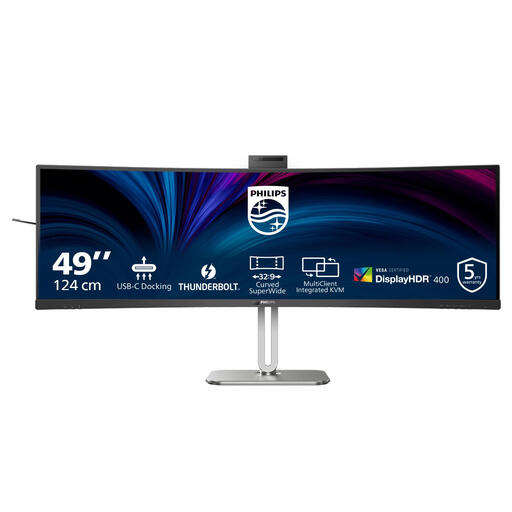 No image available
An extra-wide screen for viewing code, local documentation and calculator results side by side.
49 inches; 5120 × 1440 pixels; 32:9 aspect ratio; height-adjustable.
The stated width with the stand is 1193 mm; check the space available on your desk.
The product description mentions Thunderbolt 4 and USB-C power delivery; check compatibility with your computer.
 No image available
A portable second screen for viewing code and documentation in a taller 16:10 layout.
16 inches; 2560 × 1600 pixels; IPS; built-in stand; USB-C and HDMI connections.
Check that the connections are compatible with the laptop or computer you want to use with the monitor.
 No image available
An adjustable QHD monitor for switching between code, documentation and calculator results on one screen.
27 inches; 2560 × 1440 pixels; 100 Hz; height-adjustable.
The product details list USB-C with Power Delivery up to 90 W. Display over one cable and charging depend on the connected laptop’s support and power requirements.
 No image available
A wide-screen layout for arranging your editor, documentation and calculator results side by side.
34 inches; 3440 × 1440 pixels; 21:9 aspect ratio.
Check that the screen width and your preferred window layout suit your workspace.
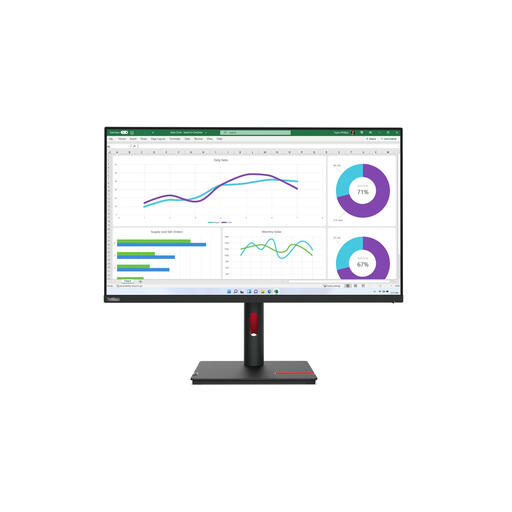 No image available
A QHD screen for viewing code, documentation and results on one monitor, with adjustable viewing height.
31.5 inches; 2560 × 1440 pixels; USB-C; up to 15.5 cm of height adjustment.
The product description states that the power adapter is not included as standard.
No. A monitor displays your computer’s image, so make sure the documentation and development tools you need are available locally on that computer. A monitor’s Ethernet port isn’t required for this.
Only if your laptop supports video over the relevant USB-C mode and can charge over USB-C at the power offered. Dell lists DisplayPort Alt Mode and Power Delivery up to 90 W for the P2725DE; compare these details with your laptop before relying on a single cable.
Requirements apply to employees’ screen work and workplace setup. The Arboportaal states that screen work must be alternated with other work or a break at regular intervals. If you work at a screen for more than 2 hours a day, the screen and keyboard must not be attached to each other; when using a laptop, a separate screen or keyboard must be available. The Dutch government outlines the employer’s duty of care to provide a safe home-working environment. These rules are not general product specifications for every private buyer.
Compare the EU energy label and the details for the exact model in EPREL. The European Commission lists an efficiency scale from A to G for electronic displays, along with additional model information in EPREL.
No. According to ACM ConsuWijzer, consumer purchases are covered by the legal guarantee even if you haven’t bought an additional warranty. If a product doesn’t perform as you could reasonably expect under normal use, the seller is responsible for an appropriate solution; the period isn’t automatically a fixed number of years for every monitor.
According to ACM ConsuWijzer, online consumer purchases generally come with a statutory cooling-off period of up to 14 days after delivery. Check the applicable exceptions and returns policy, and measure your desk beforehand to make sure the monitor will fit.