
Developer who works with lots of windows
Wants to arrange code, a live preview, results sources and documentation side by side. Microsoft Support explains how to snap windows on one screen; how much width you need depends on your own layout.


For a compact workspace, an adjustable 27-inch QHD monitor could be a good fit. If you want to see your code, preview and extra browser windows at the same time, a 34-inch ultrawide gives you more horizontal space. A 32-inch 4K monitor offers more vertical pixels than the QHD models reviewed here, but check that your computer supports the resolution you want and that text remains comfortable to read at your chosen scaling and viewing distance.
Wants to arrange code, a live preview, results sources and documentation side by side. Microsoft Support explains how to snap windows on one screen; how much width you need depends on your own layout.
Switches between code, tables and text, and prioritises readability and comfortable screen scaling over maximum width. Arboportaal notes that small text, low contrast, reflections and poor ambient lighting can all affect readability.
Spends long periods working at a screen and wants to adjust the height, lighting and position to suit their workspace. Arboportaal covers screen work and the conditions that can affect readability.
Choose this if: you have a compact desk and mainly want to place code beside a preview or documentation.
Consider: the QHD models reviewed have fewer horizontal pixels than the 34-inch ultrawide; also check that your windows fit at your chosen text scaling.
Choose this if: you often want to keep code, a preview and other browser windows side by side, and have enough desk width.
Consider: the Philips model reviewed has 3440 × 1440 pixels. That gives you more horizontal, but not more vertical, pixels than the QHD models reviewed. Philips lists a 21:9 aspect ratio for the 346E2CUAE/00.
Choose this if: you want to use multiple windows alongside a higher resolution for code, tables and previews.
Consider: check that your computer supports 4K through the connection you plan to use, and assess text size from your viewing distance. Dell specifies the P3225QE as a 31.5-inch model with 3840 × 2160 pixels.
First decide how many windows you need to see at once. Then check readability from your viewing distance, followed by the workspace setup and connections.
| What to consider | What should you check? | Who is this important for? |
|---|---|---|
| Space for windows | Compare your preferred window layout with the resolution and aspect ratio. The Dell P2725DE has 2560 × 1440 pixels; the Philips 346E2CUAE/00 has 3440 × 1440 pixels. | If you want to see code, previews and results sources at the same time without constantly switching windows, available width matters a lot. Around 36% of consumers give workspace for multiple windows their highest priority. |
| Readability of code and tables | Assess text size and scaling at your usual viewing distance; also look out for reflections and check the resolution of the exact model. | If you mainly read code and results tables, you’ll want text to be comfortable to view at your chosen scaling. Around 29% of consumers give readability their highest priority. |
| Workspace setup | Check the height adjustment, available space and potential reflections from windows or lamps. Arboportaal lists ambient lighting and reflections as factors that can affect readability. | If you work at a screen for long periods every day, an adjustable position is important so you can tailor your setup to your workspace. Around 21% of consumers give workspace comfort their highest priority. |
| Connection and laptop power | Check the video support of your computer’s port and compare your laptop’s power requirements with the Power Delivery rating of the exact model. | If you want to connect the display and possibly power your laptop through a single cable, your computer and monitor need to be compatible. Around 14% of consumers give a single-cable connection their highest priority. |
A larger screen doesn’t automatically mean more pixels both horizontally and vertically. Philips lists a resolution of 3440 × 1440 for the 34-inch 346E2CUAE/00; Dell lists 3840 × 2160 for the 31.5-inch P3225QE. Aspect ratio and vertical resolution are separate factors to consider.
Compare resolution, aspect ratio and your preferred text scaling with the windows you actually want to see at the same time.
The stated Power Delivery varies by model: Dell lists 90 W for the P2725DE, LG lists 65 W for the 27BA65QB-B and AOC lists up to 96 W for the Q27P4CV. These figures alone don’t tell you whether your laptop is compatible.
Compare your laptop’s video and power specifications with those of the exact monitor model.
Depending on your laptop, you may still need a separate power supply.
A product title and product description can contradict each other. Dell specifies 4K for the P3225QE; if in doubt, check the full model number and key specifications with the manufacturer.
Only rely on the resolution and connections once you’ve checked them against the exact model.
The Pro Plus models reviewed offer a choice between 27-inch QHD with a USB-C hub and 31.5-inch 4K with a USB-C hub.
The E Line 346E2CUAE/00 reviewed is a 34-inch ultrawide option for arranging windows side by side.
The business-focused 27BA65QB-B reviewed combines 27-inch QHD with an adjustable stand and USB-C.
The Q27P4CV reviewed is a 27-inch QHD option with USB-C docking.
These Joybuy models are suited to arranging windows side by side, from 34-inch ultrawides to extra-wide workspace monitors.
 No image available
A good fit for a workspace where you want to place code and other windows side by side.
34.1 inches, curved WQHD, USB-C hub, webcam, 100 Hz and up to 90 W Power Delivery.
USB-C charging requires a compatible laptop with USB Power Delivery and DisplayPort Alt Mode.
 No image available
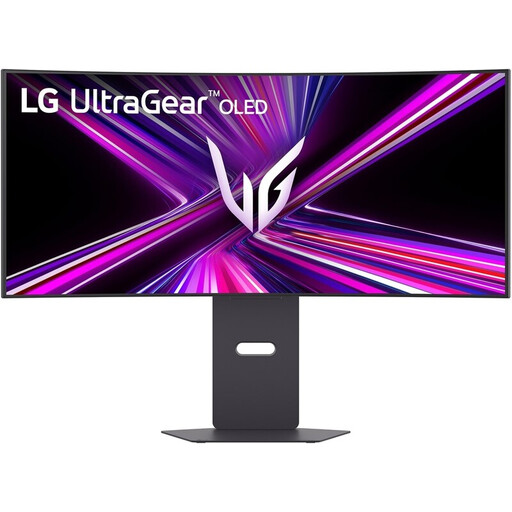
The 34-inch ultrawide format could suit you if you want to arrange multiple windows side by side.
WQHD, curved OLED screen and 240 Hz.
The USB-C port delivers up to 65 W; check that this meets your laptop’s power requirements.
 No image available
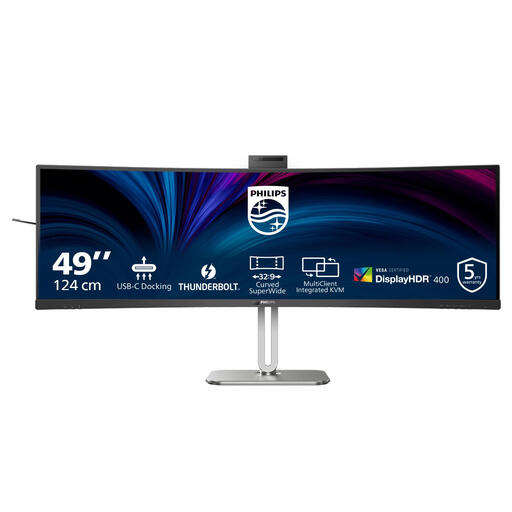
This extra-wide monitor is designed for working with lots of windows at once; measure your desk first to make sure it will fit.
49 inches and 5120 × 1440 pixels.
The product information lists a width of 1214.9 mm.
 No image available
An extra-wide screen could be a good fit if you want to arrange lots of windows in one workspace.
49 inches and 5120 × 1440 pixels.
The product information lists a width of 1193 mm; make sure you have enough desk space.
 No image available
A good fit for a workspace where you want to keep code, a preview and other windows side by side.
34 inches, 3440 × 1440 pixels and WQHD+.
The screen is curved; the product information lists a curvature of 1500R.
No, not necessarily. Windows offers layouts that let you place windows side by side or in a grid on one screen. Compare how much space your code, preview and browser windows take up at your preferred text scaling.
With Windows Snap, you can drag windows to the edges or corners of the screen, or choose a layout. Microsoft also describes FancyZones in PowerToys, which lets you create custom window zones.
That depends on your laptop and the exact monitor model. Check whether your computer’s port supports video, then compare your laptop’s power requirements with the stated Power Delivery rating. The models reviewed list different limits, including 65 W, 90 W and 96 W.
According to ACM ConsuWijzer, when you buy online from a business, you generally have a statutory 14-day cooling-off period from delivery, although there are exceptions. You’re also entitled to a legal guarantee if the product doesn’t do what you could reasonably expect under normal use; this is separate from any manufacturer’s warranty.
Arboportaal states that for employees who work at a screen for more than two hours a day, the screen and keyboard must not be attached to each other. This concerns the workplace and employees’ circumstances; it doesn’t mean every individual consumer has to choose a particular monitor model.