
Developer working with three windows
You want to see your editor, debugger and playable word game as much as possible at the same time. Think about how wide each window needs to be and how much space you have on your desk.


Start with the windows you want to use at the same time. An adjustable 27-inch QHD screen is a compact starting point, while a 34-inch ultrawide gives you more horizontal space and a 3:2 screen prioritises height. Dell, Philips and BenQ specify these different screen options. Also check that text remains readable at your preferred size, and that the video port and charging capacity suit your laptop.
You want to see your editor, debugger and playable word game as much as possible at the same time. Think about how wide each window needs to be and how much space you have on your desk.
You read a lot of code and debugger output, and want to adjust the text size and screen position to suit your workspace. A monitor is no substitute for varying your activities or taking breaks.
You want to combine your display, peripherals and, potentially, charging in your desk setup. USB-C features and charging capacity vary by model.
A good fit if: you want to try using your code and debugger side by side, but have less desk width available than a 34-inch screen needs.
Trade-off: Dell specifies a resolution of 2560 × 1440 pixels for the P2725DE. Test whether your code and preview fit side by side at your preferred text size.
A good fit if: you mainly want to arrange your code, debugger and game window side by side, and have enough desk space for the screen.
Trade-off: Philips specifies a resolution of 3440 × 1440 pixels for the 346E2CUAE/00: more horizontal pixels than the QHD models mentioned, but no extra vertical pixels.
A good fit if: you want to see more code and debugger information stacked vertically, and maximum width for separate windows is less important.
Trade-off: BenQ specifies a resolution of 3840 × 2560 pixels and a 3:2 aspect ratio for the RD280UA. Check that text remains readable at your chosen scaling setting.
| What to consider | What should you check? | Who is this most important to? |
|---|---|---|
| Room for windows | Compare the width you want for your editor, debugger and game view with the screen layout and available desk space. | If I want to see all three windows at once, I look at their readable width and the space on my desk. Around 33% of consumers prioritise room for multiple windows at once. |
| Readability and screen position | Check text scaling and how you can position the screen in your workspace. | For long coding and debugging sessions, I want text to be a readable size and the screen to be positioned to suit me. Around 27% of consumers give readability and screen position top priority. |
| Laptop connection and charging | Check whether your laptop can output video through the connection and whether the charging capacity is sufficient. | If you work from a laptop, you’ll want to know whether video and, if needed, charging work through the connection you choose. Around 20% of consumers put laptop connectivity and charging ahead of screen shape. |
| Visual checks | Check which colour features are specified for the exact model and whether they suit the way you assess your game interface. | If I also want to assess my game’s colours and interface, I look at the model’s specified colour features. Around 20% of consumers make visual checks their top priority. |
A 3440 × 1440 ultrawide screen mainly gives you extra horizontal pixels compared with the QHD models mentioned; a 3:2 screen instead prioritises height. How many windows fit comfortably also depends on text size.
Before choosing a screen shape, sketch out your editor, debugger and game window at the readable size you want to use.
Your laptop, cable and monitor must all support the required video function and the charging capacity you need.
Compare your laptop’s video mode and required charging capacity with the specifications for the exact monitor model and cable.
You may need a separate power supply, cable or compatible connection.
Philips lists a 120 Hz refresh rate for the 27E1N1600AE/00, while the Joybuy listing says 100 Hz.
If a specification difference could affect your decision, ask for clarification about the exact variant before buying.
Paid additional cover is different from your statutory rights if a product does not conform to the contract.
Read what the additional cover provides before paying for it. The Government of the Netherlands identifies the seller as your point of contact if there is a problem with a product.
The P2725DE is an example of an adjustable 27-inch QHD screen with a USB-C hub.
The 346E2CUAE/00 is an example of a 34-inch ultrawide screen; the 27E1N1600AE/00 is a separate QHD model.
The RD280UA is a 3:2 coding monitor to consider if you’re looking for more vertical space for code.
The ProArt PA278CV combines 27-inch QHD with features for those who also assess their game interface.
The 34WR55QK-B is an example of a curved 34-inch 21:9 screen with USB-C.
These monitors suit a compact QHD setup or a wider layout for your code, debugger and game view. Compare the screen shape with the space on your desk, and check that it has the connections and specifications you need.
 No image available
A 27-inch QHD format to consider for a compact workspace with code and multiple windows.
27 inches; 2560 × 1440 pixels; 16:9.
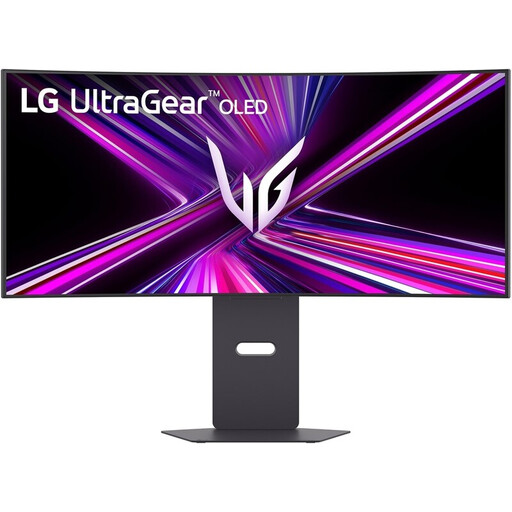 No image available
The 34-inch width may suit you if you want to arrange your code, debugger and game view side by side and have enough desk space.
34 inches; 3440 × 1440 pixels; 240 Hz.
 No image available
A wide layout may suit you if you want to position multiple windows side by side. Check that this size fits your desk first.
49 inches; 32:9; 5120 × 1440 pixels; 165 Hz; 1500R VA panel.
Before installation, check that your desk or VESA mount can support at least 15 kg. The product description recommends installation by two people.
 No image available
A 27-inch QHD format to compare if you’re looking for a compact workspace for code and windows.
27 inches; 2560 × 1440 pixels; 275 Hz; IPS.
 No image available
The wide Dual QHD layout may suit you if you want to position your code, debugger and game view side by side.
Dual QHD; VA panel; KVM switch; USB-C dock; RJ45 connection; adjustable stand.
Not for this task alone. First check whether your editor, debugger and game view fit at a readable size; the work monitors discussed here vary in screen layout and connections, among other things. Verify the refresh rate you want for the exact model.
Adjust the screen position, text size and lighting to suit your workspace, and alternate screen work with other tasks or breaks. Arboportaal outlines requirements for employees who work with display screens; these are not automatically product requirements for every individual buyer.
Only if your laptop can output video through that connection and the charging capacity is sufficient. Dell lists 90 W for the P2725DE; ASUS specifies DisplayPort Alt Mode and 65 W for the PA278CV. Also check that the cable supports the features you need.
In the Netherlands, if a product does not conform to the contract, the seller is your point of contact for a solution. The Government of the Netherlands does not specify a fixed statutory guarantee period. For online purchases from a business, you will often have a 14-day cooling-off period; check the applicable terms and exceptions.
The rules outlined by Arboportaal concern employers’ obligations and depend on the employment and working arrangements. For employees who work with display screens for more than two hours a day, Arboportaal lists, among other things, an adjustable screen and, when using a laptop, a screen and keyboard that can be used separately. This is not automatically a legal product requirement for every individual buyer.