
Developer who works with three windows
You want to keep your editor, debugger and a preview of your practice log in view at the same time, so horizontal screen space is your first consideration.


Choose an ultrawide monitor if you want to see your editor, debugger and music practice log side by side, and have enough desk space. Extra vertical screen space is a better fit if you mainly read long code files and logs, while an adjustable 27-inch monitor is worth considering if you’d prefer a less wide screen. Whichever you choose, check readability, connections and positioning at your own workstation.
You want to keep your editor, debugger and a preview of your practice log in view at the same time, so horizontal screen space is your first consideration.
You mainly lose time scrolling through code, output and error messages. Vertical space and readable text matter more to you than maximum screen width.
You’re looking for a separate monitor that fits your setup, and want to know in advance how the video connection, desk layout and any hub features will work together.
Choose this if: you regularly want to see your editor, debugger and log preview side by side, and have room for a wide monitor.
Consider: the extra horizontal space requires enough desk room and a suitable window layout.
Choose this if: you mainly want to read more lines of code or debugger output at a time.
Consider: this is a different priority from having maximum width for several windows side by side.
Choose this if: you want to consider a less wide monitor for a separate work or debugging window.
Consider: QHD has fewer horizontal pixels than the 3440 × 1440 monitors mentioned here. Also check that your computer and cable support the connection you want.
| What to consider | What should you check? | Who is this important for? |
|---|---|---|
| Space for windows | Compare the resolution with the monitor’s width, and try your preferred window layout on your own system. | If I want to see my editor, debugger and a preview of my log side by side, I focus on horizontal space. Around 36% of consumers prioritise this window layout. |
| Reading space for code and output | Compare the vertical resolution and text size with the way you use your editor and debugger. | When I read long files and logs, I want to keep more lines in view without making the text too small to read. Around 29% of consumers prioritise vertical reading space. |
| Connection to your computer | Check which display modes your computer, monitor and cable support. Don’t rely solely on the presence of USB-C. | If I want to connect my laptop to a monitor and possibly other peripherals, I check what the ports and cable actually support. Around 21% of consumers prioritise connectivity and hub use. |
| Positioning and extended use | Check adjustability, available desk space, reflections and readability in your intended setup. | With limited desk space, I want to position my monitor well and read text comfortably. Around 14% of consumers start by considering their workstation and monitor placement. |
The supported display mode may depend on the connection or hub setting you choose. For the 346B1C/00, Philips lists a resolution of 3440 × 1440 at 60 Hz over USB 3.2 and the same resolution at 100 Hz over USB 2.0.
Before buying, check separately what your laptop port, cable and monitor support for video, charging and USB peripherals.
Check whether your existing cable and connections are sufficient for the setup you want.
Screen size alone doesn’t tell you how much vertical or horizontal workspace you’ll have. The BenQ RD280U is listed as a 28-inch monitor with 3840 × 2560 pixels; the ultrawide models mentioned here have 3440 × 1440 pixels. These resolutions suit different priorities.
First decide whether you want extra vertical reading space or more horizontal room for windows. Then compare the resolution and the space available on your desk.
An anti-glare or eye-comfort feature alone can’t guarantee a comfortable experience. Arboportaal recommends, among other things, readable characters, reducing reflections, adjusting your setup appropriately and varying your activities.
Check readability and reflections in your own setup, and consider your posture and breaks too.
For consumer purchases in the Netherlands, the seller is responsible if a product breaks sooner than you could reasonably expect under normal use. ACM ConsuWijzer says the seller must put this right free of charge.
Check what additional rights an extended warranty provides; it doesn’t replace your statutory rights.
The brands mentioned offer examples of different monitor layouts. Assess the features and connections of each model rather than treating them as a general promise from the brand.
The RD programming series is worth considering if extra vertical space for code is important to you. The Dutch RD280U page lists a 28-inch screen and 3840 × 2560 pixels.
The 346B1C/00 is an example of a 34-inch ultrawide monitor with USB-C, designed for working with windows side by side.
The 34BQ77QB-B is an example of a 34-inch IPS ultrawide monitor with USB-C and an adjustable stand.
The Pro Plus P2725DE is an example of a 27-inch QHD monitor with a USB-C hub, for anyone considering a less wide screen.
This selection includes ultrawide monitors for working with windows side by side, a 27-inch screen for a separate editor or debugger, and a 27-inch 4K monitor with extra vertical resolution.
 No image available
The ultrawide layout may suit you if you want to use your editor and debugger side by side.
34 inch; WQHD, 3440 × 1440 pixels; VA; curved 1800R screen; 120 Hz; 21:9 aspect ratio.
 No image available
The 21:9 layout and 3440 × 1440 pixels are well suited to a setup with several windows side by side.
34.1 inch; curved WQHD IPS screen; 100 Hz; USB-C hub, KVM and webcam; 90 W Power Delivery. USB-C charging requires a compatible laptop with USB Power Delivery and DisplayPort Alt Mode.
 No image available
The 4K resolution may suit you if you want extra vertical space for code and logs on a 27-inch screen.
27 inch; 4K UHD, 3840 × 2160 pixels; IPS; 60 Hz; 4 ms; HDMI and DisplayPort; height-adjustable stand.
 No image available
This 27-inch monitor may suit you if you want a separate window for your editor or debugger and the flexibility to adjust the screen position.
27 inch; QHD, 2560 × 1440 pixels; Fast IPS; height-adjustable, tilt and swivel stand with pivot adjustment.
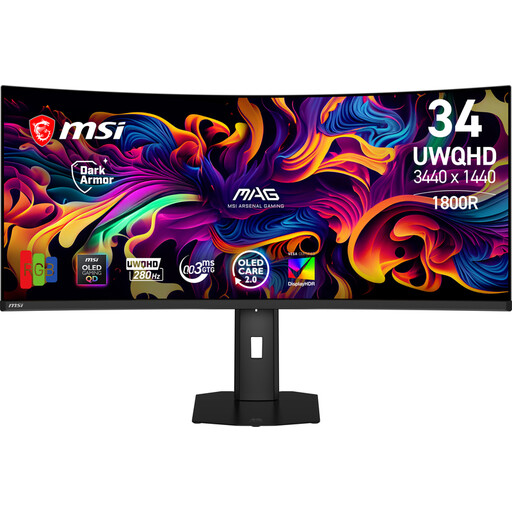 No image available
The ultrawide format may suit you if you want to see several windows side by side. The description also lists Picture-by-Picture for two video sources.
34.18 inch; QD-OLED; 3440 × 1440 pixels; 21:9; 280 Hz; USB-C; Picture-by-Picture.
No, an ultrawide monitor isn’t essential. It suits your way of working if you value having several windows side by side. If you mainly read long code files and logs, extra vertical resolution may be a better fit. Try the layout on your own computer.
Make sure characters are easy to read, reduce reflections, adjust your workstation to suit your body, and vary your posture and screen-based tasks. Arboportaal offers this workstation advice; a monitor feature alone can’t guarantee a comfortable experience.
For consumer purchases in the Netherlands, the seller is responsible if the monitor breaks sooner than you could reasonably expect under normal use. ACM ConsuWijzer says the seller must offer a suitable solution free of charge; a commercial warranty doesn’t replace this right.
No, the screen-work regulations referred to here are aimed at employers and employees. For employees who work with screens for more than two hours a day, Arboportaal says, among other things, that the screen and keyboard must not be attached to each other. These workplace rules don’t automatically apply to personal use.
Yes. The European Commission says that computer monitors have an energy label on a scale from A to G. Compare the label and product information sheet for the specific models, rather than looking only at screen size.