
Viewing code and documentation at the same time
While programming, you keep local API documentation, code and perhaps a preview window open. The screen layout is therefore an important consideration.


Choose a 3:2 screen if you mainly want to view code and documentation stacked vertically, and an ultrawide if you want to position windows side by side and have enough desk space. A 27-inch QHD or 4K monitor is an alternative for a standard-width workspace. Also check text scaling, adjustability and, if you use a laptop, video connection compatibility and charging power.
While programming, you keep local API documentation, code and perhaps a preview window open. The screen layout is therefore an important consideration.
You spend long periods reading code and documentation, and want to assess both text clarity and the adjustment options available for your workspace.
You’re looking for an external screen with a video connection that works with your laptop, and perhaps charging through the same USB-C connection if both devices support it.
Start with how you want to arrange your code, documentation and any preview windows. Then assess text clarity, how the monitor will fit on your desk and which connections your computer supports.
| What to consider | What to look for | Who should consider this? |
|---|---|---|
| Code and documentation side by side | Compare the aspect ratio, resolution and external dimensions with your preferred window layout and the space available on your desk. | If you want to keep code, local documentation and perhaps an app preview open at the same time, how the screen space is divided is a major factor. Around 36% of consumers prioritise window layout above all else. |
| Text readability | Compare the resolution and screen size, and assess whether the scaling setting works comfortably at your viewing distance. | If you read lots of lines of code and reference material, you’ll want to know how the text will look in your workspace. Around 29% of consumers prioritise readable text. |
| An adjustable workspace | Check the height adjustment, tilt, any pivot option, desk space and the position of light sources. | If you want to set up the screen to suit your desk and posture, the adjustment options and available space are important considerations. Around 21% of consumers prioritise these factors most. |
| Laptop connection | Check the video support offered by the laptop and monitor, the charging power required and the connections for peripherals. | If you want to connect your laptop with as few separate cables as possible, check that the video and charging requirements are supported by your chosen USB-C connection. Around 14% of consumers prioritise laptop docking. |
A 3:2 screen and a 21:9 screen divide the workspace differently. A similar diagonal measurement won’t tell you how code, documentation and a preview window will fit together.
Plan your preferred window layout first, then compare the aspect ratio, resolution and external dimensions.
A layout that doesn’t suit your needs may mean you can use fewer windows at once. Also check that the monitor will fit on your desk.
A monitor may list its charging power, but your laptop also needs to support video through the chosen connection, and the charging power must be suitable for your laptop.
Compare the specifications of both devices and check which cables are included before you buy.
Depending on your equipment, you may need a separate charger, cable or video connection.
According to ACM ConsuWijzer, your statutory guarantee applies in addition to any warranty offered by the seller or manufacturer.
Keep your proof of purchase and contact the seller if you think a product may be faulty.
The RD280U is a 3:2 monitor for programmers looking for relatively more vertical screen space.
The Pro Plus P2725DE is a 27-inch QHD work monitor with a USB-C hub for a compact set-up.
The 27UP850K-W is a 27-inch 4K monitor for anyone looking for high resolution on a standard-width screen.
The 346E2CUAE/00 is an ultrawide for side-by-side windows; the 27B2G5601/00 is a 27-inch QHD model with USB-C docking.
The ViewFinity S6 S60UD, model LS27D600UAUXEN, is a 27-inch QHD work monitor with USB-C.
These product picks focus on ultrawide screens for anyone who wants to position code, offline documentation and perhaps a preview window side by side.
 No image available
An option if you want to arrange code and documentation side by side and are considering a laptop set-up with a single connection.
34 inches; 3440 × 1440 pixels; height adjustment up to 18 cm; Thunderbolt 4 with USB Power Delivery up to 100 W.
 No image available
Suited to a workspace where you want to view code and documentation side by side.
34 inches; 3440 × 1440 pixels; Picture-by-Picture function; the product description mentions an ergonomic stand and Reader Mode.
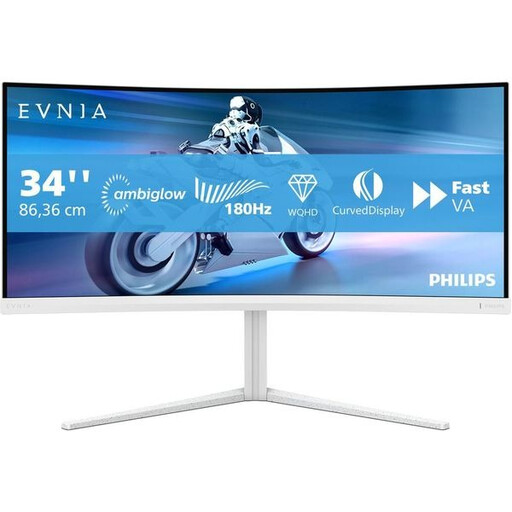 No image available
An ultrawide option if you want to arrange several windows side by side and adjust the screen to suit your workspace.
34 inches; 3440 × 1440 pixels; 21:9 ratio; curved VA panel; height, swivel and tilt adjustment.
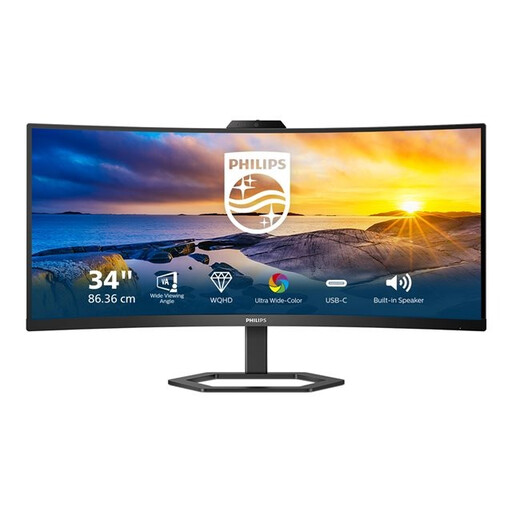 No image available
Worth considering if you work with several windows and need different video connections.
34 inches; 3440 × 1440 pixels; 21:9 ratio; 100 Hz; HDMI and DisplayPort connections; tilt adjustment.
 No image available
A very wide screen set-up to consider if you want to use several windows at once and have enough room for the installation.
49 inches; 32:9 ratio; 5120 × 1440 pixels; height-adjustable stand. The product description recommends a desk or VESA mount that can support at least 15 kg, and assembly by two people.
Choose extra width if you want to position windows side by side, and relatively more height if you mainly want to see more lines stacked vertically. The Philips 346E2CUAE/00 has a 21:9 aspect ratio and the BenQ RD280U a 3:2 ratio; also compare their external dimensions with your desk.
Assess the screen height and adjustment options, as well as the lighting and reflections in your workspace. The Dutch Arboportaal sets out specific requirements for employees who work at a screen for more than two hours a day; how these apply depends on the working situation.
Compare the EU energy label for the exact monitor model and check which cables are included and which connections your computer supports before you buy. The European Commission states that electronic displays, including computer monitors, carry an energy label.
ACM ConsuWijzer states that ordinary online consumer purchases generally come with a statutory cooling-off period of up to 14 days after delivery, subject to exceptions. The statutory guarantee is separate from any manufacturer’s warranty; contact the seller if you think a product may be faulty.