
Flashcard creator checking colours
You design flashcards using colour codes and want to assess screen colours carefully. What you see on screen is no guarantee of the final print, so check a proof print if needed.


Choose according to your main priority: colour accuracy for digital designs, legibility of small text, or easy adjustment and connection at a shared workspace. A 27-inch 4K screen has more pixels than a 27-inch QHD screen, but that alone does not prove it has better colour accuracy. No screen specification can guarantee that a print will look exactly like the image on your screen.
You design flashcards using colour codes and want to assess screen colours carefully. What you see on screen is no guarantee of the final print, so check a proof print if needed.
You share a workspace or laptop with others and want a screen that is easy to adjust and connect to the laptops in use.
You create flashcards with short words or small letters and want to check that the text remains easy to read at your chosen scale.
Choose this option: if you mainly assess the colours and layout of digital flashcards. BenQ and ASUS list the models mentioned as 27-inch QHD screens with 100% sRGB.
Bear in mind: QHD here means 2560 × 1440 pixels, not 4K. Manufacturer specifications are not measurements of your individual unit or proof of print colour accuracy.
Choose this option: if you view lots of small text or several flashcards side by side, and your computer supports 4K. Dell and LG list the models mentioned as having 3840 × 2160 pixels.
Bear in mind: check text scaling, connections and desk space too. The higher resolution alone does not prove greater colour accuracy.
Choose this option: if laptops are regularly swapped and you want to consider a single-cable connection. Philips lists USB-C for video, data and charging a compatible device.
Bear in mind: check that every laptop’s USB-C port supports video and that its power requirements are met. The Philips specifications mentioned do not prove that it has the same colour calibration as the design models.
| Consideration | What should you check? | Who is this important for? |
|---|---|---|
| Colour and design checks | Compare the sRGB mode and calibration details for the exact model. If you are printing, also produce a proof print. | Anyone checking colour codes on digital flashcards needs to be able to assess screen colour and print separately. Around 33% of consumers put colour accuracy first. |
| Adjustment and connections | Check the adjustment options, space for the stand, and video and charging support for every laptop. | Anyone sharing a desk and laptop wants to be able to adjust the screen for different users and connections. Around 27% of consumers prioritise a shared workspace. |
| Small text and details | View flashcards at a comfortable text scale and consider the size at which you will use or print them. | Anyone assessing small words or several flashcards at once needs to know whether the text remains comfortable to read at their chosen scale. Around 27% of consumers give text detail top priority. |
| Features and purchase cost | Compare the current total price and consider which features you actually need. | If you make simple flashcards and want to avoid paying for features you will not use, first decide which functions you need. Around 13% of consumers prioritise purchase cost. |
Listed screen colours do not tell you how a particular printer, paper type or print setting will reproduce your design.
Assess colour using a suitable screen mode and check printed work with a proof print too.
A proof print may take extra time and materials.
What it can do also depends on the laptop, the cable and the power output of the exact monitor model.
Before buying, check that each laptop supports video and compare its power requirements with the monitor specifications.
Depending on your devices, you may need a different cable, an adapter or a separate laptop charger.
Adjustability, reflections and legibility matter as well as pixel count, especially when several people use the same space.
Check the available desk space, adjustment options and legibility for the intended users.
You may need a different monitor arm or to adapt the workspace.
The DesignVue PD2705Q is a 27-inch QHD model for anyone comparing colour reproduction and adjustability.
The ProArt PA278CV is a 27-inch QHD model with stated colour features and an adjustable stand.
The Pro Plus P2725QE is a 27-inch 4K model with USB-C power delivery and height adjustment.
The UltraFine 27UP850K-W is a 27-inch 4K model with USB-C and an adjustable stand.
The 27E1N5600AE/00 is a 27-inch QHD model to consider if connecting a laptop via USB-C is important.
These product picks are for viewing flashcards and layouts on different screen sizes, from QHD to 4K and ultrawide. Check that the resolution, text scaling and connections suit your computer and shared workspace.
 No image available
Could suit you if you want to view flashcards on a 27-inch QHD screen. Check the text scaling and whether the gaming-focused specifications suit your needs.
27 inches; QHD, 2560 × 1440 pixels; Rapid IPS; 200 Hz.
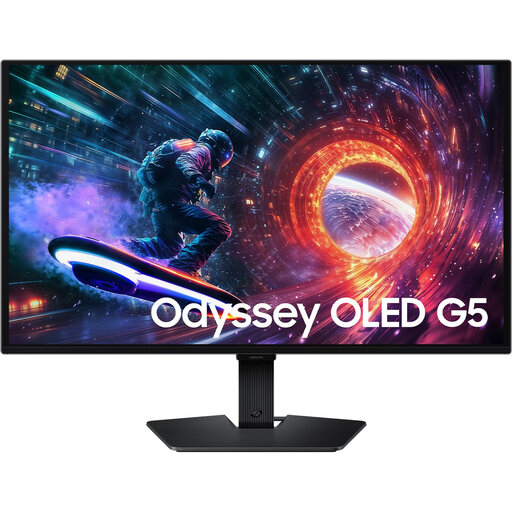 No image available
Could suit you if you view flashcards on a 27-inch QHD screen. Check whether the tilt adjustment is enough for the shared viewing position.
27 inches; Quad HD; OLED; 180 Hz; tilt adjustment.
 No image available
Could suit you if you want to compare a 27-inch QHD screen for viewing flashcards. Check your computer’s connections and how legible the text is at your chosen scale.
27 inches; 2560 × 1440 pixels; 180 Hz; 2 HDMI 2.0 ports and 1 DisplayPort 1.4 port.
 No image available
Could suit you if you want to view fine text and details on a 27-inch 4K screen. Also check your preferred text scale and computer connection.
27 inches; 4K, 3840 × 2160 pixels; IPS.
 No image available
Could suit you if you want to view a wide layout side by side. Check beforehand that it will fit on the shared desk.
49 inches; curved 32:9 screen; DQHD, 5120 × 1440 pixels; height adjustment.
No. Start by checking legibility at your chosen text scale and the size at which you use the flashcards. The 27-inch 4K models mentioned have 3840 × 2160 pixels, while the QHD models mentioned have 2560 × 1440 pixels. Resolution alone does not determine how legible your design will be.
No. A USB-C port on the monitor does not guarantee this on its own. Check that the laptop supports video over USB-C, which cable is suitable and whether the power output of the exact monitor model is sufficient.
Readjust the screen for each user and consider legibility, reflections and lighting. Arboportaal identifies symbols that are too small, reflections and poor ambient lighting as factors that can reduce legibility. An adjustable stand can help, but it does not guarantee that you will avoid discomfort.
According to ACM ConsuWijzer, the seller must put a faulty product right, for example by repairing or replacing it, or refunding you, depending on the circumstances. Online purchases usually come with a statutory cooling-off period of up to 14 days after delivery, subject to applicable exceptions.
Yes. Dutch health and safety regulations on display screen work apply to employers. Arboportaal explains, among other things, that if someone works at a screen for more than two hours a day, the screen and keyboard must not be attached to each other. This is not a general purchasing requirement for every private user.