
Filter and results tester
You want to see filter options, results and perhaps a test note all at once. Screen size, resolution and text scaling all affect how much information is comfortable to read in your chosen setup.


Choose a QHD monitor if you want to view filter options and search results at the same time; a more compact 16:10 screen may be a better fit when desk space and vertical working area matter more. At a shared desk, adjustability and laptop connections also count: for single-cable use, check whether your laptop supports video over USB-C and whether the power output is sufficient. These recommendations are based on published specifications, not independent performance tests of the models mentioned.
You want to see filter options, results and perhaps a test note all at once. Screen size, resolution and text scaling all affect how much information is comfortable to read in your chosen setup.
You share a desk with others and want to connect your laptop and peripherals quickly. Check whether the laptop supports video over USB-C and whether the power output suits your setup.
You need to be able to reposition the screen when users change. Arboportaal advises placing the screen directly in front of you, with the top just below eye level.
Start with how much information you want to see at once, then weigh that against the desk space available, how you’ll connect laptops and how easy it is to reposition the screen.
Best for: a small desk and tasks where you mainly view a filter panel or a long list of results.
The trade-off: Dell specifies a 16:10 aspect ratio and 1920 × 1200 pixels for the P2425E, fewer than QHD or 4K; check that your test windows will fit.
Best for: anyone who wants more pixels to view information side by side; Dell and Lenovo specify 2560 × 1440 pixels for the models mentioned.
The trade-off: the same resolution on a 23.8-inch and a 27-inch screen won’t produce the same physical text size. Also consider your viewing distance and preferred scaling setting.
Best for: anyone who needs lots of pixels and can adjust the display scaling on their computer.
The trade-off: check readability at your chosen scaling setting and whether 65 W is enough for your laptop. HP Store Nederland says the E27k G5 is unavailable; this says nothing about stock elsewhere.
| Consideration | What should you check? | Who should prioritise this? |
|---|---|---|
| Room to read | Compare screen size, native resolution and text size at the scaling setting you use. Dell, Lenovo and HP publish these details for the models mentioned. | If you want to see options and changing results at the same time during a filter test, room to read may be your top priority. Around 36% of consumers focus on this. |
| Switching between laptops | For each laptop, check video support over USB-C, the power output required, the monitor ports and the cable. Dell Support says DP Alt Mode or Thunderbolt is required for video over USB-C. | If you regularly switch laptops at the same desk, you’ll want to connect your display and peripherals easily. Around 29% of consumers prioritise these connection needs. |
| Repositioning the screen | Check the adjustment range of the supplied stand, and consider the screen’s position and possible reflections from the desk lighting. Arboportaal advises looking straight at the screen, with the top just below eye level. | If several people use the workspace, you’ll want to adjust the screen to suit each person. Around 21% of consumers make adjustability their top priority. |
| Compact setup | Measure the available space and compare the dimensions and stand of the specific model; also check that its resolution will suit your test windows. | If you also need room for a keyboard, notes or other users, a more compact setup could be the deciding factor. Around 14% of consumers put space requirements first. |
A USB-C connection doesn’t automatically transmit a picture to a monitor. According to Dell Support, the laptop port must support DP Alt Mode or Thunderbolt for video over USB-C.
Check the laptop port specifications and the cable before choosing a single-cable setup. If USB-C doesn’t support video, you’ll need another suitable video connection.
You may need a different video connection or a suitable cable.
A 23.8-inch QHD screen and a 24-inch WUXGA screen have a similar diagonal measurement, but differ in resolution and aspect ratio. Screen size alone doesn’t tell you how much information you can display at once.
Compare resolution and aspect ratio, then check readability at the scaling setting you plan to use.
At a shared desk, it’s important to be able to position the screen to suit you. According to the Dutch Government, an extended warranty only adds to your statutory rights if it provides additional protection.
Check the adjustment range of the exact model and read what any additional cover includes.
A suitable stand or additional cover may need to be bought separately.
Dell’s Pro Plus range includes the 16:10 P2425E USB-C hub monitor and the 23.8-inch P2425DE QHD USB-C hub monitor.
Lenovo specifies the ThinkVision T27h-30 as a 27-inch QHD office monitor with USB-C docking.
According to HP, the E27k G5 combines a 27-inch 4K screen with USB-C docking.
Philips describes the 27E1N5600AE/00 as a 27-inch QHD USB-C monitor for connecting a compatible laptop.
These models are worth considering for filtering and viewing results at a shared desk. The selection includes QHD and 4K screens, as well as models with stated features for connecting or switching between devices.
 No image available
The wide screen may suit you if you want to view several test windows side by side.
34 inches; 3440 × 1440; 21:9; Thunderbolt 4, 100 W Power Delivery and Smart KVM, according to the product description.
For single-cable use, check that the connected device is compatible with the connection and the power it requires.
 No image available
A good fit if you want to view filters and results side by side on a QHD screen.
2560 × 1440; the product description lists USB-C with 90 W Power Delivery, a USB hub and RJ45.
For USB-C video and charging, the laptop port and power output need to suit your setup.
 No image available
A good fit if you want to display several windows side by side and switch between two computers.
3440 × 1440; the product description lists USB-C with 90 W Power Delivery, RJ45 and a built-in KVM switch.
For single-cable use, your computer and cable need to be compatible with the connection and the power output required.
 No image available
A good fit if you want plenty of pixels for filter details and results.
3840 × 2160; the product description lists USB-C with up to 65 W Power Delivery and an adjustable, tilting stand.
Check that your laptop port and cable support video, and that 65 W is enough for your laptop.
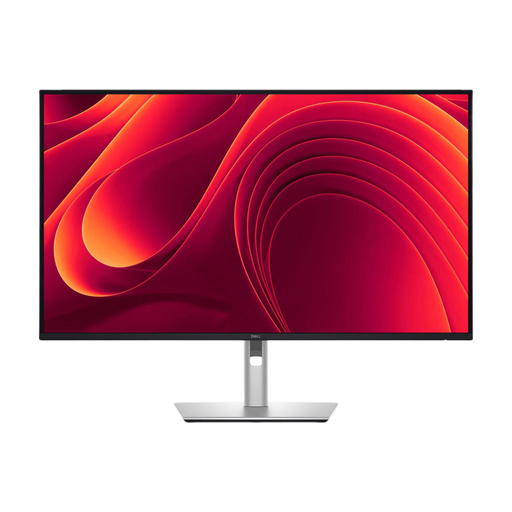 No image available
A good fit if you want to view search results and filters side by side on a larger QHD screen.
2560 × 1440; the product description lists USB-C with 90 W Power Delivery, RJ45, a USB hub and an adjustable stand.
For USB-C video and charging, the laptop port and power output need to suit your setup.
No. Check whether the laptop port supports video over DP Alt Mode or Thunderbolt, whether the cable is suitable and whether the monitor provides enough power. If the laptop’s USB-C port doesn’t support video, use another suitable video input.
Arboportaal advises placing the screen directly in front of you, with the top just below eye level, and tilting it so you’re looking straight at it. Also consider the lighting and possible reflections at your workspace.
If a product is faulty, the seller must provide a solution under the statutory guarantee, according to the Dutch Government. For a standard online purchase, ACM ConsuWijzer generally states that the cancellation period ends 14 days after delivery; check the applicable terms. The cancellation period and your rights if a product is faulty are separate matters.
For employees who work at a screen for more than 2 hours a day, Arboportaal states that the screen and keyboard must not be attached to each other. This applies to employment and is not a general product specification for every private buyer.