
Colour-critical filmmaker
You compare colour and tone in footage of the polder landscape and want to set up and calibrate your monitor for your chosen output workflow.


First, match your monitor to your output and the task you need to assess most accurately. For colour grading, the right colour mode and a workflow that supports calibration are important; for editing with visual references, resolution and usable workspace matter. Then compare the connections and any HDR requirements for each model. A wide colour gamut or HDR label alone doesn’t prove that the screen will display your entire project accurately.
You compare colour and tone in footage of the polder landscape and want to set up and calibrate your monitor for your chosen output workflow.
You view landscape details alongside visual references and an editing timeline, so resolution and the practical layout of your workspace both matter.
You edit on a laptop and want to check whether a single USB-C connection can provide the required video signal and enough power.
| What to consider | What should you look for? | Who is this most important for? |
|---|---|---|
| Colour and tone | Check the colour modes and support for calibration, and match them to the output settings in your editing software. Adobe describes Direct Rec.709 as an SDR setting. | When you’re assessing subtle differences between sky, water and land, you’ll want to match colour and tone to your output. Around 36% of consumers rank colour assessment as their top purchasing priority. |
| Detail and workspace | Compare the screen size and native resolution, and check that your software layout works comfortably with visual references and a timeline. | When you want to view visual references alongside your editing timeline, consider both detail and usable screen space. Around 29% of consumers give this their highest priority. |
| Laptop connection | Check whether your laptop supports video via the relevant USB-C port, and compare the power it needs with the specifications of the exact model. EIZO lists a maximum of 60 W for the CS2740, BenQ 90 W for the SW272U and ASUS 96 W for the PA279CRV. | If you edit on a laptop, you’ll want to know whether one connection can provide video and enough power. Around 21% of consumers prioritise the laptop connection. |
| HDR assessment | Establish whether your output is SDR or HDR. VESA distinguishes between performance levels for DisplayHDR; the label alone doesn’t show whether a screen meets your HDR assessment requirements. | If your film will be output in HDR and you need to assess the image on the monitor, check the specific HDR requirements. Around 14% of consumers rank HDR assessment as their top priority. |
Your output and display settings need to suit your SDR or wide-gamut workflow. A wider colour gamut won’t set those up for you.
Decide on your intended output before comparing colour coverage and monitor modes.
Setting up and checking colour management takes time.
VESA sets criteria for different DisplayHDR levels. The name of a level alone doesn’t show whether a screen is suitable for your specific HDR assessment task.
For HDR output, compare the performance your workflow requires, not just the label.
A USB-C port on its own doesn’t guarantee that your laptop will receive the required video signal or enough power.
Compare the video mode and power limit of the exact monitor model with your laptop’s requirements.
If the connection isn’t enough, you may need a separate laptop power supply or a different connection.
The ColorEdge CS2740 is a 4K model worth comparing for editing where adjustable colour reproduction is a priority.
BenQ says the SW272U combines 4K resolution with colour modes for Rec.709 and P3, among others.
The ProArt PA279CRV is a 27-inch 4K model worth comparing for a workspace with colour modes and a laptop connection.
The 27UP850K-W is a 27-inch 4K model with USB-C, suited to a combined editing and laptop workspace.
This selection of Joybuy products focuses on 4K monitors for viewing detailed footage and visual references while editing.
 No image available
An option to consider if you want to assess 4K landscape footage and visual references on one screen. First, check that the screen size gives you a comfortable layout in your editing software.
27 inches; 4K; IPS.
 No image available
A good fit if you want to view detailed footage and visual references on a 27-inch screen. Check that your preferred timeline and reference layout works with your software.
3840 × 2160; 60 Hz; 4 ms; HDMI; DisplayPort; height-adjustable stand.
 No image available
A 27-inch 4K option to compare if you want to view detail and visual references on the same screen while editing. Check that the connections and colour workflow suit your laptop and output.
3840 × 2160; 4K Ultra HD.
 No image available
The larger stated screen size may be useful if you want to place visual references alongside your editing tools. Check that the size suits your desk and software layout.
31.5 inches; 3840 × 2160; 4K Ultra HD; QD-OLED.
The product description notes that the QD-OLED panel is susceptible to burn-in and recommends using screen protection and varying the on-screen content.
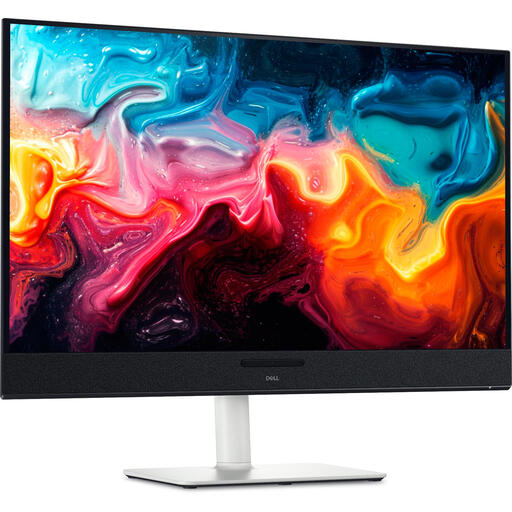 No image available
An option with a larger stated screen size if you want to view visual references and editing tools together. Bear in mind how much desk space the screen will take up.
31.6 inches; 3840 × 2160; 4K Ultra HD; QD-OLED.
No. First decide on your output and set up colour management accordingly. Adobe describes Direct Rec.709 as an SDR setting and treats wide-gamut workflows separately; a P3 coverage figure doesn’t determine your output.
Check whether your laptop supports video via the relevant USB-C connection, and compare its power requirements with the limit of the exact monitor model. EIZO lists a maximum of 60 W for the CS2740, BenQ 90 W for the SW272U and ASUS 96 W for the PA279CRV.
If consistent colour is important to your workflow, schedule regular checks and calibration. EIZO recommends regular calibration for consistent colour accuracy; this is manufacturer advice, not a legal requirement.
For a standard online consumer purchase, you generally have a statutory cooling-off period of up to 14 days after delivery; the ACM lists statutory exceptions. Under the legal guarantee, the seller is responsible for providing an appropriate solution if the product doesn’t meet the expectations you could reasonably have when used normally. ACM ConsuWijzer distinguishes between the legal guarantee and any manufacturer’s warranty.
Compare the specific performance your HDR workflow requires; a DisplayHDR label alone doesn’t prove that a screen is suitable for every HDR assessment task. VESA describes different performance levels with criteria for factors including brightness and black level.