What should you consider when choosing?
First, decide how many catalogue fields and source windows you want to see at once. Then check readability, adjustability and which connections your computer actually supports.
The model differences outlined here are based on specifications from Dell, LG, Philips and Lenovo. The Arboportaal describes points to consider when working with a screen for long periods; this alone does not determine which screen will be comfortable for every user.
| What to consider |
What to look for |
Who should pay particular attention? |
| Catalogue fields on screen |
Compare the resolution, screen size and text scaling with the windows you use at the same time. |
If you want to open a film list with custom fields alongside source material, available screen space matters; around 36% of consumers prioritise seeing lots of catalogue fields. |
| Readability and adjustability |
Check the height adjustment, tilt, desk depth and readability at your preferred text size. |
If you enter information regularly, you’ll want to adjust the screen to suit your workspace and read text comfortably. Around 29% of consumers prioritise long-term reading and adjustment comfort; the Arboportaal describes static strain associated with working at a screen for long periods. |
| Connecting a laptop |
Check video support on your laptop and cable, the charging capacity and the monitor port’s exact function. |
If you use a laptop and want to handle video, peripherals or charging through a single connection, check each function separately. Around 21% of consumers prioritise laptop connectivity. |
| Compact setup |
Measure the available space and compare the screen size, resolution and connections you need. |
If you mainly use one catalogue window and have limited desk space, a more compact monitor may be enough. Around 14% of consumers prioritise a simple, compact setup. |
Joybuy monitors for catalogue work
This selection of Joybuy products includes monitors suited to film cataloguing, with models for anyone looking for enough screen space to view catalogue fields and source material side by side.
 No image available
LG UltraGear 27GX704A-B.AEU, 27-inch OLED QHD monitor
If you want to view catalogue fields and source material side by side, you can take the listed 27-inch screen size and 2560 × 1440 QHD resolution into account. The product name also mentions OLED and 240 Hz.
View at Joybuy
 No image available
KTC M27P6 27-inch 4K MiniLED monitor, White
If you want to arrange several catalogue windows on screen, you can compare the listed 4K UHD mode at 160 Hz with the FHD mode at 320 Hz. The product name also mentions Type-C 65 W; check separately which connection features your laptop supports.
View at Joybuy
 No image available
MSI MAG 272QP QD-OLED X24, 26.5-inch WQHD monitor
For anyone who wants to display catalogue details alongside source material, the product name lists a WQHD resolution of 2560 × 1440 on a 26.5-inch screen. It also mentions QD-OLED, 240 Hz and USB Type-C, but does not specify a charging capacity.
View at Joybuy
 No image available
ASUS ProArt PA278CV, 27-inch QHD monitor
If you want to view custom fields and source material at the same time, you can take the listed 27-inch screen size and 2560 × 1440 pixels into account. The product description mentions a stand with height and tilt adjustment.
View at Joybuy
 No image available
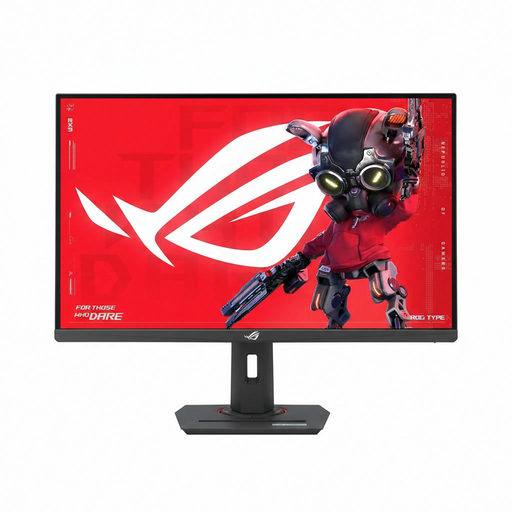
ASUS ROG Strix XG27ACMS, 27-inch QHD monitor
For a catalogue with several windows, the product name lists a 27-inch screen and 2560 × 1440 pixels. The product description mentions height adjustment, swivel and tilt; check that the stand will fit on your desk.
View at Joybuy
Frequently asked questions
Do I need a special monitor for custom film fields?
No. Custom fields are part of the catalogue software, not a specific monitor feature. For example, Data Crow describes customisable modules for films. Choose a screen based on how many fields and source windows you want to see at the same time.
Can any USB-C monitor connect to and charge my laptop with one cable?
No, it depends on the features of the monitor, laptop and cable. Dell describes the P2425’s USB-C port as a downstream data port, while LG lists up to 65 W Power Delivery for the 27BA65QB-B. Also check your laptop’s video support and charging capacity.
What should I consider when setting up and using a monitor?
Check that the stand fits on your desk, choose a text size that’s easy to read and see what adjustment options the model offers. For prolonged screen use, the Arboportaal describes issues including static strain on the neck and shoulders; a monitor feature alone is no proof of a health benefit.
What are my rights when buying a monitor online in the Netherlands?
For a standard online consumer purchase, you generally have a statutory cooling-off period of up to 14 days after delivery; check for any legal exceptions and the returns policy. You also have statutory rights: if the product does not meet what you could reasonably expect under normal use, the retailer is responsible for providing an appropriate solution. As ACM ConsuWijzer explains, there is no single fixed two-year warranty period that automatically applies to every product in the Netherlands.
Do the rules for working with screens also apply when I’m cataloguing my film collection for personal use?
Employer obligations do not automatically apply to personal use. The Arboportaal describes employers’ obligations and workplace requirements; this information does not establish a minimum screen size for a hobby setup.


