What should you look for when choosing?
First, measure the space on your desk. Then decide whether screen detail, colour management, laptop connections or the printer’s file requirements will be the deciding factor.
| Concern |
What should you look for? |
Who should prioritise this? |
| Will the monitor fit on my desk? |
Measure the available width and depth, then compare them with the dimensions including the stand. Check any monitor arm separately. |
I want to see my poster and tools without losing space for my keyboard and sketches. Around 25% of consumers put desk space first. |
| Are the screen colours suitable? |
Compare the stated colour gamut and colour mode of the exact model. Separately consider whether you need a managed print workflow. |
For a digital poster, I want to judge colours within the colour space I’m designing in, without assuming that a specification predicts the printed result. Around 25% of consumers prioritise screen colour. |
| Is there enough room for text and layout? |
Compare the resolution and aspect ratio of the exact model. Also check whether text remains readable at the size you want. |
When my poster text and tool panels are open at the same time, I want to see both clearly. Around 20% of consumers put layout detail first. |
| Will the monitor work with my laptop? |
Check the video connection on both devices. If you also want power over the same cable, check that both the laptop and monitor support this and that the charging capacity is suitable. |
When I’m designing on a laptop, I want to know whether the video connection will work and whether one cable can also supply power. Around 15% of consumers start with the laptop connection. |
| Is the poster intended for print? |
Ask the printer which file format and colour profile it requires before choosing a specialist screen. |
If a printer is producing the poster, I want to know the file requirements before settling on my colour workflow. Around 15% of consumers put print requirements first. |
Joybuy monitors for poster design
This selection of Joybuy products includes portable and desktop monitors for poster design, with a range of screen sizes and resolutions.
 Image unavailable
UPERFECT 16-inch 2K 144Hz portable monitor, 2560 × 1600
A portable option for anyone looking for a compact screen with extra vertical workspace for a small work area.
The product name lists a 16-inch screen, a 16:10 aspect ratio, 2560 × 1600 pixels, a QLED screen and VESA compatibility.
View at Joybuy
 Image unavailable
ARZOPA Z1RC 16-inch 2.5K portable monitor
A portable monitor to consider if you’re looking for a compact screen with extra vertical space for a poster layout.
The product name lists a 16-inch screen, 2560 × 1600 pixels, 16:10, IPS and 123% sRGB. This colour specification alone doesn’t prove colour accuracy.
View at Joybuy
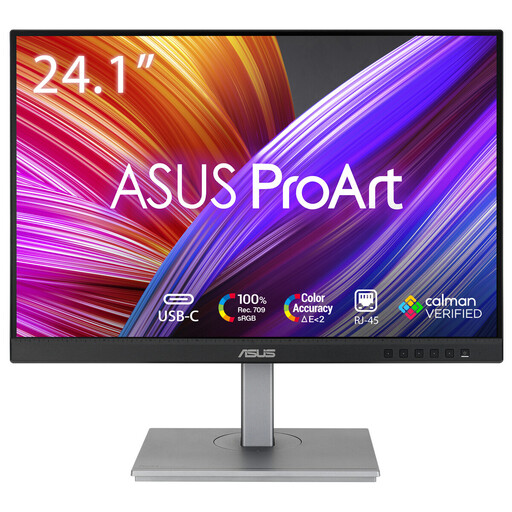 Image unavailable
ASUS ProArt PA248CNV, 24.1 inches, 1920 × 1200 pixels
A desktop option for anyone looking for a 24.1-inch screen with 1920 × 1200 pixels for poster work.
View at Joybuy
 Image unavailable
Dell Pro Plus P2425DE QHD monitor
A QHD option to compare if a USB-C hub suits your laptop setup. Dell sells the P2425DE separately from the P2425D.
The product name lists 2560 × 1440 pixels. Check that the connections on this version are compatible with your laptop.
View at Joybuy
 Image unavailable
Dell Pro Plus P2425D QHD monitor
A compact QHD option to consider if poster text and layout detail are important.
Dell lists the P2425D as having a 23.8-inch screen and a resolution of 2560 × 1440 pixels. This is not the separate P2425DE version with a USB-C hub.
View at Joybuy
Frequently asked questions
Is 4K essential for designing a festival poster?
No, the print workflow described doesn’t require 4K as a general rule. Choose a resolution based on the screen size, readability and the space available on your desk; QHD and 1920 × 1200 each involve different trade-offs.
How can you stop your printed poster from coming out in different colours?
Ask the printer which file format and colour profile it needs. Adobe explains that, depending on the workflow, this could be RGB with an embedded profile, CMYK or PDF/X. When converting to CMYK, some saturated colours may shift.
Can any USB-C monitor connect to and charge your laptop with one cable?
No. Check video signal and power support separately on both devices. BenQ lists USB-C with DisplayPort Alt Mode and 65 W Power Delivery for the PD2506Q. Whether that works with your laptop depends on its capabilities and power requirements.
Is a CE logo on a product listing enough to establish product safety?
No, a logo on a listing doesn’t establish that the version being offered meets all applicable requirements. The European Commission explains that CE marking is only compulsory for products covered by harmonised EU rules, and that the manufacturer is responsible for conformity. Check the product identity and the applicable conformity information for the version in question.
What rights do you have when you buy a monitor online in the Netherlands?
ACM ConsuWijzer states that ordinary online purchases generally come with a statutory 14-day cooling-off period after delivery, subject to exceptions. You also have a statutory guarantee that a product will meet what you could reasonably expect under normal use. This is separate from any voluntary manufacturer’s warranty.


