
Colour-critical catalogue creator
You assess photos and print proofs, and want to align colour management, calibration and a stable viewing environment.


If you regularly assess photos and print proofs for your catalogue, start by choosing a monitor that suits your calibration and colour workflow; a wide stated colour gamut alone does not guarantee a match with the printed result. For page layout and working from home, sharpness, an adjustable stand and the right laptop connection may matter more. Match your workflow to the printer’s output profile and compare the screen with the proof under consistent lighting.
You assess photos and print proofs, and want to align colour management, calibration and a stable viewing environment.
You spend a lot of time on page layout, text and image selection, so sharpness and an adjustable workspace are important.
You create your catalogue alongside other work and want to weigh easy connectivity against the cost and effort of a more advanced colour workflow.
Choose this if: you regularly assess photos and colour proofs for print, and want to schedule calibration on the monitor itself.
Bear in mind: a sensor does not replace the correct output profile, suitable proofs or controlled viewing light.
Choose this if: you edit colour-critical photos but do not need a built-in calibration sensor.
Bear in mind: calibration features and the equipment required vary by model; stated coverage does not guarantee a match with print.
Choose this if: you mainly assess pages and images alongside other programmes, and want to connect your laptop easily.
Bear in mind: check laptop compatibility; DCI-P3 is not the same as Adobe RGB.
For consumers preparing an exhibition catalogue at home, the main choice depends on what matters most: print and photo colour, room for layout work, an easy-to-use laptop setup or a less demanding colour workflow.
| Consideration | What to look for when buying | Who is this important for? |
|---|---|---|
| Colour for print | Compare calibration options and the stated colour gamut of the exact model; ask the printer about the output profile and proof. | If I assess photos and print proofs, I want to understand how screen settings and lighting relate to my print workflow. Around 36% of consumers prioritise print and photo colour. |
| Sharpness and space for layout | Compare screen size, resolution and adjustability with the space available on your desk. | If I spend a long time laying out pages, text and images, I want to assess the elements comfortably on screen. Around 29% of consumers prioritise space for layout and readability. |
| Connecting a laptop | Check whether your laptop supports video over USB-C, how much power it needs and which cable is required. | If I combine catalogue work with other laptop tasks, I want a connection that suits my device. Around 21% of consumers prioritise an easy-to-use laptop setup. |
| Cost and effort of colour management | Decide whether to include measuring equipment, calibration software and proofs in your workflow; then compare the monitor features that matter. | If I mainly work on layouts and rarely assess print proofs, I want to know which steps my colour workflow really needs. Around 14% of consumers prioritise keeping investment and workflow effort to a minimum. |
Resolution and HDR describe different features from a colour-managed comparison for your chosen print process.
Start by defining your print workflow and comparing under controlled lighting; then use screen specifications to shortlist models.
Manufacturers quote different colour spaces for monitors. A percentage without the name of the colour space is not a useful comparison.
For each model, note both the stated percentage and the corresponding colour space.
USB-C will only provide video and power as intended if the laptop and connection are compatible; calibration support does not automatically mean all the necessary equipment is included.
Check your laptop’s requirements, the cable you need and what is included with the exact model.
The ColorEdge CG2700X is designed for colour-critical print workflows, with scheduled self-calibration.
The Creative Pro SW272U is designed for photo and catalogue work where wide colour coverage and hardware calibration are desirable.
The ProArt PA279CRV is a 27-inch 4K model for design work where stated Adobe RGB coverage is a consideration.
The UltraFine 27UP850K-W is designed for layout and creative work from home, with USB-C and an adjustable stand.
These monitors offer a range of options for page and image layout, screen space and laptop connectivity. If print colour accuracy is your top priority, compare the stated colour gamut and calibration features of the exact model with your print workflow.
 No image available
The stated 27-inch 4K resolution is well suited to detailed work on pages and images.
27 inches, 4K and IPS.
 No image available
The ultrawide screen layout may suit design work where pages and images sit side by side.
34 inches, 3440 × 1440 pixels and 99% sRGB. The description mentions a USB-C hub with power delivery up to 90 W and a KVM function.
 No image available
The 27-inch 4K specification is worth considering if you want to assess detail in pages and images.
3840 × 2160 pixels, IPS and a height-adjustable stand. The description states support for up to 1.07 billion colours.
 No image available
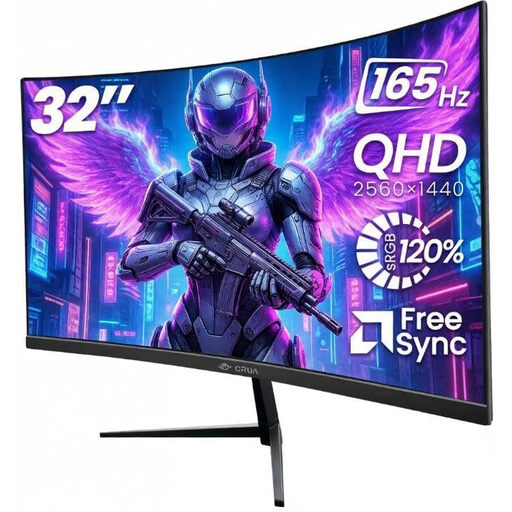
The stated screen size and resolution may be useful if you want to view several page elements side by side.
32 inches, 2560 × 1440 pixels, 165 Hz and 100% sRGB. The description also mentions a tiltable stand and 100 × 100 mm VESA mounting. sRGB is not the same as Adobe RGB.
 No image available
This model may suit colour-critical image work; check that its stated colour gamut and calibration features fit your print workflow.
3840 × 2160 pixels. The description lists factory calibration, 94% Adobe RGB, 97% DCI-P3 and USB-C power delivery up to 98 W. Check that your laptop is compatible with the USB-C connection.
No. A wide stated colour gamut alone does not tell you what the print will look like. Adobe describes calibration, ambient light and paper as parts of a print workflow. Compare the screen with a proof under consistent lighting and use the appropriate output profile.
Use a calibrated screen and stable lighting that does not shine directly onto it. Adobe advises against changing colour or brightness settings without recalibrating; calibrate again if the settings or lighting change significantly.
For computer monitors covered by the relevant EU rules, the energy label runs from A to G; the European Commission sets out the rules for electronic displays. If you buy as a consumer, your statutory guarantee is separate from any manufacturer’s warranty. ACM ConsuWijzer states that the seller is your point of contact if a product is faulty.
For distance purchases, consumers usually have a cooling-off period of up to 14 days after delivery, but there are legal exceptions. The Netherlands Authority for Consumers and Markets (Autoriteit Consument & Markt) explains that consumer protection does not automatically apply if you use an agreement mainly or exclusively for business; it depends on the circumstances.