
Writer working with revision notes
You want to read a draft and comments side by side, so you’re considering screen size, aspect ratio and window layout. Dell and BenQ describe different screen formats for their models.


If you mainly work with a draft alongside revision notes, start by choosing a screen size and layout that let you read both documents comfortably on your desk. A 27-inch QHD screen and a taller 3:2 screen offer different ways to arrange text and notes. For longer sessions, also consider adjustability and glare. If you often look at nature photography too, consider 4K, and if you want to connect everything with a single cable, always check that the monitor and laptop ports are compatible.
You want to read a draft and comments side by side, so you’re considering screen size, aspect ratio and window layout. Dell and BenQ describe different screen formats for their models.
You want to adjust the screen position to suit your workspace, so you’re considering adjustability and glare. The Dutch Arboportaal treats screen-based work as a question of the whole workstation; a monitor alone cannot guarantee a comfortable, pain-free experience.
You look at photos or illustrations as well as text, so you’re also considering screen detail and connectivity. LG describes the resolution and stand of the 27UP850K-W, while EIZO lists the connectivity details for the EV2740X.
Choose this option if: you want a conventional widescreen for viewing text and notes side by side. Dell and Philips list 27-inch QHD models.
Consider: the usable space also depends on font size and window layout; QHD is not the same as 4K.
Choose this option if: you’d prefer extra vertical space for continuous text and margin notes. BenQ lists the RD280U as having a 28.2-inch 3:2 panel with 3840 × 2560 pixels.
Consider: extra height won’t necessarily provide the width your window layout needs; no writing benefit has been demonstrated.
Choose this option if: you want to view photos or illustrations in detail as well as write. LG describes the 27UP850K-W as a 27-inch 4K model.
Consider: check that your preferred text scaling leaves enough room for both documents; more pixels don’t guarantee a more comfortable writing session.
| What to consider | What to look for | Who it matters to |
|---|---|---|
| Draft and revision notes | Test your usual documents side by side at your preferred text size; compare screen size, aspect ratio and resolution. | I want to read my draft and comments at the same time without making the text smaller than is comfortable. Around 40% of consumers prioritise having room for multiple windows. |
| Screen position | Check height adjustment and glare in your own setup; consider the whole workstation. | During long writing sessions, I want to be able to adjust the screen position to suit my workspace. Around 30% of consumers prioritise adjustability. |
| Detail for nature photography | Compare the resolution of the exact model and assess text scaling alongside your usual image-viewing setup. | When selecting nature photography while writing, I want to assess the image and text display together. Around 20% of consumers prioritise image detail. |
| Laptop connection | Check video support and the power requirements of your laptop and the exact monitor model. | I want to know whether my laptop supports the connection I need before choosing a single-cable setup. Around 10% of consumers prioritise a suitable laptop connection. |
A widescreen QHD monitor and a taller 3:2 screen support different window layouts. More pixels don’t guarantee that two documents will fit at your preferred font size.
Try your draft and revision notes at your preferred text size before choosing a screen format.
The monitor’s port capabilities must match those of your laptop. Depending on the devices, you may also need a different connection method or a separate laptop power supply.
Compare the specifications of both devices, including video support and power requirements.
The whole workstation remains important when you spend long periods working at a screen; a monitor feature does not prove a health benefit.
Assess adjustability and glare in your own setup, and don’t treat manufacturers’ comfort claims as proven effects.
Dell describes the P2725DE as a 27-inch QHD USB-C hub monitor, making it an option to consider if you’re looking for a wide workspace.
BenQ lists the RD280U as having a 28.2-inch 3:2 panel with 3840 × 2560 pixels; its unusual format is an option for page-focused work.
Philips describes the 27B2N3500J/00 as a 27-inch QHD monitor with SmartErgoBase.
LG describes the 27UP850K-W as a 27-inch 4K IPS monitor with a stand that adjusts for height, tilt and pivot.
EIZO describes the EV2740X as a 27-inch 4K office monitor with USB-C docking and a Paper display mode.
The options below range from 23.8-inch Full HD to 27-inch QHD and 4K models, as well as a 34-inch model. Compare them based on the screen space you need for your draft, revision notes and images.
 No image available
An option if you’re looking for 27-inch 4K viewing for text and nature photography.
27-inch IPS screen; 3840 × 2160; 60 Hz; 4 ms; height-adjustable stand.
 No image available
A 27-inch 4K option if you want to view nature photography as well as text.
IPS; 3840 × 2160; 120 Hz; PIP and PBP; USB-C 90 W PD.
 No image available
A conventional widescreen 27-inch QHD display if you want to place text and revision notes side by side; the layout also depends on your chosen text scaling.
IPS; 2560 × 1440; HDMI and DisplayPort.
 No image available
A larger screen to consider if you want to work with your draft and comments side by side; check that a 34-inch display will fit on your desk.
3440 × 1440 pixels; Wide Quad HD+; USB-C; MultiView; adjustable stand.
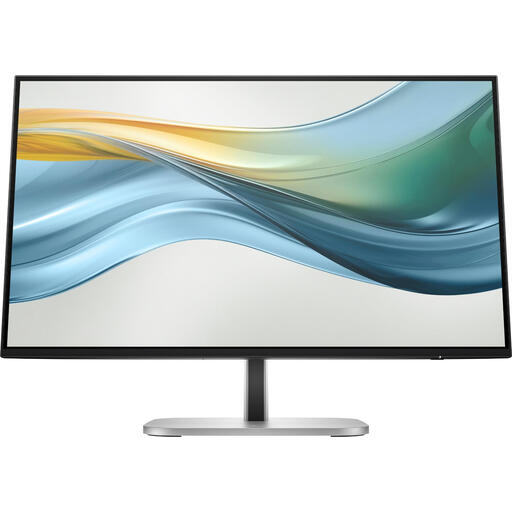 No image available
A more compact option if you’re looking for a smaller monitor for writing.
23.8-inch Full HD IPS screen; USB-C with up to 100 W power delivery. The product information states that a charger is not included.
A 27-inch QHD screen gives you a conventional widescreen workspace, while the BenQ RD280U has a taller 3:2 format. Choose based on your window layout and a readable text size, not just the total number of pixels.
Check that you can position the screen comfortably in your workspace and reduce glare. The Dutch Arboportaal discusses screen-based work as a workstation issue; a particular monitor cannot guarantee a comfortable, pain-free experience.
You can’t tell just by checking for a USB-C port. Check whether your laptop supports video through that connection and whether the exact monitor model’s power delivery is suitable for your laptop.
Not necessarily. Choose 4K if you want to consider the extra image resolution for your photos. Also check that text scaling on your chosen screen leaves enough room for your draft and revision notes.