
Developer who enlarges text
You build or review the festival website with larger text and want it to remain legible while you switch between work windows.


Start by choosing a screen on which text is comfortable to read at the scale you need, and which you can position comfortably. A 27-inch 4K monitor offers more pixel detail, but enlarged text takes up workspace; QHD may be enough if it leaves you with sufficient room at your chosen scale. Also check the colour requirements for festival imagery separately, and make sure the connections are compatible with your computer.
You build or review the festival website with larger text and want it to remain legible while you switch between work windows.
As well as the website, you review posters, photos or video, and want to weigh image specifications separately from text legibility.
You connect a laptop for extended website work and want to check the screen position, connections and whether it can be powered through a single cable.
First compare legibility at your preferred text and browser zoom levels, then consider positioning, image review and connections.
The percentages below show how the main priority in this choice might vary: legibility when text is enlarged, an adjustable workspace, image review or the laptop connection.
| What to consider | What to look for | Who it matters more to |
|---|---|---|
| Legibility when text is enlarged | Compare the screen using your own system and browser scaling settings. Also test text enlargement and how the site reflows. | If I build the festival website with larger text, I want to know how much workspace remains at my chosen scale; around 36% of consumers prioritise legibility when text is enlarged. |
| Working posture | Check the adjustment options on the exact model and make sure the screen will fit on your desk. | For extended development work, I want to position the screen comfortably and minimise distracting reflections; around 29% of consumers prioritise an adjustable workspace. |
| Reviewing festival imagery | Decide whether you will simply view colours or assess them too; check the model’s stated colour coverage and calibration options. | If I assess posters, photos or videos in detail, I want to be able to take relevant colour specifications into account; around 21% of consumers prioritise image and colour review. |
| Connecting a laptop | Check video output, connections, the required charging power and the cable for both devices. | If I connect my laptop at a permanent workspace, I want to know whether the chosen connection supports video and, if needed, charging; around 14% of consumers prioritise the laptop connection. |
A high resolution does not automatically make text larger. In Windows, adjust the text or display scaling and review the site in your browser too. Microsoft Support notes that using a resolution below the native resolution can make text less sharp. A monitor also cannot replace testing the web content itself: W3C describes text enlargement up to 200% in WCAG 1.4.4 and reflow at 320 CSS pixels in WCAG 1.4.10.
Resolution and text scaling are separate settings. Enlarging text can also mean that less content fits on screen at once.
Assess the monitor using the system and browser scaling settings you actually plan to use.
A USB-C port on the monitor does not prove that your laptop can output video through it or receive enough power.
Check video support, the required charging power and the cable for your computer and the exact monitor model.
If the connection is not compatible with your laptop, you may need an extra power adapter or a different video connection.
Text enlargement and reflow concern how the web content works; a large or sharp screen does not demonstrate this on its own.
Test navigation and content with enlarged text and a narrow viewport, independently of your monitor choice.
The models mentioned include a 27-inch 4K USB-C hub monitor and a 27-inch 4K USB-C model.
According to LG, the UltraFine 27UP850K-W combines a 27-inch 4K IPS screen with a stand that adjusts for height, tilt and pivot.
The 27E1N5600AE/00 is a 27-inch QHD option with USB-C.
This selection of Joybuy products includes 27-inch QHD and 4K monitors for viewing and reviewing website content; some models also list features for image editing or a permanent workspace.
 No image available
A 27-inch WQHD option for viewing website content and windows on a work monitor.
The product title lists a resolution of 2560 × 1440 pixels, a Rapid IPS panel and 200 Hz.
 No image available
A QHD option for viewing website windows and a preview on a 27-inch screen.
The product details list a resolution of 2560 × 1440 pixels, 180 Hz and FreeSync Premium.
 No image available
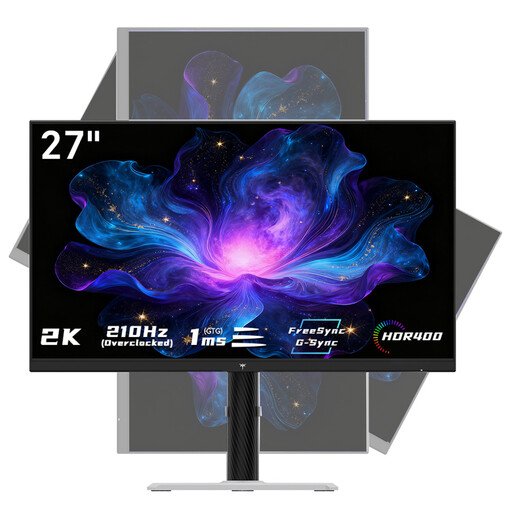
This 27-inch 4K monitor is an option if you want to take the stated pixel detail into account when reviewing the website.
The product details list a resolution of 3840 × 2160 pixels, an IPS panel, 60 Hz and HDR10.
 No image available
A QHD option for anyone who wants to adjust the screen position at a permanent workspace.
The product details list a 27-inch screen, a resolution of 2560 × 1440 pixels and a Fast IPS panel. The stand supports height, tilt, swivel and pivot adjustment.
 No image available
A 27-inch 4K option for viewing website content and imagery if you also want to consider USB-C connectivity.
The product details list a resolution of 3840 × 2160 pixels, a QD-OLED panel and 120 Hz. USB-C supports DP Alt Mode and is specified to provide up to 15 W of power; check whether this meets your computer’s requirements.
No. Set your preferred text or display scaling on your computer, and adjust your browser zoom separately. Microsoft Support generally recommends using the native display resolution recommended for Windows; a lower resolution can make text less sharp.
Test the website itself, not just the monitor. In WCAG 1.4.4, W3C describes text enlargement up to 200% without loss of content or functionality. The guidance for WCAG 1.4.10 covers reflow at 320 CSS pixels, equivalent to 400% zoom from a 1280 CSS-pixel viewport. These are criteria for web content, not monitor specifications.
Place the monitor securely, adjust the available height and tilt, and look out for distracting reflections. Before connecting it, check your computer’s video output and the monitor connection; if charging over USB-C, compare the power requirements too. Follow the instructions for your chosen model when cleaning it.
For online purchases made by consumers in the Netherlands, you generally have a statutory cooling-off period of up to 14 days after delivery, with some exceptions. The product must also meet what you could reasonably expect under normal use; ACM ConsuWijzer states that the seller must resolve any defect that means it does not. Check separately which terms apply if you buy the monitor for business use.
For employees who work at a screen for more than two hours a day, Arboportaal lists requirements including screen adjustability and glare, and the use of a separate screen or keyboard when working on a laptop. Arboportaal also outlines conditions under which employers may make exceptions if health and safety continue to be protected. This is not necessarily a standard purchase requirement for every user.