
Writers who need larger text
Do you mainly work in one document and want to enlarge the text, menus or both? Windows has settings for text size, and Apple Support explains how to enlarge text and on-screen content on a Mac.


First, increase the text size or display scaling on your computer: a larger monitor won’t automatically make the letters bigger. Then choose a monitor based on how much space you need at that magnification. A more compact screen may be enough for a single document, while a larger screen can be useful if you want to view sources or images at the same time. Also check that you can position the monitor comfortably and that its connections are compatible with your computer.
Do you mainly work in one document and want to enlarge the text, menus or both? Windows has settings for text size, and Apple Support explains how to enlarge text and on-screen content on a Mac.
If you refer to care information or images while writing, for example, it’s important to consider how many windows will remain visible after you enlarge the text. Tweakers explains that a larger screen can provide more workspace, but you should also assess the layout at your own preferred magnification.
If you spend long periods writing at the same desk, consider the screen’s position, reflections and light. Arboportaal outlines points to consider for employees covered by the rules on working with display screens; these rules do not automatically apply to every private buyer.
First, adjust the text size, display scaling or zoom on your computer, then assess the monitor. Microsoft Support and Apple Support explain the separate settings available on Windows and Mac. Next, check how much of your document and source material remains visible.
| What to consider | What should you check? | Who is this important for? |
|---|---|---|
| Readability of enlarged text | Test text size, display scaling and zoom separately. View a sample page at your preferred magnification. | If I mainly write in one document, I want to enlarge the text without losing sight of the page as a whole. Around 36% of consumers put readability first. |
| Space for documents and sources | Open your document and source window side by side at your preferred text size. Compare both screen size and resolution: Dell and BenQ list 2560 × 1440 pixels for the 27-inch QHD models mentioned, while Philips lists 1920 × 1080 pixels for the 24E1N1300AE/00. | When I want to view sources or images while writing, I want to know whether they’ll fit alongside my enlarged document. Workspace is the top priority for around 29% of consumers. |
| Positioning and light | Check the screen and stand’s height adjustment and dimensions. Also consider how windows and lighting affect your workspace. | I want to position the screen comfortably at my regular workspace and minimise distracting reflections. Around 21% of consumers put positioning and lighting first. |
| Connecting to your computer | Compare your computer’s video output with the inputs on the exact monitor variant. For USB-C, check separately whether video is supported and whether the power output is sufficient. | If I want to use a single cable, it needs to work with my computer and support the connection I need. Around 14% of consumers put connection compatibility at the top of their list. |
Letter size also depends on your computer and writing software settings. Without adjusting them, the original readability problem may remain.
First, adjust the text size, display scaling or zoom, then decide which screen size suits your document.
A screen’s diagonal measurement doesn’t tell you how many pixels are available. After enlarging the text, this can affect how much space is left for a second window.
Compare the screen size and resolution with the layout you want to use on your own screen.
Your computer must support the video connection you need, and sufficient power delivery is a separate requirement. BenQ specifies DisplayPort Alt Mode and 65 W Power Delivery for the GW2790QT, but check that this suits your computer.
Before buying, compare your computer’s connections and power requirements with the specifications for the exact monitor variant.
The P2725D is a 27-inch QHD office monitor for anyone considering screen space and adjustability.
According to BenQ, the GW2790QT combines a 27-inch QHD screen with adjustability and USB-C for a compatible computer.
The 24E1N1300AE/00 is a more compact Full HD option for anyone who mainly uses a single document.
The 27BA65QB-B is a 27-inch QHD office monitor with USB-C and an adjustable stand.
The 527pu is a 27-inch QHD monitor with USB-C for anyone considering powering a laptop through the monitor.
These Joybuy monitors can help you weigh up screen size, resolution and positioning options when writing with enlarged text. The models vary in size and connections, so assess how much of your document will be visible at the magnification you use.
 No image available
If you want to consider space for multiple windows after enlarging the text, compare the 27-inch screen size and resolution with the layout you have in mind.
Joybuy lists 3840 × 2160 pixels, IPS, 60 Hz, 4 ms, HDMI, DisplayPort, an anti-glare screen and a height-adjustable stand.
 No image available
If you want to view sources alongside your enlarged document, compare the screen size and resolution with the windows you want to see at the same time.
Joybuy lists 2560 × 1440 pixels and a stand with height, tilt, swivel and pivot adjustment; the height adjustment is 130 mm.
 No image available
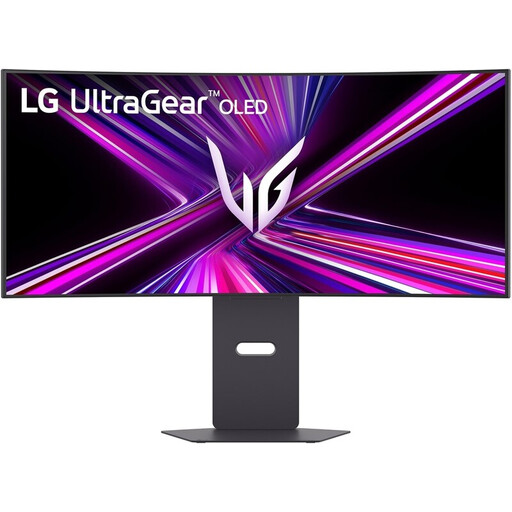
If you’re considering a wider screen for your document and sources, check that the 34-inch size and curved design suit your desk and viewing distance.
Joybuy lists 3440 × 1440 pixels, 240 Hz, USB-C video and a stand with height, swivel and tilt adjustment.
 No image available
If you’re weighing up screen space for multiple windows, compare the listed display modes with your own magnification and preferred document layout.
Joybuy lists a 4K mode of 3840 × 2160 at 160 Hz and an FHD mode at 320 Hz, as well as 65 W USB-C and a stand with height, swivel and tilt adjustment.
 No image available
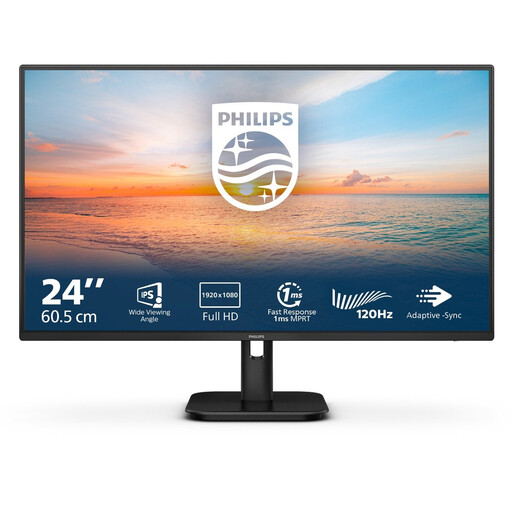
If one document is usually enough and you’re comparing more compact screens, check how much remains visible at your preferred text size.
Joybuy lists 1920 × 1080 pixels, IPS, 100 Hz, HDMI, VGA and speakers.
No. First, try adjusting the text size, display scaling or zoom on your computer and in your writing software. Windows and Mac have settings for this; afterwards, check whether enough of your document remains visible on your current screen.
Adjust the screen position and lighting to minimise distracting reflections. Arboportaal outlines additional requirements for workspaces covered by the rules on working with display screens; these do not automatically apply to every private buyer.
No. Your computer must support video through the relevant connection, and the power output must meet your needs. BenQ lists DisplayPort Alt Mode and 65 W Power Delivery for the GW2790QT; check your own computer’s specifications too.
When you buy online from a business, you’re often entitled to a 14-day cooling-off period, as described by the Dutch Government. If a product doesn’t meet what you’re entitled to expect, contact the seller. The Netherlands does not have a fixed statutory warranty period.
The European Commission states that electronic displays, including computer monitors, have an energy-efficiency label. Compare the label and product information for the specific model; an energy rating alone doesn’t tell you how much electricity it will use in your home.