
Developer who enlarges text
You want to see text and controls clearly, and test the portal with magnification. So assess both your screen settings and the website itself. Microsoft Support and W3C outline relevant settings and guidelines.


First, choose a monitor that lets you comfortably assess your preferred text size and the lending portal itself. Then consider the workspace, adjustability and laptop connections to suit where you work. Tweakers’ buying guide recommends 27-inch WQHD for a typical desk, while 4K is only practical if your computer and settings support the display you want. A monitor won’t make the website itself accessible: also test whether enlarged text remains usable and the page layout still works.
You want to see text and controls clearly, and test the portal with magnification. So assess both your screen settings and the website itself. Microsoft Support and W3C outline relevant settings and guidelines.
You might keep your development environment and the portal open side by side, balancing the available workspace against your preferred text size. Tweakers’ buying guide discusses 27-inch WQHD as an option for a typical desk.
You focus on screen adjustability, reflections and compatibility with your computer. Arboportaal highlights height adjustment and reducing glare as considerations when working with a screen.
Best for: anyone who wants to use the portal and development environment on one screen without necessarily needing 4K.
Keep in mind: at the same screen size, QHD has fewer pixels than 4K. Connections and adjustability vary by model.
Best for: anyone who values clear text and room for multiple windows, and has a computer that can handle 4K.
Keep in mind: scaling uses up some of the extra workspace. Also check the ports you need and the stand.
Best for: anyone short on desk space or who usually works with one enlarged browser window at a time.
Keep in mind: there will be less room for multiple windows. Check that you’ll still have space to develop and test.
| Consideration | What should you check? | Who is this important for? |
|---|---|---|
| Readability when enlarged | Try your preferred scaling and browser zoom. Assess text, forms and navigation from your usual viewing distance. | I want enlarged text to be comfortable to read and to test the portal for usability. Around 33% of consumers prioritise readability. |
| Workspace for windows | Test your usual window layout at your preferred scaling, and check your computer’s video output. | I want to see the portal, code and documentation at the same time without making the text too small. Around 27% of consumers mainly want more workspace. |
| Adjustability and reflections | Check the height adjustment, screen finish and where the screen will sit in relation to windows. | I spend long periods at my screen and want to assess its position and any reflections in my workspace. Around 20% of consumers prioritise posture and reflections. |
| Laptop connection | Compare the video output, cable and any required charging power with the specifications of both devices. | I want to make sure my laptop can send a video signal and, if I want to use one cable, that it can charge too. Around 20% of consumers prioritise the laptop connection. |
A monitor’s specifications won’t tell you whether content disappears when text is enlarged or whether the page layout adapts properly.
Test the portal with enlarged text and browser zoom. W3C sets out separate criteria for text enlargement and content reflow; assess these alongside how the monitor displays the page.
Your computer’s video output can determine whether the 4K display you want is practical. Microsoft Support warns that using a screen resolution below the recommended setting can make text look blurry.
Check your computer, monitor and cable as a complete setup. First try the recommended resolution with a customised display scale.
The BenQ GW2790QT lists USB-C with 65 W Power Delivery, but that power output won’t necessarily suit every laptop.
Compare your laptop’s video support and charging requirements with the specifications for the exact monitor model.
For a purchase by a consumer in the Netherlands, statutory rights depend on what you could reasonably expect from the product; they aren’t simply the same as a fixed manufacturer’s warranty period. ACM ConsuWijzer explains the difference.
Check who the seller is, read the terms of any additional warranty and keep your proof of purchase.
The GW2790QT is a 27-inch QHD monitor for work, combining adjustability with USB-C.
The 27E1N1800AE/00 is a 27-inch 4K option with a height-adjustable stand.
The Pro 27 Plus 4K USB-C Hub Monitor P2725QE is designed for a laptop workstation with multiple connections.
The UltraFine 27U710B-B is a 27-inch 4K model with an adjustable stand.
These monitors are options to compare for building and testing a lending portal with enlarged text. For each model, consider the balance of screen space, settings and connection to your computer.
 No image available
This 32-inch QHD version could be worth considering if you’re weighing up screen space and an adjustable setup against text enlargement.
The product information lists 2560 × 1440 pixels, an IPS panel and an anti-glare screen. The description says the stand is height-adjustable, swivels and tilts.
 No image available
This 27-inch 4K monitor is an option to compare if you want high resolution alongside your preferred text size.
The product information lists 3840 × 2160 pixels and an IPS panel. Check that your computer supports the resolution you want and that the magnification setting feels comfortable.
 No image available
This ultrawide screen may be worth comparing if you want to work with several windows side by side.
The product information lists a 21:9 aspect ratio, 144 Hz, a VA panel and HDMI and DisplayPort connections. According to the product name, this model has no built-in speakers.
 No image available
This version may suit anyone comparing 27-inch 4K monitors with an adjustable stand and the laptop connections they need.
The product information lists 3840 × 2160 pixels, IPS, height adjustment and an anti-glare screen. The description mentions HDMI and DisplayPort; check that these work with your computer.
 No image available
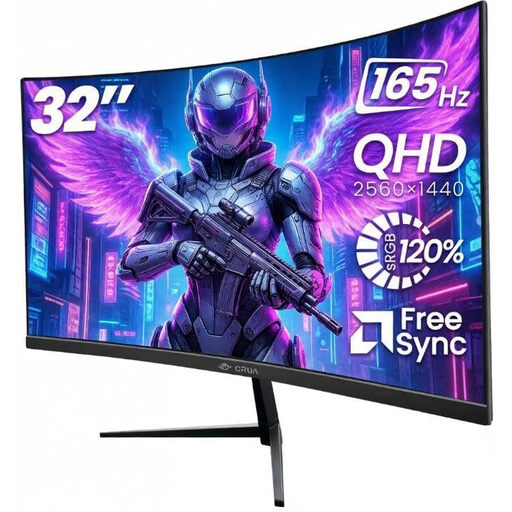
This QHD option is worth comparing if you’re looking for a larger screen and an adjustable viewing angle.
The product information lists a curved VA panel, tilt adjustment and HDMI and DisplayPort inputs. Check that the resolution and connection suit your computer and window layout.
No. Adjust the text size or display scale in your operating system, and test the browser zoom too. Microsoft Support warns that using a screen resolution below the recommended setting can make text look blurry.
Check that text and controls remain usable and that the content reflows properly. W3C sets out separate WCAG criteria for enlarging text to 200% without losing content or functionality, and for content to reflow at a narrower display size. A larger screen doesn’t replace these checks.
Check that you can position the screen comfortably and that reflections from lights or windows aren’t distracting. Arboportaal highlights height adjustment and reducing glare as considerations when working with a screen.
No. For a purchase by a consumer in the Netherlands, statutory rights depend on what you could reasonably expect from the product; an additional warranty has its own terms. ACM ConsuWijzer explains that the seller is responsible if a product breaks sooner than expected during normal use.
Compare the label for the exact version. According to the European Commission, computer monitors come under the energy labels for electronic displays, which use a scale from A to G.