
Writers who need larger text
If you want to edit a book manuscript at a comfortable reading size, start by viewing a sample page with the text set to your preferred size. Microsoft Support explains how to adjust text size in Windows.


Start with the text size you actually want to use while writing. Enlarge a sample page in your operating system or writing software, then see how much room is left for scans or other source material. An adjustable 27-inch QHD monitor is one option to compare with this set-up; a 4K screen offers more pixels, but won’t make text larger by itself. Choose a USB-C hub only if its connection and power delivery are compatible with your laptop.
If you want to edit a book manuscript at a comfortable reading size, start by viewing a sample page with the text set to your preferred size. Microsoft Support explains how to adjust text size in Windows.
If you compare archival scans with your own writing as you work, check whether both windows remain usable at your chosen magnification. The space available will depend on your window layout and text settings.
If you write for long periods, you can adjust the screen position and connections to suit your workspace and laptop. Arboportaal outlines workplace requirements for employees in specific circumstances; these do not automatically apply to every individual writer.
First decide what text size works for you. Then check whether there’s room for your manuscript and source material, and look at the adjustability and connections.
| Buying concern | What to check before buying | Who will value this? |
|---|---|---|
| Clear, enlarged text | Open a sample chapter of your own, set your preferred text size or scaling, and check that it’s readable from your usual viewing distance. | If I want to edit my manuscript with larger text, I want to see what the page looks like in my workspace first. Around 36% of consumers give clear, enlarged text top priority. |
| Manuscript and historical sources | Place an actual scan next to a manuscript page and check whether both remain usable with your chosen text enlargement. | If I need to keep scans next to my manuscript, I want to be able to view both windows at my usual text size. Around 29% of consumers put this combination first. |
| An adjustable workspace | Check the adjustment options of the exact model and make sure its stand and any document holder will fit in your workspace. | If I write for long periods, I want to be able to position the screen to suit my desk. Around 21% of consumers make an adjustable set-up their main buying concern. |
| Connecting to your laptop | Compare your laptop’s video output and charging requirements with the monitor’s ports and stated power delivery. | If you want to connect your laptop to the monitor easily, check that both devices support the features you need. Around 14% of consumers prioritise a compatible connection. |
Resolution and text size are separate settings. If you enlarge the text, less of the page or a second window may fit on screen at the same time.
Before you buy, test a page from your own manuscript alongside a source window, using the text size you want.
A monitor’s USB-C features don’t guarantee that your laptop’s port can provide the video signal or power delivery you need.
Check the specifications for both exact devices. If the connections aren’t compatible, you may need a different cable, adaptor or connection method.
An additional warranty package is separate from your statutory rights. The Dutch Government describes manufacturer or seller warranties as an addition to the statutory guarantee.
Before paying, check what additional cover is being offered and compare it with your existing rights.
Dell’s Dutch product ranges include both a 27-inch QHD work monitor and a QHD model with a USB-C hub.
According to LG, the 27BA45QB-B combines a 27-inch QHD screen with an adjustable stand.
The EIZO FlexScan EV2740X is a 27-inch 4K model worth comparing if you want to assess the higher resolution with your own scans and text settings.
For the 27E1N1600AE/00, Philips lists a 27-inch QHD screen with USB-C power delivery.
These monitors offer 27-inch QHD or 4K options to assess with your own text enlargement, manuscript and source material.
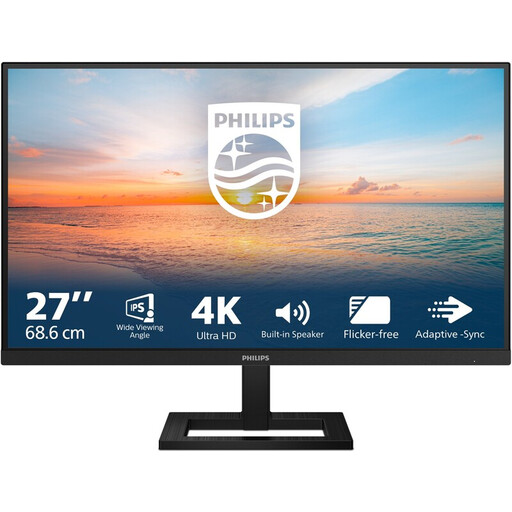 No image available
A 27-inch 4K screen to help you check how much of your manuscript and source material remains visible with your text enlargement.
3840 × 2160 pixels; 60 Hz; 4 ms; HDMI and DisplayPort; height-adjustable stand.
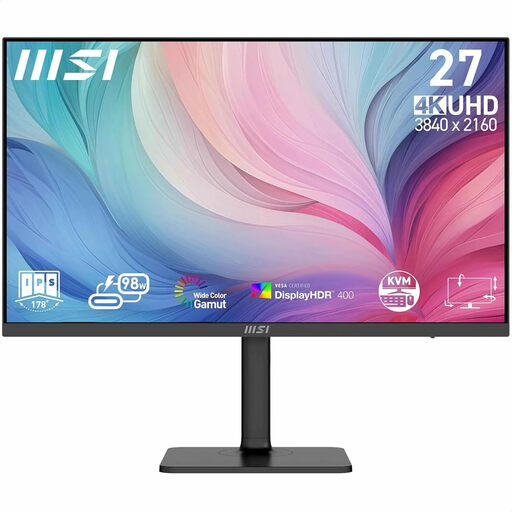 No image available
Use a manuscript and scan of your own to see whether this 27-inch 4K screen offers enough usable space with your text settings.
3840 × 2160 pixels; 4K Ultra HD.
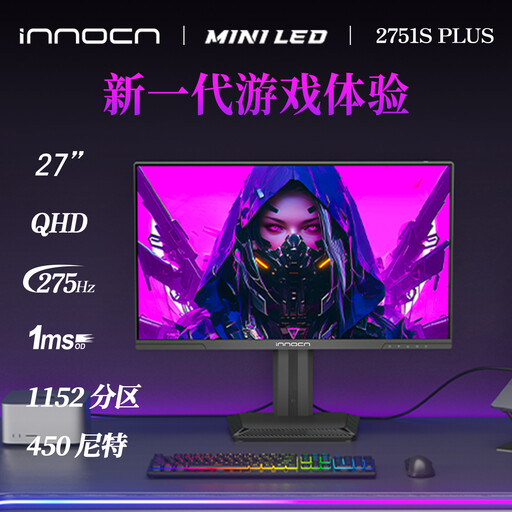 No image available
A 27-inch QHD option for testing readability and window layout with your own enlarged manuscript.
QHD 2K; 275 Hz.
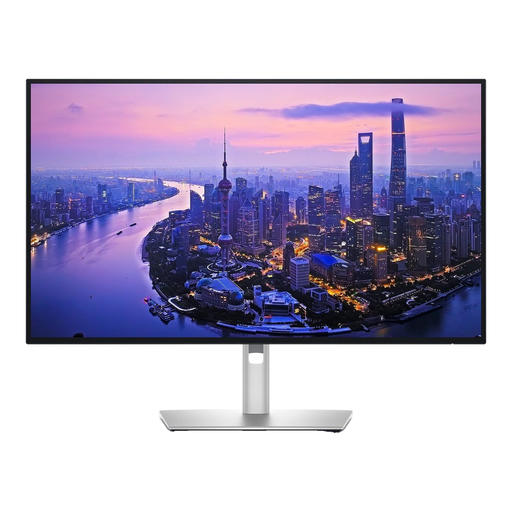 No image available
Place one of your own scans next to your manuscript to see whether this 27-inch 4K screen suits your preferred text size and window layout.
3840 × 2160 pixels; 4K Ultra HD.
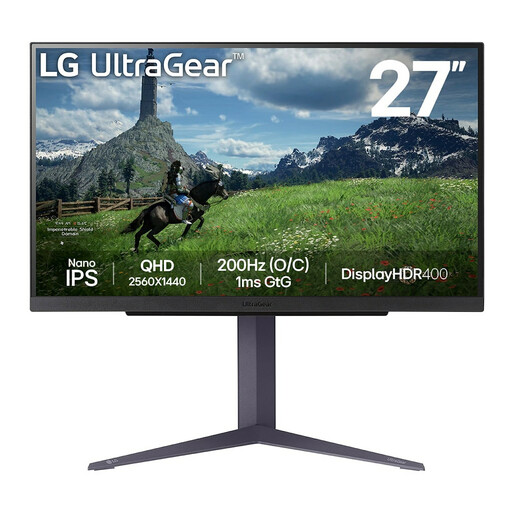 No image available
A 27-inch Quad HD screen for checking how much of your manuscript and source material remains visible at your chosen magnification.
2560 × 1440 pixels; Quad HD.
No. Adjust the text size separately in your writing software or operating system, then check how much of the page and source material remains visible. Microsoft Support explains how to adjust text size in Windows.
Keep paper documents you refer to often close to the screen. The SSFH Occupational Health and Safety Catalogue recommends placing a document holder beside or below the screen. This is a workplace recommendation from that source, not a general legal requirement when buying a monitor.
Not necessarily. The Dutch Government describes manufacturer or seller warranties as an addition to the statutory guarantee. Before paying, check what additional cover is being offered.
The workplace requirements described by Arboportaal do not automatically apply to every individual writer. For employees who use a screen for more than two hours a day, Arboportaal lists a height-adjustable screen among its recommendations. The employer is responsible for ensuring the workplace is safe and healthy.