Who is this choice for?

Guide creator who needs larger text

You want to enter and review lessons, teachers and locations using enlarged text. First decide what text size you need, then consider how much of the guide will remain visible at once. Microsoft Support explains how to adjust text or display scaling in Windows.

Administrator working with multiple windows

You work on the guide while referring to lesson details or source pages alongside it. Screen size, resolution and scaling settings all affect how much information remains visible in your apps.

Long-session desk worker

You want to position the screen comfortably and, if you use a laptop, check in advance that the connections are compatible. Additional requirements may apply to employees who work with display screens; Arboportaal explains these.

What should you look for?

27-inch QHD

A good fit if: you want to try QHD with your preferred text enlargement and window layout, without assuming you need 4K.

The trade-off: at the same screen size, QHD has fewer pixels than 4K, so test how text looks in the apps you use.

27-inch 4K

A good fit if: you want to assess enlarged text and, for example, guide management alongside source material on a 27-inch screen.

The trade-off: Windows scaling and app magnification affect how much content remains visible. Also check whether your computer and monitor support USB-C connectivity.

31.5 to 32-inch 4K

A good fit if: you want more physical screen space for enlarged text and have enough room for the monitor and its stand or clamp arm.

The trade-off: measure your desk space and, if you’re using a clamp arm, check that the desk edge is suitable.

What to consider What to look for Who is it important for?
Readability when enlarged Test text size and display scaling in the apps you use, then compare the results at the screen size and resolution you’re considering. If I need to enter and review lessons and locations using enlarged text, readability comes first. Around 36% of consumers put readability first.
Overview of your windows Open your usual windows at the magnification you want and see whether 27-inch QHD, 27-inch 4K or a larger 4K screen gives you enough usable space. I want to refer to guide details and source material at the same time without my chosen magnification taking up too much of the screen. Around 29% of consumers prioritise seeing several things at once.
Screen position and desk Check the height adjustment, tilt and space taken up by the stand. If you’re using a clamp arm, measure the desk edge too. If I work at a desk for long periods, I want to position the screen comfortably and check the mounting options in advance. Around 21% of consumers prioritise screen positioning.
Connectivity and running costs Compare the ports and USB-C power delivery with your computer. Check the EU energy label for the exact model and find out what any additional warranty covers. I want to know whether my computer can use the connection and which extra features or cover are relevant to me. Around 14% of consumers prioritise connectivity and costs.

What to check before you buy

  • Choosing 4K without testing your preferred magnification

    Resolution alone doesn’t determine how large text appears on your screen or how much guide information remains visible at once.

    First set the text size or display scaling you want to use, then test it with your usual windows.

  • Assuming USB-C always lets you do everything with one cable

    Video support and stated charging power vary by model. A USB-C port on the monitor doesn’t guarantee that it will deliver video and sufficient power to your computer.

    Check your computer’s video capabilities and compare its charging requirements with the full specifications for the exact monitor model.

  • Choosing a large screen or clamp arm without measuring your workspace

    A larger monitor and a clamp arm need a different setup from a 27-inch model with a standard stand.

    Measure the available space and check that the desk edge and adjustment range are suitable for your chosen mount.

  • Confusing an additional warranty with your statutory rights

    An additional warranty is different from the rights you have as a consumer if a product is faulty. The Dutch government explains that the legal guarantee is part of consumer protection.

    Check what cover an optional warranty provides, and contact the retailer if your product is faulty.

Brands to compare

Dell

The Dell Pro Plus P2725QE is a 27-inch 4K model worth considering if you’re looking for a monitor hub and laptop connectivity.

  • Dell Netherlands lists 3840 × 2160 at 100 Hz, an adjustable stand and USB-C power delivery up to 90 W for the P2725QE.
  • Check that your laptop supports the video and power connection you want. These specifications apply to this model, not all Dell monitors.

HP

The HP E27k G5 is a 27-inch 4K USB-C model to consider when comparing adjustable desk setups.

  • HP describes this model’s resolution and adjustability. The Joybuy product description lists 65 W USB-C power delivery.
  • Check the full model specification and make sure the stated charging power is suitable for your laptop.

LG

The LG 27UP850K-W is an adjustable 27-inch 4K option, while the larger 32UN880K-B comes with a clamp arm.

  • LG lists height, tilt and pivot adjustment for the 27UP850K-W. For the 32UN880K-B, LG lists a clamp arm and USB-C power delivery up to 60 W.
  • The larger model needs a suitable mounting position. Check the desk edge and assess each model against its own specifications.

AOC

The AOC Q27B3CF2 is a 27-inch QHD model to compare with 4K options.

  • AOC Netherlands lists 2560 × 1440 resolution, a height-adjustable stand and USB-C for this model.
  • Check the full model specifications and make sure the connections and power supply suit your computer.

Philips

The Philips 27E1N1600AE/00 offers QHD, while the 27E1N1900AE/00 is a 27-inch 4K model with USB-C.

  • Philips Netherlands lists resolutions of 2560 × 1440 and 3840 × 2160 respectively for these model codes.
  • Check the full code for the exact version. Features of these models don’t automatically apply to other models in the same series.

Joybuy product picks

This selection of Joybuy products includes 27-inch QHD and 4K monitors, as well as larger screens to compare with your text magnification and workspace.

Philips 27E1N1800AE/00 27-inch 4K UHD monitor

Philips 27E1N1800AE/00 27-inch 4K UHD monitor

Compare this 27-inch 4K model using the text size and screen scaling you plan to use for your guide.

3840 × 2160, 60 Hz and 4 ms; HDMI and DisplayPort; height-adjustable stand.

View at Joybuy

MSI Modern MD272UPHG 27-inch 4K monitor

MSI Modern MD272UPHG 27-inch 4K monitor

A 27-inch 4K option to assess with enlarged text and your usual guide windows.

3840 × 2160; the product description lists PIP/PBP, KVM, USB-C with up to 98 W Power Delivery and an adjustable stand.

View at Joybuy
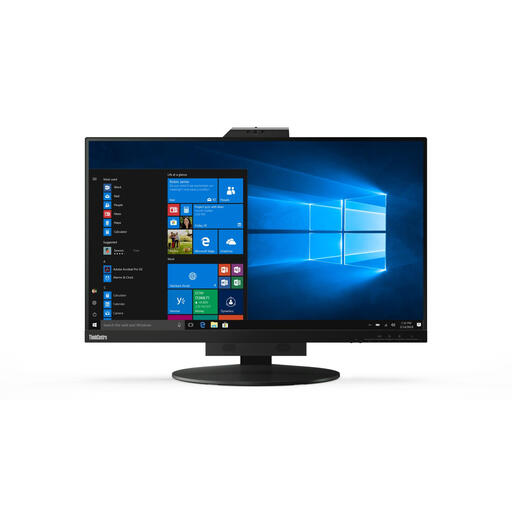
Lenovo ThinkCentre Tiny-In-One 27 QHD monitor

Lenovo ThinkCentre Tiny-In-One 27 QHD monitor

Compare this 27-inch QHD option with your chosen text magnification and window layout.

2560 × 1440; HDMI and DisplayPort; the product description lists height, tilt and swivel adjustment. The power adapter must be purchased separately.

View at Joybuy
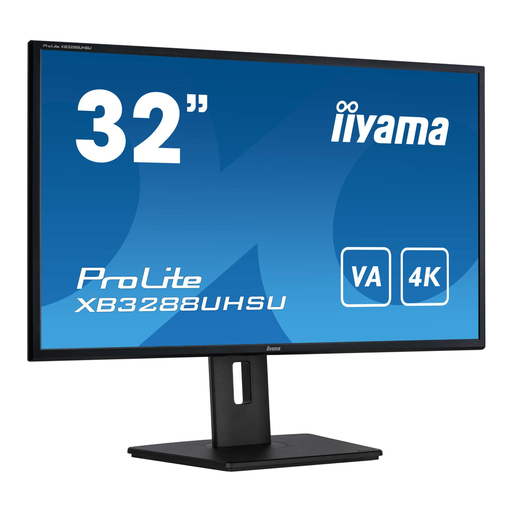
iiyama ProLite 32-inch 4K monitor with VA panel

iiyama ProLite 32-inch 4K monitor with VA panel

A larger screen to compare if you want more physical screen space alongside enlarged text and have room for it.

The product description lists a 32-inch screen, 3840 × 2160 resolution, a height-adjustable stand with pivot function, and HDMI and DisplayPort connections.

View at Joybuy

LG 34WR50QK-B 34-inch ultrawide monitor

LG 34WR50QK-B 34-inch ultrawide monitor

Consider this wider-screen option if you want to arrange guide windows side by side. Measure your available desk space first.

3440 × 1440 and 21:9; the product description lists Picture-by-Picture, Reader Mode and an ergonomic stand. Place the screen on a stable desk that can support its weight.

View at Joybuy

Frequently asked questions

Does a 4K monitor automatically make letters larger?

No. In Windows, you can adjust the text size or use Display and Scale to enlarge apps and other items too. First try a setting that feels comfortable, then check how much of your guide remains visible. Microsoft Support explains these settings.

How can you check that your online lesson guide is still usable at high magnification?

Test the guide in your browser with enlarged text and zoom. For its reflow criterion, W3C describes a width of 320 CSS pixels, equivalent to 400% zoom from 1280 CSS pixels. Certain content, such as tables that require a two-dimensional layout, is exempt. This applies to web content, not monitor certification.

Can you connect and charge your laptop with a single USB-C cable?

That depends on the laptop and monitor model. Check whether your computer supports video through the connection you’ve chosen, and compare your laptop’s charging requirements with the power output specified for the monitor.

Are there requirements for display screen workspaces in the Netherlands?

According to Arboportaal, employers must organise safe display screen work for employees. Arboportaal notes, among other things, that if employees work with a display screen for more than 2 hours a day, the screen and keyboard must be separate and the screen must be height-adjustable. These requirements for employees don’t automatically apply to every private buyer.

Where can you compare monitor energy use?

Check the EU energy label and the model information in EPREL for the exact version. The European Commission says the label for electronic displays shows, among other things, the energy efficiency class. Don’t estimate a model’s energy use based only on its brand or screen size.
