
Writers who need larger text
If you want to read lines of script clearly without constantly zooming in, consider text size, screen size and sharpness together. Microsoft Support explains how to make text or the entire interface larger in Windows.


Start with the text size you actually use. A 27-inch QHD monitor is a practical starting point for working on scripts, while 4K or a larger or ultrawide screen may suit different priorities. Test your script at your preferred text size and check how many lines and windows remain visible, how much space you have on your desk and whether the connections are compatible with your computer.
If you want to read lines of script clearly without constantly zooming in, consider text size, screen size and sharpness together. Microsoft Support explains how to make text or the entire interface larger in Windows.
If you want to see a script, plot notes and visual references side by side, weigh the benefits of a clear overview against your preferred text size and the space available on your desk.
For long writing sessions, screen positioning and the connection to your computer both matter. Check what kind of adjustment your workspace needs and which connections your computer actually supports.
A good fit if: you mainly work on one enlarged script and occasionally open a second window.
Trade-off: test how many lines remain visible at your chosen text size; QHD alone does not determine how large the letters appear.
A good fit if: you also want to examine fine details in visual references and test text at your preferred size.
Trade-off: check that your computer supports the desired resolution through your chosen connection; set the text size separately.
A good fit if: you want to keep your script, notes and visual references side by side for extended periods.
Trade-off: a larger screen needs more desk space and does not automatically make text larger.
| Point to consider | What should you check? | Who is this important for? |
|---|---|---|
| Readable script text | Open your own script at your preferred text size and compare its readability with the number of lines visible. | If larger letters are my priority, I want to be able to read lines of script without constantly zooming in. Around 36% of consumers prioritise readable magnification. |
| Keeping windows in view | Try viewing your script and references side by side at your preferred text size, and measure the space available on your desk. | When I want to keep notes and visual references alongside my script, I weigh that overview against the space on my desk. Around 29% of consumers prioritise having an overview of their windows. |
| Adjustable workspace | Check what screen adjustments you need and assess reflections and positioning in your own workspace. | For long writing sessions, I want to position the screen to suit me and read the text clearly in my workspace. Around 21% of consumers prioritise being able to adjust their workspace. |
| Connection to your computer | Compare the video output, cable required and desired charging power with the specifications of both devices. | If I want to connect the monitor to my own computer or use it to charge my laptop, I check that both devices support the connection. Around 14% of consumers prioritise the computer connection. |
Resolution and text or interface size are separate settings. The number of script lines you can see also depends on your scaling settings.
Test your own script at the size you actually write at, and assess both the sharpness and how much of the page remains in view.
A wider screen can make it easier to arrange windows side by side, but it also needs to work with your preferred magnification and the size of your desk.
Measure your workspace and try your planned window layout before choosing a screen size.
A USB-C connection on a monitor does not, by itself, guarantee that your computer can output video through that port or charge at the power offered.
Check your computer’s video output and compare its supported charging power with the monitor’s specifications. You may also need a different cable, an adapter or a separate power supply.
An additional warranty is separate from your statutory rights. ACM ConsuWijzer explains that the statutory guarantee exists alongside any guarantee offered by the retailer or manufacturer.
Check exactly what an additional warranty offers before choosing it.
The ProArt PA278CGV is a 27-inch QHD option for anyone who assesses colour-critical visual references as well as scripts.
The Dutch Pro Plus P2725DE combines a 27-inch QHD screen with a USB-C hub for a laptop workspace.
The Dutch 27E1N1600AE/00 is a 27-inch QHD model with USB-C for a writing workspace.
The Dutch 27-inch ViewFinity S8 S80UD is a 4K option to compare if you want to assess enlarged text for sharpness.
The FlexScan EV2740X is a Dutch 27-inch 4K office monitor to consider if you also want to compare docking options.
These models suit three ways of setting up your writing space: 27-inch QHD, 27-inch 4K, and a larger or ultrawide screen for arranging windows side by side.
 No image available
A good fit for a writing space where you want to keep your script and references side by side. Test your preferred text size and measure whether the screen will fit on your desk.
34.1-inch curved WQHD IPS screen; USB-C hub, webcam, 100 Hz and 90 W Power Delivery.
 No image available
A good fit if you want to compare a 27-inch 4K screen for enlarged script text and fine details in visual references. Set the text size to suit you and test how many lines remain visible.
27-inch 4K UHD IPS screen with a resolution of 3840 × 2160, 60 Hz and 4 ms; HDMI, DisplayPort and height-adjustable stand.
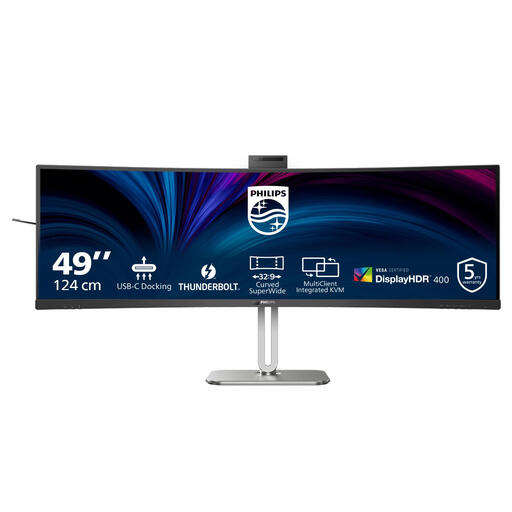 No image available
A good fit for a setup with several windows side by side. Check that your desk is wide enough and assess the text at your preferred size.
49-inch screen with a resolution of 5120 × 1440 pixels and Dual QHD.
 No image available
A good fit if you want to try a 27-inch QHD screen as a starting point for an enlarged script. Check how many lines remain visible at your own text size.
27-inch screen with a resolution of 2560 × 1440 pixels and Quad HD.
 No image available
A good fit if you want a larger screen for keeping your script and references side by side. Measure your desk space and try your usual text size.
34.1-inch screen with a resolution of 3440 × 1440 pixels and Wide Quad HD.
No. If you use Windows, you can make the text or the entire interface larger. Then compare the sharpness and the number of script lines visible at your preferred size; more pixels do not automatically make letters physically larger.
Position the screen so you can read the text without distracting reflections, and adjust the screen position and lighting to suit your workspace. Arboportaal also outlines rules for employers and employees working with display screens; these are not necessarily personal buying requirements for everyone writing at home.
No. According to ACM ConsuWijzer, the statutory guarantee exists alongside a manufacturer’s or retailer’s guarantee and depends on what you could reasonably expect from the product. The retailer is your point of contact if the product breaks too soon during normal use.
For online consumer purchases in the Netherlands, you generally have a statutory cooling-off period of up to 14 days after delivery. Check the applicable terms before buying; ACM ConsuWijzer also explains exceptions and trying out products.
The European Commission classifies standard computer monitors as electronic displays covered by EU energy-labelling rules. The label shows, among other things, the efficiency class, screen diagonal and resolution; check the exact model rather than relying on the brand name alone.