
Readers who need to enlarge text
If you read enlarged minutes, you can assess the text and scaling settings on your own screen; Microsoft Support explains how to make text and apps larger.


Start by choosing the magnification that makes your own meeting papers comfortable to read, then see how much room is left for your index and source file. An adjustable 27-inch QHD monitor may suit you if you mainly view one document; a 27-inch 4K screen offers more pixels, while a 31.5-inch 4K screen gives you more physical space for side-by-side windows. A monitor won’t make a scanned PDF searchable by itself.
If you read enlarged minutes, you can assess the text and scaling settings on your own screen; Microsoft Support explains how to make text and apps larger.
If you want to view a source document and an index at the same time, it’s important to check the available workspace using your own magnification settings.
If you switch between working positions or devices, look for screen adjustments and connections that suit the computer you use.
A good fit if: you usually read one document and still have enough room for the index at your chosen magnification.
Trade-off: 2560 × 1440 has fewer pixels than 4K; adjustability varies by model.
A good fit if: you want a 27-inch screen and would like to assess the extra pixels with your own scaling settings.
Trade-off: 4K doesn’t guarantee larger text; also check how much of the document and index remains visible.
A good fit if: you regularly keep a meeting paper and index side by side and have room for a larger screen.
Trade-off: a clamp-mounted arm won’t fit every desk; a larger screen doesn’t replace adjusting the text size.
| What to consider | What should you check? | Who is this important for? |
|---|---|---|
| Readability when enlarged | Test the text size, display scaling and document zoom using one of your own meeting papers. Also assess how much content remains visible. | If I enlarge minutes to read them, I want to weigh up text size and visible workspace for myself. Around 36% of consumers put readability first when buying. |
| Room for the source document and index | Open your usual PDF and index side by side at your preferred magnification, and check how much desk space is available. | If you want to keep the source document and index side by side while indexing, you’ll benefit from plenty of visible workspace. Around 29% of consumers give simultaneous windows top priority. |
| Adjustability | Check the height, tilt and any pivot function. If you’re considering a monitor arm, make sure its mount will fit your desk. | If I’m reading for a long time, I want to position the screen to suit my workspace. Around 21% of consumers prioritise screen positioning. |
| Connection to your computer | Compare the ports on your computer and monitor. If you want to use a single USB-C cable, check specifically for video support and the required charging power. | If you want to keep using your existing device, check that it can connect to the screen. Around 14% of consumers put compatibility first. |
Your preferred text size also depends on scaling and zoom settings. Increasing the magnification can limit how much text and workspace remain visible.
Test your own documents at the intended scale, and compare readability with the space left for the index.
A monitor displays the scan, but doesn’t add a text layer to the file. A scanned PDF may contain image data only.
Try selecting text in a representative PDF. If you can’t, look into a suitable OCR process and check the results before indexing any information.
Video support and power delivery work only when the monitor’s features are compatible with the computer.
Check your laptop’s video mode and power requirements against the specifications of the exact screen. If the ports aren’t suitable, you may need a different connection or power solution.
Philips’ Dutch website describes the 27E1N1800AE/00 as a 27-inch 4K monitor with a height-adjustable stand.
LG’s Dutch website describes the 32UN880P-B as a 31.5-inch 4K monitor with an adjustable arm.
According to the Dutch specifications, the BenQ GW2790QT is a 27-inch QHD monitor with adjustability and USB-C.
Dell describes the P2725DE as a 27-inch QHD USB-C hub monitor for compatible computers and peripherals.
The Dutch specifications for the FlexScan EV2795 list a 27-inch QHD screen and USB-C.
The selection below features monitors measuring around 32 inches with 4K resolution. Test them with your own documents to see whether the magnification and window layout suit your work.
 No image available
The 32-inch screen may suit a workspace where you view enlarged documents; check how much content remains visible with your own scaling settings.
VA panel; 3840 × 2160; 60 Hz; tiltable stand; HDMI and DisplayPort.
 No image available
The 32-inch size can give you room for document work; check whether your preferred text magnification leaves enough space for your index.
4K UHD; 120 Hz; QD-OLED.
 No image available
The 32-inch size may be suitable for viewing documents on a spacious screen; check the curvature and magnification with your own setup.
VA panel; 3000R curvature; 3840 × 2160; HDR10 and Adaptive Sync.
 No image available
The screen size may suit a dedicated workspace for document work; check that it fits your desk and decide how you want to enlarge text on it.
31.5 inches; 3840 × 2160; QD-OLED.
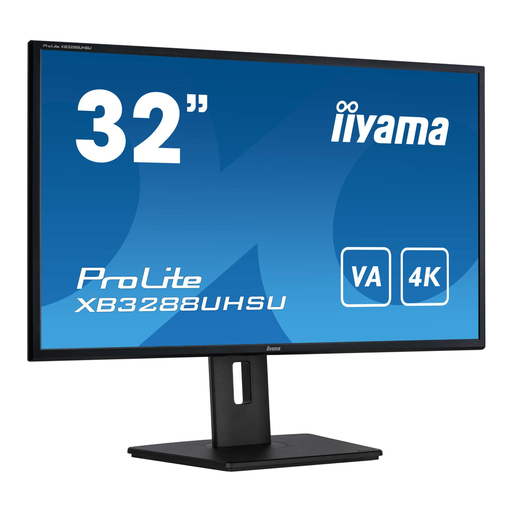 No image available
The 32-inch size can give you room for document work; test your own files to see whether your magnification and preferred windows fit on screen together.
VA panel; 3840 × 2160; height-adjustable stand with pivot; HDMI and DisplayPort.
No. Adjust the text size, display scaling and, if needed, document zoom separately. Then check how much content remains visible using one of your own meeting papers.
Not on its own. A scan may contain image data only; optical character recognition (OCR) can make its text searchable. Check the results before indexing any names or information you find.
Adjust the screen height, lighting and contrast to suit your workspace, and watch out for distracting reflections. Under certain conditions, Dutch rules for display screen work apply to employees; they aren’t a general requirement for every private buyer.
In many cases, when you place an order remotely with a business, you have a 14-day cooling-off period, according to the Dutch government. You’re also entitled to a product that is fit for purpose; there’s no fixed statutory guarantee period in the Netherlands, and the seller is your point of contact if something goes wrong. Check the terms of any additional guarantee.
Within its scope, EU Regulation 2019/2013 sets out rules on energy labelling and additional product information for electronic displays. Compare the product information sheet for the exact model if you want to assess its energy use.