
Programmers who need larger text
If you want to enlarge code and error messages, you also need to consider how much workspace will remain. Microsoft Support explains how to adjust text size separately in Windows.


The best screen layout for enlarged code and a running log depends on what you want to see at the same time: 27-inch 4K offers high resolution, 3:2 gives you more vertical space, and ultrawide provides room side by side. Test the text scaling with your own editor, then check that the screen size, stand and connections suit your desk and computer. Microsoft Support explains how to enlarge text separately in Windows.
If you want to enlarge code and error messages, you also need to consider how much workspace will remain. Microsoft Support explains how to adjust text size separately in Windows.
If you want to view your editor and a sample running log at the same time while coding, a screen layout that suits those windows is especially useful. BenQ and Philips show examples with extra vertical and horizontal space respectively.
If you switch between a laptop and monitor, check the adjustability and connections of the specific model. Arboportaal outlines requirements for screen-based work in applicable workplace situations; this information is not a general buying rule for every home user.
A good fit if: you want to view enlarged code on a relatively compact screen without needing an extra-wide or tall aspect ratio.
Consider: 3840 × 2160 pixels is specified for models including the Philips 27E1N1800AE/00 and Dell P2725QE; your scaling settings also affect how many windows remain usable.
A good fit if: you mainly want to see more lines of code or a longer view of your log, stacked vertically.
Consider: BenQ lists a resolution of 3840 × 2560 pixels and a 3:2 aspect ratio for the RD280U; check that its 28.2-inch screen will fit on your desk.
A good fit if: you mainly want to place your editor and running log side by side and have enough desk space.
Consider: Philips lists a resolution of 3440 × 1440 pixels for the 346E2CUAE/00. This gives you a different window layout from 3:2, with fewer vertical pixels than the 4K and 3:2 models mentioned.
| What to consider | What to look for | Which consumers |
|---|---|---|
| Readability of enlarged code | Test your usual editor and text size at the screen size and resolution you’re considering; also check your operating system’s scaling settings. | I want to make my code larger without losing the overview in my editor. Around 33% of consumers prioritise the readability of enlarged code. |
| Code and log at the same time | Decide whether you want to place the windows side by side or one above the other, then try that layout with enlarged text. | If I want to view my editor and log at the same time, the direction of the extra space matters. Around 25% of consumers give simultaneous windows their highest priority. |
| Workspace and adjustability | Check the height adjustment and screen finish of the exact model; measure up to make sure the screen and stand will fit on your desk. | I want to position the screen to suit my workspace, so I look at the stand and the space available. Around 25% of consumers prioritise their workspace setup. |
| Connecting a laptop | Compare your laptop’s video output and charging requirements with the monitor’s connections and specified USB-C power delivery. | If I want to connect my laptop through the monitor, I want to know in advance whether the connection will work with my computer. Around 17% of consumers prioritise laptop connectivity. |
The final text size and visible workspace also depend on the screen size and scaling settings.
Test your usual editor windows at your preferred text size before treating resolution as the deciding factor.
The Philips ultrawide mentioned has a specified resolution of 3440 × 1440; the BenQ 3:2 monitor mentioned has 3840 × 2560 pixels. The extra space is therefore in a different direction.
Choose based on how you arrange your windows: mainly side by side or mainly one above the other.
A USB-C port on a monitor does not, by itself, tell you whether video, data and sufficient charging power will be available through the connection you want to use.
Check the specifications of your laptop, monitor and cable together.
Your setup may require a different connection or a separate power solution.
These brands offer examples of different screen formats and features. The specifications apply to the models mentioned, not automatically to every product from a brand.
The 27E1N1800AE/00 and 346E2CUAE/00 illustrate two different screen layouts: 27-inch 4K and 34-inch ultrawide.
The Dell P2725QE is a 27-inch 4K USB-C hub monitor worth considering if you want to assess the screen and laptop connection together.
The RD280U is a 28.2-inch 3:2 example for anyone who values vertical space.
The LG 32UN880K-B is an example of a larger 31.5-inch 4K monitor with a clamp stand.
These product selections focus on enlarged code on a desktop monitor, with options for 27-inch 4K, an adjustable workspace and an ultrawide window layout.
 No image available
An option for viewing enlarged code on a 27-inch 4K screen.
3840 × 2160 pixels, 60 Hz, 4 ms, HDMI and DisplayPort; the product name specifies a height-adjustable stand.
 No image available
A 27-inch option for anyone looking for a 4K mode and an adjustable monitor stand.
The product name specifies 4K 160 Hz/FHD 320 Hz, HDR1400, Fast IPS, USB-C 65 W, KVM, VESA and a height-adjustable, tilt-and-swivel stand.
 No image available
A 26.5-inch 4K option for a compact desktop setup.
The product name specifies 3840 × 2160 pixels and 120 Hz. Bear in mind the warning to avoid displaying static images for long periods due to the risk of image retention.
 No image available
A 26.5-inch option for anyone looking for QHD resolution and an adjustable stand.
The product name specifies 2560 × 1440 pixels, 240 Hz and a height-adjustable stand.
 No image available
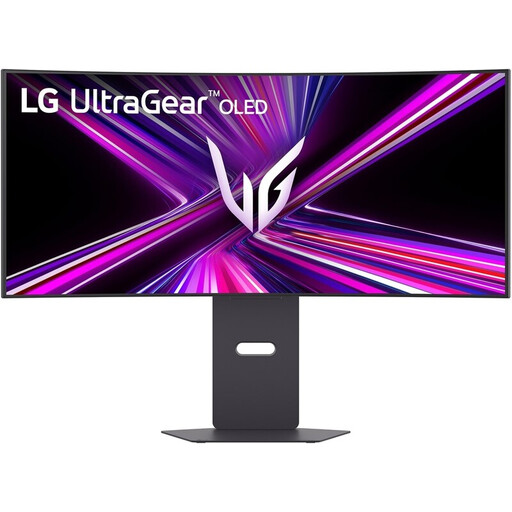
An ultrawide option for placing your editor and log side by side.
The product name specifies 3440 × 1440 pixels, 240 Hz, OLED and a height-adjustable stand.
No. In Windows, you can also enlarge text separately or adjust the scaling for apps and images. Microsoft Support explains these settings. Try them first, then see how much room you have left for your code and log.
Check the screen height, reflections and lighting. Arboportaal outlines workplace requirements for employees who work at a screen for more than two hours a day, including a height-adjustable screen; the source also describes the conditions under which employers may depart from these requirements. This is not a general product requirement for every private buyer.
For a standard online consumer purchase, you generally have a statutory cooling-off period of up to 14 days after delivery. ACM ConsuWijzer also explains exceptions and the rules for unpacking and trying products out; check the seller’s returns process and any return costs too.
No. According to ACM ConsuWijzer, Dutch statutory guarantees do not have a fixed time limit. The question is how long you can reasonably expect the product to work properly under normal use. A commercial guarantee does not replace this statutory right.
The Dutch government states that employers must also provide homeworkers with a good and safe workplace. Whether a particular piece of equipment is needed depends on the working and usage situation; this does not mean that every homeworker has to buy a specific monitor model.