
Illustrator with a small desk
Wants to leave room for a graphics tablet and other work materials. ASUS product information and advice from the Dutch Arboportaal make size, adjustability and readability relevant considerations for your workspace.


Start with the space available on your desk and whether you mainly need a taller drawing area, more pixels or a colour-managed workflow. A compact 24-inch 16:10 screen keeps your setup focused on saving space while giving you extra height; a 23.8-inch QHD screen offers more pixels, while a larger screen is only suitable if you have room for it. Manufacturer specifications help you compare models, but they are not a direct performance test.
Wants to leave room for a graphics tablet and other work materials. ASUS product information and advice from the Dutch Arboportaal make size, adjustability and readability relevant considerations for your workspace.
Wants to assess fine lines and ornamentation, so pays attention to resolution, screen size and the scaling used in their software. Model specifications from Dell, ASUS and EIZO provide specific points for comparison.
Creates work where colour consistency matters and needs to consider the screen, settings and any print workflow together. BenQ and EIZO describe product-specific colour features; these alone do not tell you how the entire workflow will perform.
| What to consider | What should you check? | Who is this important for? |
|---|---|---|
| Space for your monitor and drawing tools | Measure the available width and depth, then compare the external dimensions, including the stand. Also check the adjustment options available on the exact model. | If I need room beside my screen for a graphics tablet, every centimetre counts. Around 31% of consumers put desk space first. |
| Fine lines and usable canvas space | Compare screen size, resolution and your preferred software scaling together; don’t look at the pixel count alone. | When I want to draw small façade details, I need to be able to assess them clearly without the software controls becoming difficult to read. Around 31% of consumers prioritise detail and canvas space. |
| Colour for your intended output | Decide whether your work will mainly be viewed on screen or in print. Check the stated colour gamut, calibration options and relevant colour profiles. | If the colours in my illustration need to match the intended output, I also want to take the settings and output chain into account. Around 23% of consumers prioritise colour management. |
| Connecting with fewer cables | Compare your laptop’s video connection and power requirements with the specifications of the exact screen and the cable you need. | For a tidy laptop workspace, I want to know whether one suitable connection can provide both a picture and enough power. Around 15% of consumers make easy connectivity their top priority. |
The diagonal measurement doesn’t tell you how much space the stand takes up or how much room will be left for your drawing tools.
Measure your desk and compare the dimensions of the complete screen, including the stand, before choosing between a 24- and 27-inch model.
Resolution, colour gamut and colour management answer different questions. A higher pixel count alone says nothing about the colour reproduction of your entire output workflow.
First decide whether detail or colour-critical output matters more for your work, then assess those features separately.
For print work, matching your screen settings, software and printer may require extra checks.
USB-C alone doesn’t confirm that a connection can provide both video and enough power for your laptop.
Check your laptop’s video support and power requirements against the specifications of the exact monitor model.
If the connection isn’t suitable for your laptop, you may still need a separate power adapter or a different cable.
The ProArt PA248CRV is a compact 24.1-inch 16:10 option for illustrators who are considering desk space and adjustability.
The Pro 24 Plus P2425DE is aimed at those who want to combine QHD detail and a USB-C hub in a 23.8-inch screen.
The ColorEdge CS2400S is a 24.1-inch 16:10 option for illustrators who value colour management.
The PD2705Q is a 27-inch QHD option for those who want a larger physical drawing area and have enough desk space for it.
This selection includes portable screens for a flexible, compact workspace and 24-inch QHD models for those looking for more pixels in a compact format.
 No image available
A portable screen for anyone looking to create a flexible workspace.
The product name lists 2.5K, IPS, 16:10, 100% sRGB, 10-bit, two USB-C connections and Mini HDMI.
 No image available
A portable 16-inch screen for anyone looking for a compact drawing area.
The product name lists 2560 × 1600 pixels, IPS, 16:10, 123% sRGB and a built-in stand.
 No image available
A compact QHD option for anyone looking to assess fine façade details on a screen of around 24 inches.
Dell specifies a 23.8-inch screen, 2560 × 1440 pixels and up to 90 W of power delivery via USB-C for the P2425DE. Check that the USB-C connection is suitable for your laptop.
 No image available
A 24-inch QHD model for anyone who wants to view fine lines on a compact screen.
The product name lists 2560 × 1440 pixels. Check this variant’s dimensions and connections to make sure they suit your desk and laptop.
 No image available
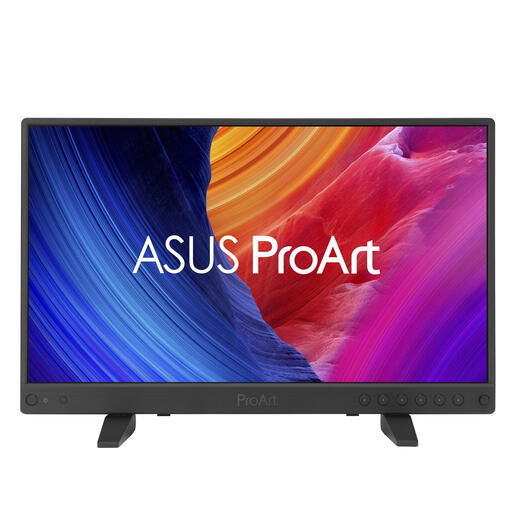
A compact ProArt screen for anyone comparing a small physical size with a high stated resolution.
The product name lists 15.6 inches and 3840 × 2160 pixels (4K). Consider whether this size suits your preferred drawing area and software display.
No, portrait mode is one possible layout, not a requirement. Also consider how much space your illustration software and side panels take up, and check whether the model can rotate and fit on your desk. ASUS lists a pivot function for the PA248CRV.
Not on its own. BenQ lists 100% sRGB for the PD2705Q, but print work also depends on colour settings, relevant profiles and the output workflow. EIZO also highlights settings and the output device when discussing colour management.
Use the adjustment options to find a comfortable screen position, and make sure icons remain easy to read and reflections are limited. The Dutch Arboportaal identifies poor readability, reflections and an unsuitable workstation setup as factors that can contribute to discomfort; no single monitor model will prevent this by itself.
No. According to the Authority for Consumers & Markets, the statutory guarantee in the Netherlands has no fixed term; what you could reasonably expect from the product and how it is normally used are important. The seller is responsible for providing a product that is fit for purpose, and a commercial warranty does not replace your statutory rights.
Yes. CE marking is relevant to electrical and electronic equipment covered by EU rules that require it. According to the European Union, the manufacturer must determine which requirements apply to the specific product; the product name alone does not show whether a listing has been checked against them.