
Building a directory with lots of source windows
You compare websites while entering information in the directory, so you mainly need enough room to place windows side by side.


An adjustable 27-inch QHD monitor suits a workflow with a source page alongside your directory. A 34-inch ultrawide gives you more horizontal space if you want to view several windows at once and have room for it. Choose a USB-C hub only if its ports and charging capabilities suit your laptop, and consider 4K if extra pixel detail matters more to you than a physically wider screen.
You compare websites while entering information in the directory, so you mainly need enough room to place windows side by side.
You usually work with one source and one entry window, and want a screen you can adjust to a comfortable working height.
You regularly connect your laptop to a workstation and want to make it easier to do so. Your laptop’s video and charging capabilities determine whether USB-C docking is suitable.
First, decide how many windows need to be readable at once. Then consider the space available on your desk and the ports or pixel detail you actually need.
| What to consider | What should you look for? | Who will find this most important? |
|---|---|---|
| Several windows | Compare the screen width and resolution with your window layout and preferred text size. | If I want to view source pages, the directory and entry fields at the same time, I mainly need horizontal space; around 36% of consumers put window space at the top of their list. |
| Two readable windows | Check that the source and entry screen fit side by side at a readable size for you. Also check the screen’s adjustability and stand. | If you usually use a source alongside the entry window at a compact desk, you may find an ultrawide screen unnecessary; around 29% of consumers put a two-window setup at the top of their list. |
| Connecting a laptop | Check video output through your laptop’s port, the power required for charging, the monitor’s ports and which cables are included. | If I regularly connect my laptop to a workstation, I want to connect the display and peripherals easily; around 21% of consumers put connectivity at the top of their list. |
| Extra pixel detail | Adjust the text size and assess how much information you can actually read on screen at that setting. | For consumers who value finer text over extra physical screen width, pixel detail is the top priority; they make up around 14%. |
A higher resolution does not make a 27-inch screen physically wider. Text may also look too small at a high resolution until you adjust the scaling setting.
Try your preferred text size and window layout first. Choose 4K if extra detail matters; choose ultrawide if you mainly want more horizontal space.
Video and power delivery over USB-C depend on the laptop and the specific monitor. A QHD monitor is not automatically a laptop dock.
Check the exact model variant, your laptop’s video output, the charging power required and the cable before assuming it has hub functionality.
Extra horizontal space is only useful if the screen and stand fit on your desk and you can position the screen comfortably.
Measure the available space and check the dimensions and adjustment options for the exact model.
According to the Dutch Government, the Netherlands has no fixed statutory warranty period. What you can expect from a product depends, among other things, on the product and normal use.
Discuss any fault with the seller and check any additional warranty terms alongside your statutory rights.
The models described range from 27-inch QHD to 27-inch 4K, including a QHD version with a USB-C hub.
The monitors mentioned include 34-inch ultrawide models for those who want to arrange several windows side by side.
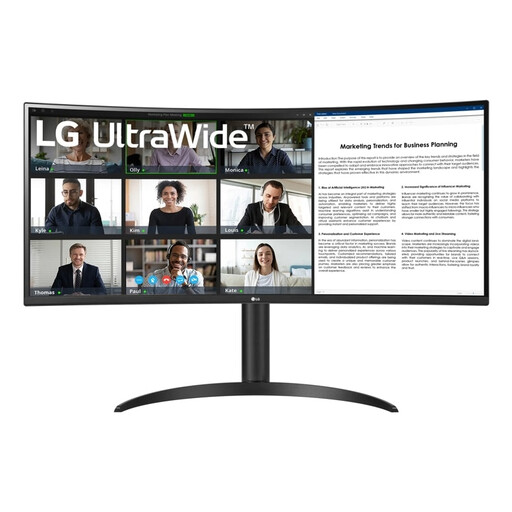
The 346E2CUAE/00 is a 34-inch ultrawide option described as having WQHD resolution and USB-C.
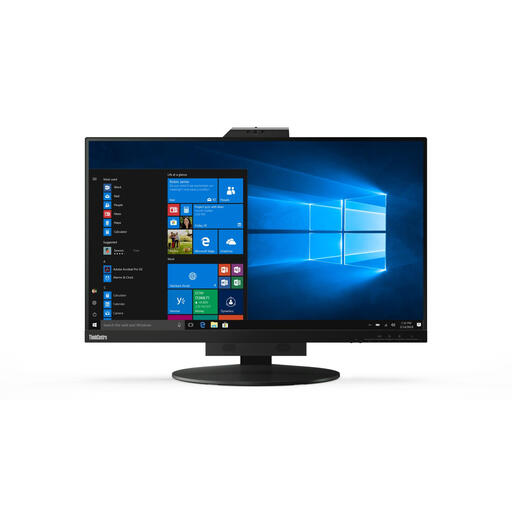
The ThinkVision T27h-30 is a 27-inch QHD office monitor described as featuring USB-C docking and Ethernet.
These models suit two types of workspace: a 34-inch monitor for more screen space, or a more compact 27-inch setup, with QHD or 4K resolution.
 No image available
The 34-inch version suits anyone who wants to keep several windows in view while working on a directory.
Curved dual-mode monitor; WUHD and WFHD modes are separate settings.
 No image available
The 34-inch version is designed for anyone who wants to arrange several windows side by side.
3440 × 1440 pixels.
 No image available
This 34-inch version suits a setup where you want to use several windows at once.
3440 × 1440 pixels. To use USB-C for video and power, the connected computer must support the necessary features.
 No image available
This 27-inch monitor suits anyone who values extra pixel detail and can adjust the text size to their preference.
3840 × 2160 pixels.
 No image available
The 27-inch QHD version is designed for a more compact setup, with a source window alongside your entry window.
2560 × 1440 pixels. The power adapter must be purchased separately.
If you use Windows, you can use Snap to drag windows to the edges of the screen or choose a layout. Microsoft Support explains how to arrange windows side by side or in a grid. Try this with a readable text size before deciding you need a larger screen.
No. First check whether your laptop can output video through that port and how much charging power it needs. Also check the ports and cables supplied with your chosen model. Dell lists the P2725DE as having a USB-C hub with power delivery of up to 90 W.
Compare the energy label for the exact model. According to the European Commission, computer monitors are rated on a scale from A to G, and the label shows consumption in kWh per 1,000 hours.
For employees who work at a screen for more than 2 hours a day, Arboportaal recommends, among other things, a height-adjustable, non-reflective screen. This is not a universal buying rule for every private consumer; if necessary, discuss your workspace with your employer.
No. According to the Dutch Government, the Netherlands has no fixed statutory warranty period; what you can expect from a product depends, among other things, on the product and normal use. If a product is faulty, contact the seller. Online consumer purchases are also often covered by a 14-day cooling-off period.