
Digital character artist
You choose colours for a character that will mainly be seen on screens, and want to know which colour mode and profiles suit your work. Adobe explains that colour profiles affect how colours appear across devices.


Choose a monitor for digital painting based on your colour workflow and the space available on your shared desk. QHD may be enough if you mainly want to see your canvas and tool panels; 4K gives you more pixels at the same screen size, while hardware calibration is most relevant for a controlled colour workflow. Also check the monitor’s footprint, how it connects to your laptop and the exact model. If you’re painting a physical figurine using reference images, colour management may be less important.
You choose colours for a character that will mainly be seen on screens, and want to know which colour mode and profiles suit your work. Adobe explains that colour profiles affect how colours appear across devices.
You share your workspace or switch between laptops and want to keep screen positioning, footprint and cables practical. Adjustability and the dimensions of the exact model will help you work out whether the screen fits your workspace.
You want to assess colours consistently for an agreed workflow or print result. EIZO describes hardware calibration for the ColorEdge CS2740; a suitable screen profile is also important.
A good fit if: you mainly paint for on-screen viewing and QHD gives you enough room for your canvas and panels. BenQ lists a resolution of 2560 × 1440 pixels and 100% sRGB for the PD2705Q.
Bear in mind: the stated refresh rate is 60 Hz and USB-C Power Delivery is 65 W; check that this suits your laptop.
A good fit if: you want more pixels for details and tool panels. ASUS lists 4K, 100% sRGB, 99% Adobe RGB and 96 W USB-C Power Delivery for the PA279CRV.
Bear in mind: 4K alone says nothing about colour accuracy. Philips confirms that the 27E1N1900AE/00 has 4K, IPS, USB-C and a height-adjustable stand, but does not make a comparable calibration claim.
A good fit if: consistent colour assessment is part of your workflow. EIZO specifies hardware calibration for the ColorEdge CS2740.
Bear in mind: your files, software and wider colour workflow also need to be set up correctly; extra colour features aren’t always necessary for casual on-screen work.
| What to consider | What to look for | Who is this important for? |
|---|---|---|
| Colour choices | Check the colour gamut, colour mode, calibration options and the profiles used by your files. | If I want my colour choices to suit my digital workflow, I look at profiles and colour settings; around 36% of consumers prioritise colour choices. |
| Space and adjustability | Measure the available width and depth, and check the stand and adjustability of the exact model. | If I share my desk, the screen needs to fit alongside my drawing tools and I need to be able to adjust its position; around 29% of consumers prioritise fit and adjustability. |
| Details and panels | Compare 2560 × 1440 and 3840 × 2160 at the screen size that suits you; adjust the screen scaling for a comfortable-to-read display. | If I want to see fine details and tool panels at the same time, I look at the available pixels; around 21% of consumers prioritise seeing details and panels. |
| Connecting and switching | Check for video over USB-C, the power output you need, the monitor’s ports and the cable supplied. | If I regularly switch between laptops, I want to know whether my laptop’s connection supports both display and charging; around 14% of consumers prioritise easy connectivity. |
Colour gamut and a suitable monitor profile are different parts of colour management. Adobe explains that an incorrect profile can lead to misleading colours and unnecessary adjustments.
Check the colour mode, the profiles used by your files and how you’ll manage calibration in your own workflow.
Profiling and calibration may require extra time or equipment.
At a shared desk, the monitor stand also needs to fit alongside a drawing tablet, keyboard or other items.
Measure the available space and check the stand dimensions and any VESA mounting options for the exact model.
If the stand takes up too much room, you may need a different monitor arm.
Your laptop must support video output through the relevant USB-C port, and the charging power needs to be suitable for your laptop.
Compare your laptop’s requirements with the ports, Power Delivery and supplied cable of the model you choose.
Depending on your devices, you may need a separate charger or another compatible cable.
The Creative Pro PD2705Q is a 27-inch QHD option for digital painting, with a stated sRGB work mode and USB-C.
According to ASUS, the ProArt PA279CRV combines a 27-inch 4K panel with colour modes for creative applications.
The 27E1N1900AE/00 is a general-purpose 27-inch 4K option with IPS, USB-C and an adjustable stand.
The ColorEdge CS2740 is a specialist option for a controlled colour workflow.
The UltraFine 27UP850K-W is a 27-inch 4K option if adjustability and USB-C matter to you.
These Joybuy models are 4K monitors that could suit your need for extra pixels when painting digitally. Compare each model’s screen size and listed features with your desk and laptop.
 No image available
An option to compare if you’re looking for a 27-inch 4K screen for digital details.
27 inch; 4K; IPS.
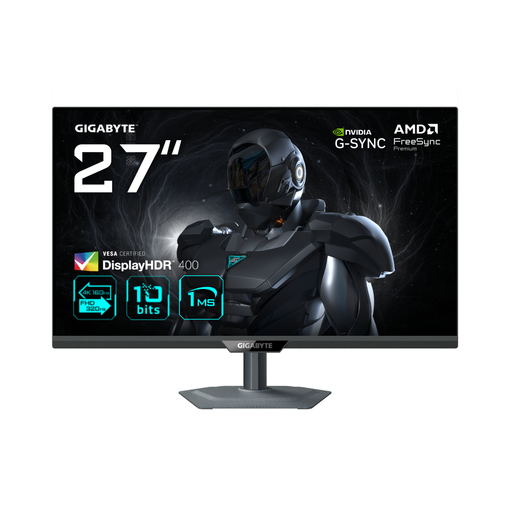 No image available
An option to compare if you’re considering 4K resolution and the listed Dual Mode feature in one screen.
27 inch; 4K; IPS; 160Hz/FHD 320Hz Dual Mode.
 No image available
An option to compare if you’re looking for a 27-inch 4K screen for digital details.
27 inch; 3840 × 2160 pixels; 4K Ultra HD; LCD.
 No image available
An option to compare if you’re looking for more pixels on a 27-inch screen.
27 inch; 3840 × 2160 pixels; 4K Ultra HD; LCD.
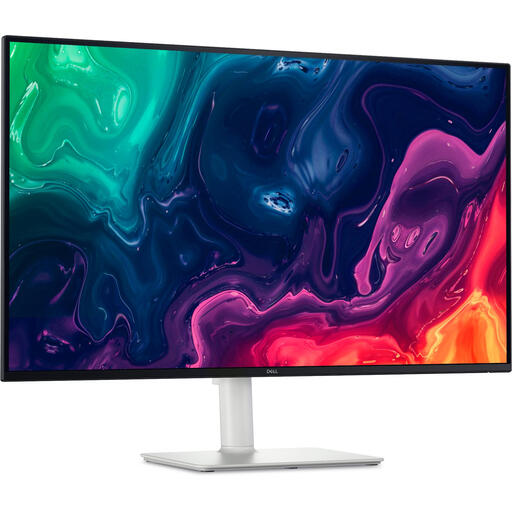 No image available
An option to compare if you’re looking for more pixels and have room for a larger screen.
31,5 inch; 3840 × 2160 pixels; 4K Ultra HD; LCD.
No, not necessarily. The 27-inch 4K monitors mentioned have 3840 × 2160 pixels, while the BenQ PD2705Q has 2560 × 1440. Choose the extra pixels if you’ll use the space for details and panels, and assess colour management separately.
Check each user’s screen position and the colour settings that suit their workflow. Adobe explains that an incorrect profile can display misleading colours and lead to unnecessary adjustments. There are also workplace requirements for employees who work with display screens; these don’t automatically apply as a legal obligation to every home hobby desk.
No. BenQ lists USB-C with DisplayPort Alt Mode and 65 W Power Delivery for the PD2705Q; ASUS lists DisplayPort over USB-C and 96 W for the PA279CRV. Check that your laptop supports video through its USB-C port and how much charging power it needs.
According to ACM ConsuWijzer, online consumer purchases generally come with a statutory 14-day cooling-off period after delivery, subject to exceptions. The statutory guarantee is separate from the manufacturer’s warranty: a product must last for as long as you can reasonably expect it to; there isn’t one fixed statutory warranty period for every monitor.
The European Commission states that electronic displays, including computer monitors, are covered by EU energy labelling rules. Check the energy information for the exact model if it’s a factor in your choice.