
Student creating digital illustrations
Wants to work on the tram, façades and street details, with room for the drawing window and reference images. Look for plenty of screen space, clear text and connections that suit your computer.


For a tram street illustration that will mainly be shown digitally, an adjustable QHD monitor with stated sRGB coverage is a practical starting point; also check that its connections are compatible with your computer. If you’re preparing a colour-critical print, a monitor with a wider colour gamut and calibration options may be more suitable for soft-proofing. However, no screen can guarantee that a print will look exactly the same.
Wants to work on the tram, façades and street details, with room for the drawing window and reference images. Look for plenty of screen space, clear text and connections that suit your computer.
Is getting work ready for an agreed print workflow and wants to check colours in advance. A suitable printer profile, calibration and soft-proofing matter more than simply having a larger screen.
Regularly connects a laptop and spends long periods working on details. Check that USB-C video and power delivery are suitable for your laptop, and that the monitor stand is adjustable.
Choose this option: if you’ll mainly be presenting your work digitally and want room for your drawing software and reference images.
Keep in mind: stated sRGB coverage doesn’t prove that a screen can predict a particular print exactly.
Choose this option: if the exhibition requires a colour-critical print and you’ll be calibrating and soft-proofing with the printer’s profile.
Keep in mind: a wider colour gamut isn’t a universal requirement, and it won’t eliminate differences between screen and print.
| What to consider | What should you check? | Who is this important for? |
|---|---|---|
| Colour for presentation | Ask which output profile the printer uses and whether you’ll be calibrating and soft-proofing. | If I want to assess the colours in my illustration for print, I need to know the print workflow in advance. Around 31% of consumers in this group put colour assessment first. |
| Room for detail | Compare the resolution and screen size with your desk space and how you want text and controls to appear. | I want to view lines, layers and reference images side by side without losing sight of the workspace I have available. Around 31% of consumers give detail workspace top priority. |
| Connecting and charging a laptop | Check video support through your laptop port, DisplayPort Alt Mode and the power delivery required. | For consumers who regularly connect a laptop, the main consideration is whether the connection suits their device. This connection requirement comes first for around 23%. |
| Workspace comfort | Check whether the stand is adjustable, and consider reflections and the lighting around the screen. | If I’m working on details for a long time, I want to position the screen comfortably and keep everything easy to read. Workspace comfort is the top priority for around 15% of consumers. |
A printer may reproduce colours differently from a monitor. The output profile also depends on the printer, ink and paper used.
Decide whether the illustration will be shown digitally or printed, and discuss the print workflow before treating a wider colour gamut as the deciding factor.
Calibration, profiling and proof prints may require extra work.
USB-C video support and the stated charging capacity need to match your laptop’s capabilities and power requirements.
Compare your laptop’s port specifications with those of the exact monitor model, including DisplayPort Alt Mode and the power delivery required.
If the connections aren’t compatible, you may still need a separate video cable or laptop power supply.
The Dutch Government says there is no fixed statutory warranty period in the Netherlands. If a product is faulty, the retailer is your point of contact.
Keep your proof of purchase and the product description, and check any manufacturer’s warranty terms separately.
The ProArt PA278QV and PA278CV are 27-inch QHD models for illustration work. ASUS states the sRGB coverage for these models.
The Creative Pro PD2705Q is a 27-inch QHD monitor with 100% sRGB and USB-C offering up to 65 W power delivery, according to BenQ.
According to EIZO, the ColorEdge CS2400S is designed for uses including illustration and colour-managed work.
According to Philips, the 27E1N5600AE/00 combines a 27-inch screen, QHD resolution and a USB-C connection.
The UltraSharp U2725QE is a 27-inch 4K Thunderbolt hub monitor for anyone looking for plenty of screen space and connectivity alongside illustration work.
These Joybuy products are suited to digital illustration and colour assessment. Check that each model’s features and connections suit your workflow and computer.
 No image available
An option to consider if you’re looking for a large 4K screen for your illustration.
32 inches, 4K UHD, 120 Hz and QD-OLED, according to the product name.
A colour management workflow doesn’t guarantee that a print will show the same colours as the screen.
 No image available
An option for anyone looking for a 27-inch QHD screen for digital illustration and colour assessment.
The product name lists QHD, 275 Hz, 1 ms, 99% sRGB and 99% Adobe RGB.
Check which of these display features matter for the way you’ll present your work.
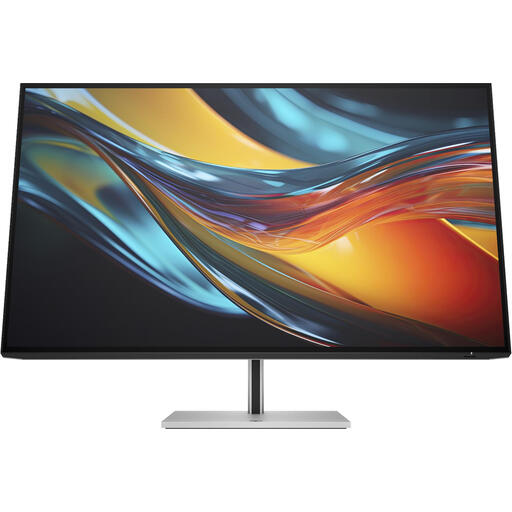 No image available
An option to consider if you want to combine illustration work with a large 4K display.
31.5 inches, 4K and Thunderbolt 4, according to the product name.
Check that the Thunderbolt connection is compatible with your laptop.
 No image available
An option for digital illustration if you’re looking for a QHD screen with USB-C video for a compatible laptop.
ASUS specifies a resolution of 2560 × 1440 pixels, 100% sRGB and USB-C with up to 65 W power delivery for this model.
Check that your laptop supports video over USB-C and how much power it needs to charge.
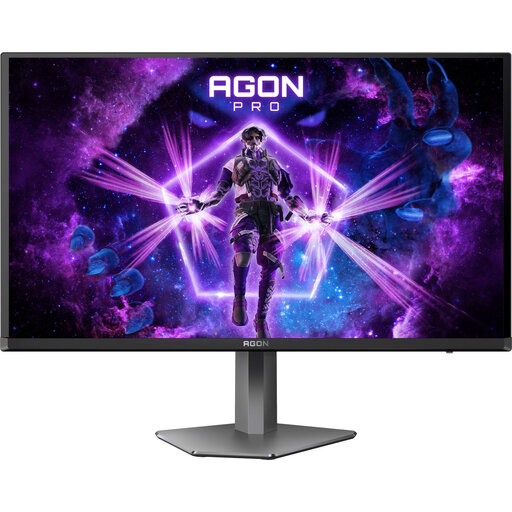 No image available
An option to consider if you’re looking for a 27-inch QHD screen to work on illustration details.
The product name lists QHD and a resolution of 2560 × 1440 pixels.
Check that this model’s display features suit your work and how you’ll present it.
Not necessarily. First ask which output profile and requirements the printer uses. A wider colour gamut can be relevant for colour-critical soft-proofing, but Adobe explains that monitors and printers can’t reproduce every colour identically, and that the printer profile depends on the printer, ink and paper.
Calibrate and profile the monitor, then use the correct document and output profiles in colour-managed software. A soft proof can help you assess the print in advance, but it can’t guarantee that the screen and paper will look the same.
Only if the relevant laptop port supports video. Also check the power required for charging. ASUS specifies USB-C video with up to 65 W power delivery for the PA278CV, and BenQ specifies the same for the PD2705Q.
According to the Dutch Government, a typical online purchase from a business usually comes with a 14-day cooling-off period, although exceptions apply. There is no fixed statutory warranty period in the Netherlands; you’re entitled to a product that is fit for purpose, and the retailer is your point of contact if there’s a problem. A manufacturer’s warranty is separate.
The European Commission states that electronic displays, including computer monitors, carry an energy label on a scale from A to G. For a specific model, check the product information sheet and, where available, its listing in EPREL. The label relates to energy use, not how suitable the monitor is for illustration.