
Writers who need larger text
You want to read and edit your diary comfortably. Microsoft Support explains how to make text larger without lowering the screen resolution.


Choose a monitor that lets you set your preferred text size in your writing programme while still giving you a comfortable working experience. Then consider how much room you’ll have for reference materials, how you can position the screen and whether its connections are compatible with your computer. Microsoft Support recommends adjusting the text size or display scaling rather than lowering the screen’s native resolution, as this can make text look blurry.
You want to read and edit your diary comfortably. Microsoft Support explains how to make text larger without lowering the screen resolution.
You want to check whether there’s room for a source window or revision notes while using your usual text size.
You spend long periods writing at a screen, so you’ll want to consider the monitor’s position and how it connects to your computer. Arboportaal covers screen-based work in the context of workplace setups.
First, try your preferred text size at the screen’s native resolution. Then assess the remaining space for windows, the monitor’s positioning and its connections.
| What to consider | What should you look for? | Who should consider this? |
|---|---|---|
| Readable text enlargement | Try your writing programme at the screen’s native resolution, using your preferred text size or scaling setting. | If I want my diary to remain comfortable to read without making the text look blurry, I test the magnification in my own programme. Around 36% of consumers say readable text enlargement is their top priority. |
| Room for text and reference materials | Open your manuscript alongside a source or notes window, using your preferred text size. | If I want to see sources alongside my manuscript while revising, I check how much usable space is left for both windows. Around 29% of consumers put space for their manuscript and sources first. |
| Positioning and adjustability | Compare the exact model’s height adjustment, tilt and any pivot function with the space on your desk. | If I’m writing for long periods, I want to be able to position the screen to suit my workspace. Around 21% of consumers make positioning and adjustability their top priority. |
| Connection to your computer | Check that your computer can output video through the connection you’ve chosen, and that the monitor’s power delivery suits your laptop. | If I’m using my existing laptop, I want to know whether video and any power delivery will work through the chosen connection. Around 14% of consumers say a compatible computer connection is their top priority. |
Screen resolution and text size or display scaling are separate settings. Microsoft Support warns that using a resolution below the screen’s native setting can make text look blurry.
Set your preferred text size at the recommended resolution before comparing monitors.
Connections and power delivery options vary by model. A USB-C port alone doesn’t tell you whether your computer can output video through that connection or receive enough power.
Compare your computer’s video output and power requirements with the specifications for the full monitor model.
Depending on your computer, you may need a different cable, an adaptor or a separate laptop power supply.
The model number or variant can affect features such as resolution, adjustability and connections.
Check the full model number and current product details before making your choice.
The features listed relate to the specific models below. Always check the version you’re considering.
The P2725DE and P2725H are 27-inch models with different resolutions and connection options.
The GW2790QT reviewed here combines a 27-inch QHD screen with USB-C and an adjustable stand.
The 27E1N1600AE/00 is a 27-inch QHD monitor with USB-C.
The 27UP850K-W is a 27-inch 4K option with an adjustable stand and pivot.
The ProArt PA278QV is a 27-inch QHD monitor with height adjustment and pivot.
Here are QHD and 4K monitors for writing and revising with enlarged text, from 27-inch models to larger screens. Compare the usable space at your preferred text size and check each model’s stand and connections.
 Image unavailable
A 27-inch QHD model to try with the text size and window layout you use for your diary.
Resolution: 2560 × 1440. The stand tilts, and the monitor supports 100 × 100 mm VESA mounting.
Connections: HDMI and DisplayPort.
 Image unavailable
A 27-inch 4K model to compare if you want to use enlarged text and see how much workspace remains.
Resolution: 3840 × 2160. This version has a height-adjustable stand and an EasyRead mode.
Connections: HDMI and DisplayPort.
 Image unavailable
The picture-in-picture and picture-by-picture features listed may be useful if you want to view your manuscript and other material at the same time.
Resolution: 3840 × 2160. The stand offers height, tilt and swivel adjustment.
Product details list USB-C with 98 W Power Delivery, a KVM switch and PIP/PBP.
 Image unavailable
The larger screen may be useful for viewing an enlarged manuscript alongside sources. Try out your window layout at your preferred text size.
Resolution: 3440 × 1440. The stand offers height and tilt adjustment.
Product details list USB-C with 90 W Power Delivery and an RJ45 connection.
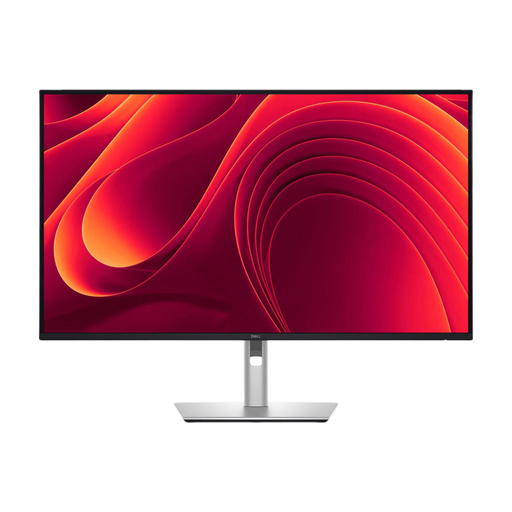 Image unavailable
The 31.5-inch QHD format is worth considering if you want to view notes alongside your enlarged manuscript.
Resolution: 2560 × 1440. The stand offers height, tilt and swivel adjustment.
Product details list USB-C with 90 W Power Delivery and an RJ45 connection.
No. Start by adjusting the text size or display scaling, and keep the recommended resolution if possible. Microsoft Support warns that text can look blurry if you use a resolution below the screen’s native setting.
First, check whether the stand lets you physically rotate the screen. Then, if needed, change the screen orientation in your operating system. Microsoft Support notes that changing the screen orientation also requires physically turning the monitor.
For eligible online consumer purchases, you generally have a 14-day cooling-off period. If a product is faulty, contact the seller; the Dutch government states that statutory guarantee rights in the Netherlands don’t have a fixed warranty period.