What should you look for when choosing?
First compare the desk space available with how much of the dialogue map you want to see at once. Then check that the stand and connections suit your workspace.
| What to consider |
What to look for |
Who is this important for? |
| Viewing the map and text together |
Compare screen size and resolution, and consider whether you usually view the whole map or a single branch. |
If I want to see several branches alongside my text, having a clear overview matters more to me than a small screen. Around 36% of consumers prioritise seeing branches and text together. |
| Desk space |
Measure the available width and depth, and allow for the monitor stand and keyboard. |
If my desk has limited space, I want to know first whether the screen and stand will fit, even if a larger map sounds appealing. Around 29% of consumers prioritise a compact setup. |
| Readability and positioning |
Check how adjustable the stand is and whether you can set the text to a comfortable size. Also consider lighting and reflections. |
If I spend a long time reading or writing passages, I want to position the screen comfortably and read the text clearly. Around 21% of consumers prioritise posture and readability. |
| Connecting and charging a laptop |
Check whether the laptop supports video over USB-C and whether the monitor port provides video and enough power for charging. |
If I want to use my laptop with as few cables as possible, I first check that both devices support video and power over the same connection. Around 14% of consumers prioritise a suitable one-cable connection. |
Joybuy product picks
These Joybuy picks include larger QHD and 4K screens for viewing a map and text, as well as a more compact Full HD option. Check the space needed for the stand and the functions of the connections on each model.
 No image available
Philips 27E1N1800AE/00 27-inch 4K UHD monitor
The 27-inch 4K screen offers more workspace for viewing a map alongside text. Bear in mind how much desk space you’ll need.
27 inches, IPS, 3840 × 2160, 60 Hz and 4 ms; HDMI, DisplayPort and a height-adjustable stand.
Joybuy
 No image available
INNOCN CB27U1 27-inch 4K UHD monitor
This 27-inch monitor is an option for viewing a larger map and text side by side. Measure the space for the screen and stand beforehand.
3840 × 2160 IPS, 120 Hz and USB-C 90 W PD; the title also lists HDMI, DisplayPort and a height-adjustable stand.
Joybuy
 No image available
KTC H27E6S 27-inch QHD gaming monitor
The 27-inch QHD format may suit you if you want more room to view branches alongside text. Bear in mind the space available on your desk.
2560 × 1440, Fast IPS and 240 Hz; the title lists overclocking up to 275 Hz, a height-adjustable stand, HDMI 2.0 and DisplayPort 1.4.
Joybuy
 No image available
ASUS ProArt PA278CGV 27-inch QHD monitor
This 27-inch QHD model may suit you if you want to view a larger dialogue map alongside text. Tweakers describes the stand on this specific model as wobbly; bear that assessment in mind when weighing up your options.
2560 × 1440 pixels; ASUS lists USB-C PD 90 W and an ergonomic stand.
Joybuy
 No image available
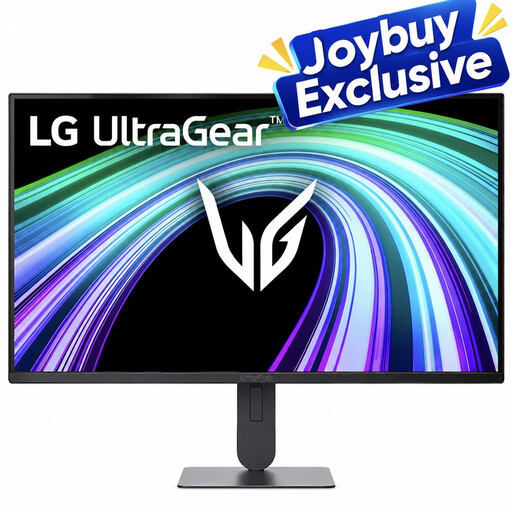
LG UltraGear 24G414B-B 24-inch Full HD monitor
The more compact Full HD format may suit a smaller desk and work on individual branches. It has fewer pixels than QHD for displaying a detailed map alongside text.
The product title lists a 24-inch Full HD screen. The product description mentions height and tilt adjustment.
Joybuy
Frequently asked questions
How should I set up my screen for a dialogue map?
Make sure the text is readable and position the screen to avoid reflections. Arboportaal also highlights adequate ambient lighting as an important consideration when working with a screen. If you’re working for a long time, you can vary your posture and take short breaks from looking at the screen.
Can any USB-C monitor connect to and charge my laptop with one cable?
No. Check whether your laptop supports video over USB-C and whether the monitor port provides both video and enough Power Delivery. Dell lists a USB-C downstream port for data only on the P2425H; ASUS lists USB-C PD 90 W for the PA278CGV.
What can I compare for energy use and warranty cover?
Compare the stated consumption in kWh per 1,000 hours on the applicable energy label. Without knowing how long you use the monitor and your electricity tariff, this won’t calculate your annual bill. According to the Dutch government, the seller is responsible for providing a solution if there is a problem with a product; a paid-for extended warranty does not replace your statutory rights.
What rules apply when buying a monitor online in the Netherlands?
According to the Dutch government, distance purchases are often covered by a 14-day cooling-off period; check the terms of the specific sale. EUR-Lex outlines EU rules on ecodesign and energy-label information for electronic displays. Dutch workplace health and safety rules focus on employers’ obligations and do not prescribe a specific monitor model for a student buying one for personal use.


