
Builder of branching conversations
If you want to view branches and reference windows at the same time, consider the screen shape and the width of your desk. LG lists the 34WR55QC-B as 809 mm wide, so measure how much space you have before buying.


For a dialogue tree on a sit-stand desk, your choice mainly depends on how you arrange your windows: an ultrawide screen gives you room to place them side by side, a 3:2 screen gives more emphasis to vertical content, and a 27-inch monitor takes up a more compact area. Next, check that you can position the monitor comfortably at both sitting and standing heights, and that its connections and any USB-C power delivery are suitable for your laptop. The monitors mentioned have not been specifically tested with your dialogue software.
If you want to view branches and reference windows at the same time, consider the screen shape and the width of your desk. LG lists the 34WR55QC-B as 809 mm wide, so measure how much space you have before buying.
If you change position while working, you need to be able to position the monitor comfortably in both setups. Compare the adjustment range of the specific model with the positions your desk requires.
If you work with lots of dialogue lines, you’ll want to find the right balance between text size and how much content is visible. The aspect ratio and resolution can help you decide, but check readability in your own editor.
Choose this if: you mainly want to place your editor, branches and reference material side by side, and have a wide enough desk. LG lists the 34WR55QC-B as 34 inches with a resolution of 3440 × 1440 pixels.
Consider: the LG model mentioned is 809 mm wide. Also check that the viewing distance and screen position work at both desk heights.
Choose this if: you mainly want to read lots of lines of text or vertical parts of a branch at the same time. BenQ lists the RD280U as a 28.2-inch 3:2 panel with a resolution of 3840 × 2560 pixels.
Consider: this format gives you less horizontal space than an ultrawide screen. Its stated height adjustment of 110 mm also needs to be enough for your sitting and standing positions.
Choose this if: you want a more compact work area or usually work with a main window and a secondary window. Dell lists the P2725D as 27 inches, with a resolution of 2560 × 1440 pixels and height adjustment; according to Dell, the P2725QE is 27 inches with a resolution of 3840 × 2160 pixels.
Consider: a 27-inch model offers less horizontal space than a 21:9 screen. With 4K, you’ll also need to check that text scaling is comfortable to read. Extra resolution or hub features are most useful if you’ll use them.
Four priorities come into play with this purchase: keeping an overview of your windows, adjusting the screen as you change position, text readability and connecting to your laptop.
| Consideration | What to look for when buying | Who might prioritise this? |
|---|---|---|
| Keeping track of branches | Check how windows are arranged in your own software and measure the available desk width. | If I want to see branches and reference windows side by side, both the screen width and the layout of my editor matter. Around 36% of consumers say keeping an overview is their top priority. |
| Screen position when sitting and standing | Compare the screen position you need with the adjustment range of the stand or monitor arm at both desk heights. | I switch between sitting and standing and want to position the screen comfortably in both positions. Around 29% of consumers give sit-stand adjustment the highest priority. |
| Readability and vertical content | Check text size and how much content is visible in your own editor, and consider the aspect ratio too. | When I’m working with long dialogue lines, I want the text to be comfortable to read without losing sight of the overall structure. Around 21% of consumers prioritise readability and vertical content. |
| Connecting a laptop | Check video support over USB-C, the power output you need and which cables you’ll require. | If I want to use my laptop with as few separate connections as possible, I first check which features both devices support. Around 14% of consumers make laptop connectivity their main priority. |
A larger diagonal measurement doesn’t automatically tell you how many windows will fit side by side. LG lists the 34WR55QC-B as 809 mm wide; other aspect ratios divide up the available space differently.
Measure the space on your desk and compare the aspect ratio with the layout of your own editor before choosing a screen size.
The adjustment range needs to work for your setup. The 110 mm of height adjustment listed by BenQ for the RD280U doesn’t guarantee that the monitor will be positioned comfortably for everyone in both working positions.
Measure the screen position you need when sitting and standing, then compare it with the adjustment range of the stand or monitor arm.
If the stand doesn’t adjust far enough, you may need a monitor arm or another change to your workspace.
USB-C features and power output vary between monitors. Check whether your laptop supports video over USB-C and whether the power output offered is suitable for your device.
Also check which cables and connections you’ll need. Your setup may require a separate adapter, cable or dock.
An additional warranty doesn’t replace your statutory rights against the seller. ACM ConsuWijzer explains that statutory rights apply alongside any warranty offered by the seller or manufacturer.
Keep your proof of purchase and, if something goes wrong, consider your statutory rights separately from any additional warranty terms.
The 34WR55QC-B is worth considering if you’re looking for a wide screen to place windows side by side.
The RD280U is a 3:2 option for anyone who prioritises vertical content.
The P2725D and P2725QE offer two 27-inch options: QHD and 4K with USB-C hub features.
The 27E1N5600AE/00 is a 27-inch QHD option with USB-C for a compatible laptop.
This selection includes ultrawide models and 27-inch monitors for anyone building a dialogue tree alongside reference windows, or looking for a more compact work area.
 No image available
An ultrawide option for anyone who wants to arrange several windows side by side.
The product description lists USB-C power delivery of up to 140 W. Check that your laptop supports the video and power standards required.
 No image available
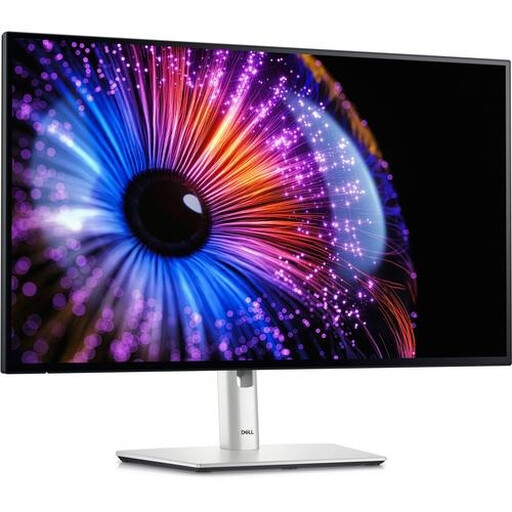
A 27-inch option for anyone weighing up a compact work area against a high resolution.
The product name lists 3840 × 2160 IPS, 120 Hz, HDR500 and PIP and PBP display.
 No image available
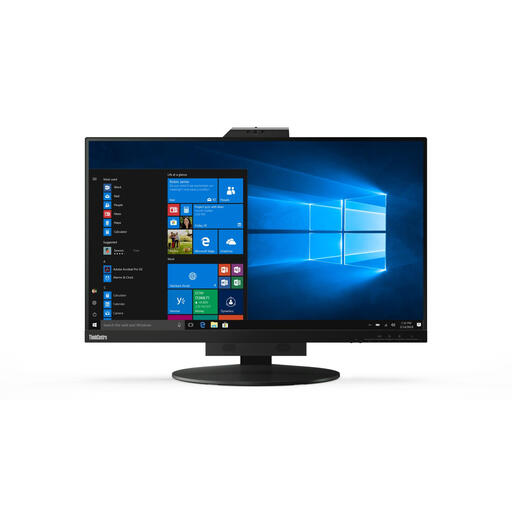
A 27-inch model for anyone who wants to arrange text and work windows on a standard screen.
The product name lists a resolution of 2560 × 1440 pixels.
 No image available
A 27-inch option for anyone looking for a standard work area for text and windows.
The product name lists a resolution of 2560 × 1440 pixels. The product description says the power adapter must be purchased separately.
 No image available
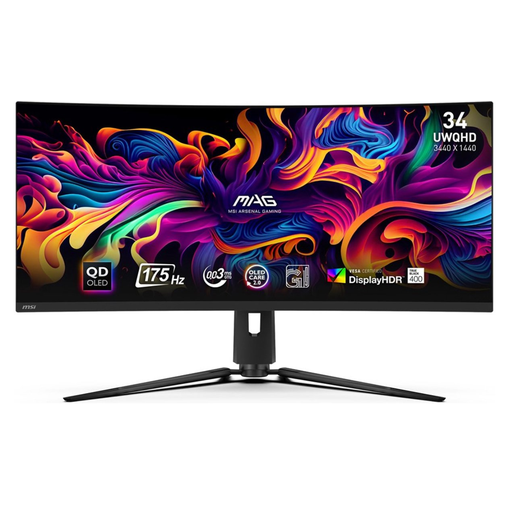
An ultrawide option for anyone who wants to view branches and secondary windows side by side.
The product name lists a resolution of 3440 × 1440 pixels. The product description specifies 15 W USB-C Power Delivery; check that this is suitable for your laptop.
Adjust your workspace whenever you change position. Arboportaal advises placing the screen directly in front of you, with the top just below eye level, and tilting it so you’re looking straight at it. Check that the stand or monitor arm allows you to achieve this position in both setups.
Not necessarily: both the monitor and the laptop need to support the required features. Check the monitor’s video support over USB-C and its power output against your laptop’s requirements. For example, BenQ lists DisplayPort Alt Mode and 90 W Power Delivery for the RD280U; Philips describes a single-cable connection for a compatible device.
For consumer purchases, statutory rights apply alongside any manufacturer’s or seller’s warranty. ACM ConsuWijzer explains that the seller is responsible for providing an appropriate solution if a product fails to meet what you could reasonably expect under normal use. A stated manufacturer’s warranty period does not automatically limit your statutory rights.
The official guidance from Arboportaal doesn’t specify a required brand, screen size or resolution. However, rules on safe screen-based work and workplace layout do apply to employees; for more than two hours of screen-based work a day, for example, there are requirements covering workplace layout. These aren’t uniform purchase requirements for every private buyer.