
Creator of detailed diagrams
You draw fine lines and small labels, and want to choose between extra pixels and more vertical workspace.


First, measure the available width and depth, then choose between extra vertical workspace with 16:10 or more pixels with QHD. Which option feels more comfortable depends on how easy labels are to read from your viewing distance, the monitor stand and your computer’s connections. So also check adjustability, your colour requirements and any USB-C features on the exact model.
You draw fine lines and small labels, and want to choose between extra pixels and more vertical workspace.
You want to leave room beside the screen for a keyboard, mouse or drawing materials. That means the depth of the stand matters too.
You want to keep your workspace tidy and check whether a single connection carries video and provides enough power to your laptop.
First, measure the space on your desk, then decide whether vertical workspace, extra pixels, adjustability or laptop connectivity matters most for your diagram work.
| What to consider | What should you check? | Who is this important for? |
|---|---|---|
| Desk space | Measure the width and depth of the stand; if you’re using a monitor arm, check the VESA size and allow room for the clamp. | If I need drawing materials or input devices on a shallow desk, I want to know how much work surface the stand takes up. Among consumers who prioritise the footprint, this accounts for around 25%. |
| Diagram detail | Compare the resolution and aspect ratio, and assess text size at your own viewing distance. The 16:10 models mentioned have a resolution of 1920 × 1200; the QHD models mentioned have a resolution of 2560 × 1440, according to ASUS, Dell and BenQ. | If fine lines and labels need to remain readable on my drawing canvas, I also want to be able to adjust the scaling settings. Among consumers who prioritise diagram detail, this accounts for around 33%. |
| Working posture | Check the height adjustment, tilt and screen reflections; allow for the space needed if the stand is adjustable. | When I work on diagrams for extended periods, I want to be able to adjust the screen to suit my workspace and minimise distracting reflections. Among consumers who prioritise adjustability, the proportion is around 25%. |
| Laptop connectivity | Check for USB-C video, DisplayPort Alt Mode on the laptop, and whether the stated power output is sufficient. | If I want to use my laptop with as few cables as possible, the connection needs to support both video and power. Around 17% of consumers prioritise this laptop connectivity. |
The stand also takes up desk depth. BenQ lists a stand depth of 256.9 mm for the PD2506Q.
Measure the available width and depth, then compare them with the monitor’s dimensions including the stand before you order.
Dell specifies the USB-C port on the P2425 as a downstream data port; it is not intended for video input or laptop power.
Check the video input and Power Delivery of the exact monitor model, and also check which features your laptop supports.
A stated colour gamut or calibration does not, by itself, describe how an individual unit performs.
Decide how important colour differentiation is for your diagrams, and treat colour information as the manufacturer’s specifications rather than an independent measurement.
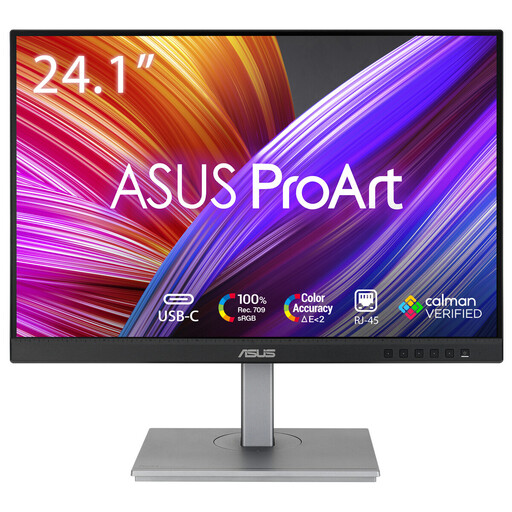
The ProArt PA248QV is a 24.1-inch 16:10 option for anyone looking to combine diagram workspace with stated colour settings.
The P2425 offers 16:10; the separate P2425DE is a 23.8-inch QHD model with USB-C docking features.
The PD2506Q is a 25-inch QHD option with colour modes specified by BenQ for design work.
The FlexScan EV2495 is a 24.1-inch 16:10 office option with stated laptop docking features.
The 24BA550-B is a 23.8-inch Full HD office option if QHD or specific colour features are not a priority.
These product picks suit diagram work in a compact workspace, with options for extra vertical space, resolution or a portable screen.
 No image available
A portable 16-inch screen could be a good fit if you have limited desk space and want flexibility in how you position it.
The product name lists 2.5K, 144Hz, 16:10, two USB-C connections, Mini HDMI and a built-in kickstand. Check that the resolution and connections are compatible with your computer.
 No image available
A 16:10 monitor could be a good fit if you want extra vertical space for a drawing canvas and toolbars in a compact workspace.
The product name lists 24.1 inches and 1920 × 1200. Check which connections you need and whether the stand fits on your desk.
 No image available
This compact QHD option could be a good fit if extra pixels for fine diagram details matter and your laptop supports the monitor connection.
The model is 23.8 inches and, according to Dell, has a resolution of 2560 × 1440 and USB-C power delivery up to 90 W. Check that your laptop supports USB-C video and that this power output is sufficient.
 No image available
A 23.8-inch QHD model could be a good fit if you want extra pixels for lines and labels on a compact screen.
The product name lists 2560 × 1440. Compare text size at your own viewing distance and check that it has the connections you need.
 No image available
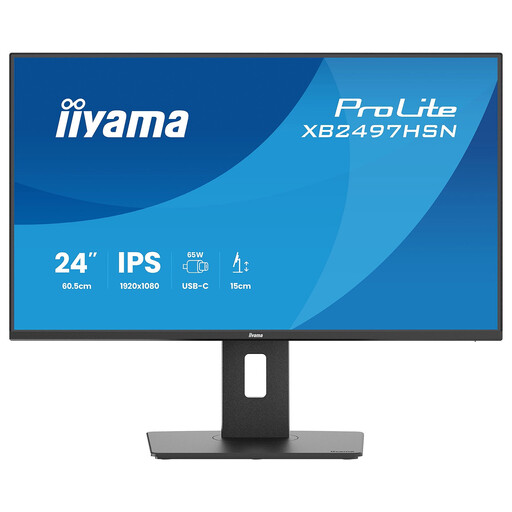
This compact Full HD option could be a good fit if an adjustable working position matters more to you than QHD resolution.
The product name lists 24 inches, Full HD, 100Hz and IPS. Compare the resolution with the level of detail your diagrams require.
Compare the resolution and aspect ratio, then adjust the scaling and text size on your computer to suit your viewing distance. QHD offers more pixels than 1920 × 1200 on the compact models mentioned, but that alone does not determine which text size will be comfortable for you to read.
Check that both your laptop and monitor support USB-C video via DisplayPort Alt Mode, and that the power output is sufficient. Dell specifies the P2425’s USB-C port as downstream, for data only and up to 15 W; that port therefore does not support video input or laptop charging.
For employees who spend more than two hours a day working at a screen, the Dutch Arboportaal states, among other things, that the screen and keyboard must not be attached to each other. This information relates to employees’ workplaces; it is not a general requirement for every private buyer to choose a particular type of monitor.
Before ordering, check which cables and mounting parts you need and whether they are included. According to the Dutch government, online purchases from a business generally come with a 14-day cooling-off period. ACM ConsuWijzer also distinguishes between statutory guarantees and commercial warranties.