Start by measuring the available width and depth of your desk, then choose according to what you do most: read sources, view maps and drawings, or assess colours. A compact QHD screen offers more pixels than a compact Full HD screen, but also check that text remains legible at your preferred scaling and that the monitor, stand and connections fit your workspace. Dell Netherlands and Philips Netherlands describe models with these resolutions. Manufacturer colour specifications are not independent measurements.
Who is this guide for?
Design student with a small desk
You want to view maps and drawings, but have limited room for both the screen and its stand. So measure the entire setup, not just the screen size. Lenovo Netherlands and MediaMarkt Netherlands also highlight available width and depth when discussing monitors for small desks.
Student who reads lots of source material
You switch between text, references and design software. In that case, readability and usable workspace matter more than gaming specifications. The Netherlands’ Arboportaal highlights small icons, contrast and reflections as factors to consider when working with a screen.
Student who creates colour presentations
You regularly assess images or digital presentations. Check which colour profile your assignment requires, and don’t treat manufacturer specifications as an independent assessment of your entire workflow.
What should you look for when choosing?
First measure the space available for the screen, then decide whether readability, detail, colour work or a simple laptop connection matters most to you.
| What to consider |
What should you check? |
Who is this important for? |
| Desk space |
Measure the available width and depth and compare them with the monitor’s dimensions, including the stand. If you’re using a monitor arm, check the mounting options and the space required too. |
If I want to leave enough desk space for study materials, I need to consider the whole setup. Around 36% of consumers say available desk space is their top priority. |
| Readability and detail |
Compare the resolution and screen size, and view your documents at a comfortable, readable scale. Check that your laptop and connection support the resolution you want. |
When I want to view text, maps and drawings at a practical scale, I consider both pixel count and readability. Around 29% of consumers put readability and detail first. |
| Colour reproduction |
Check which colour profile your assignment requires and compare the specifications for the exact model. Also check the calibration requirements. |
If you assess digital colours and images, it’s important that the stated profile suits your assignment. Around 21% of consumers say colour work is their top priority. |
| Connecting a laptop |
Check whether your laptop supports video over USB-C, what functions the monitor’s port supports and whether its power delivery is sufficient. Also check which cable is included. |
If I want to use my laptop with as few separate connections as possible, I check all the USB-C functions. Around 14% of consumers prioritise a simple one-cable connection. |
Common mistakes when choosing
-
Measuring only the screen size
The stand and cables take up space too. So even if a screen’s diagonal measurement fits, it may still take up too much of your desk.
Measure the available space and compare it with the monitor’s overall dimensions. If you’re using an arm, check in advance that the mount and setup will fit.
-
Assuming every USB-C port works as a laptop dock
A USB-C port may support data only, or it may also support video and laptop charging. For example, Dell lists a USB-C downstream port for data on the P2425; this is not the same as a video input for a laptop.
Compare the functions of the port on the exact model with your laptop’s video and charging requirements. You may also need a cable, adapter or separate charger.
-
Treating a stated colour gamut as a guarantee of the final colours
Manufacturer information about colour gamut or calibration doesn’t, on its own, tell you how your screen settings and complete presentation chain will reproduce colours.
Check which colour profile your assignment uses, along with the settings and calibration requirements for the exact model.
Relevant brands to consider
Dell
The models discussed here offer two compact options: the P2425, with a 24.07-inch screen, 16:10 aspect ratio and 1920 × 1200 resolution, and the P2425DE, with a 23.8-inch QHD screen and USB-C hub. These specifications apply to these models, not the entire brand.
- You can compare resolution, aspect ratio and connections for each model.
- According to Dell, the P2425’s USB-C port is a data downstream port; don’t confuse it with a laptop connection for video and charging.
BenQ
According to BenQ, the PD2506Q combines a 25-inch QHD screen with stated sRGB and P3 colour coverage. It may be worth considering if colour work is important and you want a compact screen.
- BenQ specifies USB-C with 65 W Power Delivery for this model.
- The stated depth with the stand is 256.9 mm. Measure your desk depth and check that the charging power meets your laptop’s needs.
ASUS
The ProArt PA248CRV is a 24.1-inch 16:10 model with a resolution of 1920 × 1200 pixels, designed for those looking for colour features in a relatively compact monitor.
- ASUS specifies USB-C Power Delivery of up to 96 W and VESA 100 × 100 mm support for this model.
- The stated colour accuracy is a manufacturer claim. Availability and accessories may vary by region.
Philips
According to Philips Netherlands, the 24E1N1300AE/00 is a 23.8-inch Full HD model with USB-C.
- A compact Full HD option to consider if extra detail in complex drawings isn’t essential.
- Full HD has fewer working pixels than the QHD options mentioned. Check the refresh rate of the exact version on offer if this matters to your choice.
Monitors at Joybuy
These product picks suit compact study setups, with options for detailed work, reading and a more straightforward Full HD screen.
 No image available
UPERFECT 16-inch 2K 144Hz Portable Monitor
A portable option if you need an extra screen for design work on a small desk.
16 inches, 16:10 and 2560 × 1600 pixels; QLED; VESA compatible; Mini HDMI and Type-C.
View at Joybuy
 No image available
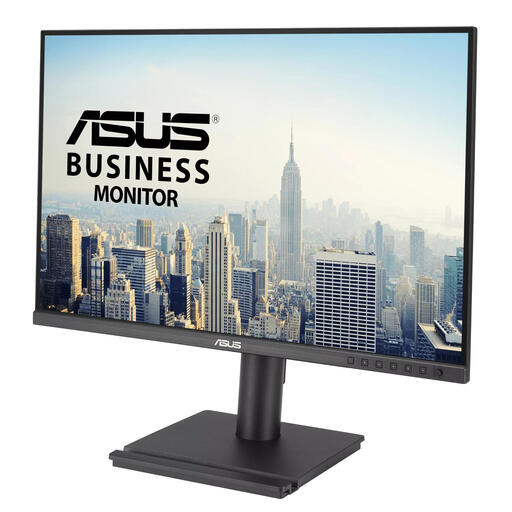
ASUS BE248QF 24.1-inch WUXGA monitor
A 16:10 screen for students who read lots of text and source material.
1920 × 1200 pixels.
View at Joybuy
 No image available
Dell Pro Plus P2425DE 23.8-inch QHD monitor
A compact QHD option for viewing maps and design details when desk space is limited.
2560 × 1440 pixels. Check that your laptop supports video over USB-C and that the charging power suits your laptop.
View at Joybuy
 No image available
Dell Pro Plus P2425D 24-inch QHD monitor
A QHD option for viewing maps and design details, with an adjustable screen position.
2560 × 1440 pixels.
View at Joybuy
 No image available
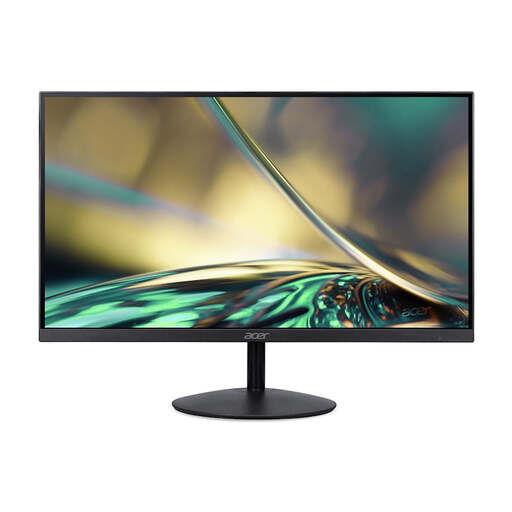
Acer SA242YH1 24-inch Full HD monitor
A compact Full HD screen to consider if extra detail in design drawings isn’t a top priority.
Full HD; HDMI and VGA. According to the product description, the charger must be purchased separately.
View at Joybuy
Frequently asked questions
Should you avoid a 27-inch screen on a small desk?
Not necessarily. Measure the available width and depth, then compare them with the dimensions including the stand and space for cables. The diagonal measurement alone won’t tell you whether the setup will fit. Lenovo Netherlands also recommends checking the space available in a small workspace.
Can you connect any USB-C monitor to your laptop with a single cable?
No. Check separately whether your laptop supports video through the port, whether the monitor’s USB-C input accepts video and whether the charging power is sufficient. According to Dell, the USB-C port on the Dell P2425 is for data downstream and isn’t a laptop video input.
How should you set up your workspace for long study sessions?
Position the monitor so that you can view the screen comfortably, and pay attention to small icons, reflections and the lighting around your workspace. The Netherlands’ Arboportaal outlines factors to consider when working with a screen. The cited health and safety rules are aimed at employers and employees and don’t automatically create a legal purchasing requirement for students studying at home.
What information can help you compare monitor power consumption?
Compare the energy label and consumption information for the exact model. The European Commission explains the EU energy label scale for electronic displays; to calculate running costs, you’ll also need to know how long you use the monitor and your electricity tariff.
What are your rights if a monitor bought online disappoints or is faulty?
For a standard online consumer purchase in the Netherlands, you generally have 14 days from delivery to change your mind, subject to statutory exceptions. If a product is faulty, the seller is responsible for the statutory guarantee. The Authority for Consumers and Markets (Autoriteit Consument & Markt) explains both consumer rights.


