
Design literature reader
You spend long periods reading and annotating documents, and want to adjust text size, screen position and the space available for reading.


First, choose a monitor that lets you read documents comfortably and adjust the screen to suit you. Then consider how critical accurate colour is for your design visuals. A calibrated display with a wide colour gamut is most relevant for colour-critical work, while a QHD or 4K monitor may suit you if reading and general image assessment are your priorities. If you’re using a laptop, also check that the video connection and USB-C power delivery are compatible with your device.
You spend long periods reading and annotating documents, and want to adjust text size, screen position and the space available for reading.
You compare digital design images and want to decide whether sRGB is enough or you need a wider, manageable colour space.
You’re looking for an adjustable external display and may want to connect video and power through a single port, if your laptop supports it.
First compare readability and the adjustments available for your workspace, then choose a colour space that suits your design files and intended output. The percentages below relate to consumers who both read a lot of design literature and assess industrial design images.
| What to consider | What to look for | Who is this important for? |
|---|---|---|
| Readability and document space | Compare screen size, resolution and text scaling at your usual viewing distance. Also check that you can arrange windows for documents and notes comfortably. | I want to read long texts at a comfortable size and have room for notes. Around 36% of consumers put readability first. |
| Colour assessment | Check whether your work requires sRGB, Rec.709, Adobe RGB or another colour space, and whether your software workflow supports colour management. | If the colours in my design visuals are crucial, I want to match the colour space to the brief. Around 29% of consumers prioritise colour assessment. |
| Screen positioning | Check the height, tilt and any pivot adjustments, reflections and the space available on your desk. If you’re using a monitor arm, check separately that it’s compatible with the screen. | I want to be able to position my screen comfortably for long periods of use. Around 21% of consumers prioritise their working posture. |
| Laptop connection | Check whether your laptop’s USB-C port supports video and compare the power it needs with the monitor’s power delivery. Also check which cables you’ll need. | If I want to connect my laptop using a single cable, both video and power delivery need to be suitable. Around 14% of consumers prioritise the laptop connection. |
sRGB, DCI-P3 and Adobe RGB percentages describe different colour spaces. On their own, they don’t show how your files will look in your workspace.
Start with the colour space required by your brief and intended output. Then check the specifications for the exact model and make sure your software workflow is set up accordingly.
Colour management and calibration may require extra steps when the brief calls for them.
A USB-C port doesn’t automatically mean your laptop will receive video and enough power through that connection. The power delivery ratings vary between monitors.
Compare your laptop’s video support and power requirements with the monitor and cable specifications.
You may also need a separate laptop power supply or a different cable.
A higher resolution doesn’t automatically mean the text will be a comfortable size to read. Screen position and distracting reflections also matter when you’re reading for long periods.
View your usual documents at the scale you prefer and check how you can position the screen on your desk.
The Creative Pro PD2705U is designed for digital design reviews and document work on a 27-inch 4K screen.
The ColorEdge CS2740 is intended for colour-managed graphics workflows, including image assessment for print.
The 27E1N1600AE/00 offers a QHD option for documents and general imagery on a 27-inch screen.
The UltraFine 27UP850K-W is a 27-inch 4K option with an adjustable stand for a mix of reading and image work.
The UltraSharp U2725QE is a 27-inch 4K hub monitor with an adjustable stand.
These monitors include 27-inch 4K screens for documents and design visuals, as well as a wider 34.18-inch ultrawide model. For each model, check that the resolution, connections and adjustment options suit your reading needs and colour workflow.
 No image available
A 27-inch 4K IPS screen for viewing documents and design visuals.
Resolution: 3840 × 2160 pixels.
 No image available
A 32-inch 4K UHD monitor for viewing design visuals on a larger screen.
The product information lists 120 Hz, 100% sRGB, 99% DCI-P3 and 94% Adobe RGB, as well as an integrated automatic colour calibrator.
The stated colour space coverage and calibrator don’t remove the need to check that the settings suit your files and workflow.
 No image available
A 27-inch 4K UHD monitor for viewing detail in documents and design visuals.
The product information lists a QD-OLED panel, USB-C and 120 Hz.
 No image available
A 27-inch 4K monitor with EasyRead mode for text documents.
Resolution: 3840 × 2160 pixels. The product name lists 60 Hz and 4 ms; the product information mentions HDMI, DisplayPort and a height-adjustable stand.
An anti-glare screen is also listed.
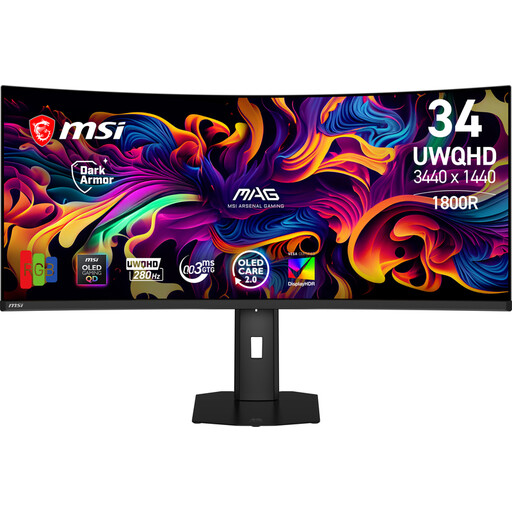 No image available
A 34.18-inch ultrawide monitor for viewing documents and design visuals side by side.
Resolution: 3440 × 1440 pixels; aspect ratio: 21:9. The product information lists a QD-OLED panel and height, swivel and tilt adjustment.
The product name lists 280 Hz; the product information lists 175 Hz via DisplayPort.
No. Compare QHD and 4K using the text size and scaling setting you find comfortable. According to Philips, the Philips 27E1N1600AE/00 reviewed here has 2560 × 1440 pixels; according to BenQ, the 27-inch BenQ PD2705U has 3840 × 2160 pixels. The number of pixels doesn’t automatically determine which text setting is comfortable for you to read.
No. BenQ lists up to 65 W via USB-C for the PD2705U; EIZO’s Dutch datasheet lists up to 60 W for the CS2740. Compare this with your laptop’s power requirements and check that its port also supports video.
Adjust the screen position, reduce distracting reflections and set the lighting to suit your workspace. Arboportaal also describes alternating screen work with other tasks or taking breaks for employees who work with display screens; what’s appropriate depends on the working situation.
No. A stated coverage such as sRGB, DCI-P3 or Adobe RGB describes a colour space, but on its own it doesn’t prove how accurately your files will be displayed in your workspace. Check which colour space your brief requires and whether your calibration and software workflow are suitable.
For employees, Arboportaal outlines employers’ obligations regarding display screen work. For example, Arboportaal states that when employees work with a display screen for more than two hours a day, the screen and keyboard must not be attached to each other. This isn’t a general product specification for every consumer buying a monitor.