
Student exhibiting printed work
You’re assessing photographs, illustrations or layouts that will also be printed. So don’t look only at the stated colour gamut: calibration and your printer and paper colour-management workflow matter too.


First, choose a monitor to suit how your portfolio will be viewed. For digital work, accurate sRGB reproduction is important; for print, you’ll also need a calibrated monitor and the right printer and paper profiles. Then compare the resolution, workspace and connections with your computer. A wider colour gamut alone won’t guarantee a match between what you see on screen and the final print.
You’re assessing photographs, illustrations or layouts that will also be printed. So don’t look only at the stated colour gamut: calibration and your printer and paper colour-management workflow matter too.
Your work will mainly be viewed online or on screen. Accurate sRGB reproduction and enough sharpness for text and images are important; print specifications are useful mainly if you also use a print workflow.
You want to see pages, preview images and tools at the same time while you work on your layout. RTINGS.com notes that a larger screen can make it easier to use windows side by side. Just make sure the size suits the space on your desk.
Start by deciding whether your portfolio will be assessed digitally, in print or both. Then compare the monitor’s features with your workspace and computer.
| What to consider | What to look for | Who should prioritise it? |
|---|---|---|
| Colour for print | Compare Adobe RGB coverage and calibration options. Also check the printer and paper profiles used for the final print. | If you want to assess how colours will appear in print and use colour management, this should be your priority. Around 36% of consumers prioritise colour for printing. |
| Colour and detail for digital work | Check the stated sRGB coverage, whether there’s an sRGB mode and the resolution of the exact model. | If your portfolio will mainly be viewed on screen, you’ll want to assess the digital version accurately. Around 29% of consumers prioritise digital colour reproduction. |
| Workspace for layout work | Compare the screen size and resolution with the space on your desk, and check whether the monitor is adjustable. | If you want to see pages and tools side by side while you design, the available workspace is key. Around 21% of consumers prioritise a clear overview when working on layouts. |
| Connection to your computer | Check that your computer’s video output works with the monitor. If you want to charge through a single USB-C cable, compare the power required with the power supplied. | If you want to connect your computer to the monitor for video and possibly power, you’ll need to check your computer’s requirements. Around 14% of consumers prioritise connectivity. |
A monitor’s stated colour gamut alone won’t tell you what your print will look like. A print workflow also depends on calibration and the profiles for your monitor, printer and paper.
First, decide whether your work will be printed and how you’ll manage colour. For a colour-managed print workflow, Adobe recommends a calibrated monitor with a suitable profile and an ICC profile for the printer and paper combination.
Calibration equipment and time spent on colour management may also be part of your workflow.
USB-C video doesn’t automatically mean that a monitor supplies enough power to charge your laptop. The BenQ PD2705U reviewed here specifies 65 W Power Delivery, while the EIZO CS2740 supplies up to 60 W. Compare this with your computer’s requirements.
Before buying, check both video support and charging power. If they aren’t suitable for your laptop, you may still need a separate laptop charger.
The Apple Studio Display XDR is a separate model with its own reference modes and compatibility requirements. Specifications for the standard Studio Display don’t automatically apply to the XDR version.
Check the full model name and compatibility with your Mac and macOS before making a choice.
The Creative Pro PD2705U is one option for design work that will mainly be viewed digitally.
The ProArt PA279CRV is worth comparing if your work involves colour for both digital and print.
EIZO describes the ColorEdge CS2740 as designed for creative workflows that involve colour management and calibration.
The UltraSharp U2723QE is an example of a 27-inch 4K monitor with connectivity options for a workstation.
The Studio Display XDR is a separate 27-inch 5K model to consider as part of a compatible Mac setup.
This selection includes monitors for colour-managed print work, digital sRGB work and extra workspace for creating layouts.
 Image unavailable
An option to compare if colour management and plenty of screen space for your portfolio matter to you.
4K resolution; the product information lists an integrated colourimeter for automated calibration, 100% sRGB and 94% Adobe RGB.
 Image unavailable
A good fit if you’re looking for a 4K screen for creative editing and want to consider factory calibration and colour coverage.
The product information lists 94% Adobe RGB, factory calibration, USB-C with 98 W Power Delivery, and KVM and PIP/PBP features.
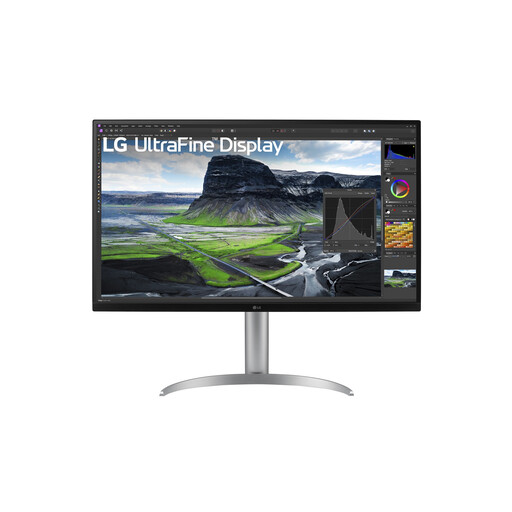 Image unavailable
An option if you want more screen space for layouts and are considering hardware calibration.
31.5 inches and 4K resolution; the product information lists hardware calibration, USB-C with 90 W and an adjustable stand with pivot function.
 Image unavailable
A good fit for digital sRGB work if you’re looking for a 27-inch screen with an adjustable stand.
WQHD resolution; the product information lists 100% sRGB and factory calibration. The stand offers height and tilt adjustment.
 Image unavailable
An option if you want plenty of screen space for layouts and work digitally in sRGB.
31.5 inches and WQHD resolution; the product information lists 100% sRGB, factory calibration and 93 ppi. Bear the stated pixel density in mind if fine detail is important.
No. A stated Adobe RGB gamut alone isn’t enough to assess the final print. For a colour-managed workflow, Adobe also recommends a calibrated monitor with a suitable profile and an ICC profile for the printer and paper combination.
It can, provided your computer supports the right video connection and the charging power is suitable for your laptop. The BenQ PD2705U lists DisplayPort Alt Mode and 65 W Power Delivery; the EIZO CS2740 lists DisplayPort Alt Mode and up to 60 W. Check your own computer’s requirements.
Use a suitable monitor profile and calibrate your screen if your workflow requires it. For printing, choose the profile for the printer and paper you’re using. Adobe also describes a print preview feature called ‘Match Print Colors’.
For many distance purchases from a business, you have 14 days to change your mind. The Dutch government lists some exceptions and distinguishes these purchases from buying from a private individual. You also have statutory rights if a product is faulty. There’s no fixed statutory warranty period in the Netherlands: what you can reasonably expect from a product is taken into account.
For computer monitors covered by EU rules, the energy label runs from A to G. The European Commission directs shoppers to EPREL for model information. The label is product information, not a permit you need to apply for as a buyer.