When comparing multiple portfolio versions, usable screen space and a comfortable, readable scale are important. For digital work, choose an appropriate sRGB setting; for print, consider colour profiles and your intended output too. So don’t choose on the basis of 4K, a wide colour gamut or USB-C alone: check that the scaling, colour workflow and connections suit your work and laptop.
Who is this guide for?
Comparing versions
You keep several designs, references or panels open at once and want to see everything clearly without text or controls becoming too small. The specifications for BenQ, ASUS and LG models offer examples to help you compare screen size and resolution.
Assessing digital colours
You mainly assess digital portfolio images and are looking for a suitable colour mode and managed display. BenQ lists an sRGB mode for the PD2705Q, for example, while Adobe explains colour management using calibration and monitor profiles.
A portfolio that includes print
Your portfolio includes work that will also be printed, and you want to align the screen, colour profiles and output. ASUS and EIZO describe models with a wider colour gamut, while Adobe explains the role of colour management.
What should you look for?
Viewing versions side by side
Choose this option: if you want to see designs, references and tool panels all at once.
The trade-off: the BenQ PD2705Q is a 27-inch QHD model; ASUS PA279CRV and LG 27UP850K-W are 27-inch 4K models, according to their manufacturers. With 4K, check that text and buttons remain comfortably readable at your preferred scaling.
Mostly digital sRGB work
Choose this option: if you assess digital designs in a workflow where sRGB is relevant.
The trade-off: BenQ lists 100% sRGB and an sRGB mode for the PD2705Q. These are model specifications, not a guarantee that your entire colour workflow will be accurate without further checks.
Work that will also be printed
Choose this option: if your work is actually being prepared for print, so the final output matters too.
The trade-off: a stated colour gamut is no substitute for a suitable profile, calibration or checking the intended print. A wide-gamut monitor isn’t necessary for every portfolio.
| What to consider |
What should you check? |
Who cares most about this? |
| Space for versions |
Compare screen size and resolution; check that text remains readable at your preferred scaling. |
If I want to see versions, references and tool panels all at once, I look for a layout that gives me enough room and keeps text readable. Around 36% of consumers prioritise space for comparing versions. |
| Digital colour |
Check which colour mode suits your work and whether you can use profiles to check the display. |
If I mainly assess digital portfolio images, I want the screen mode and document profile to suit my sRGB work. Around 29% of consumers put digital colour assessment first. |
| Colour for print |
Ask your course or printer about colour requirements, and check that your software supports the necessary profiles and soft-proofing. |
If my portfolio will also be printed, I want to align the screen profile and output rather than looking at colour gamut alone. Around 21% of consumers prioritise their print workflow. |
| Connecting a laptop |
Check whether your laptop port supports video over USB-C and compare the required charging power with the monitor’s rating. |
If I want to connect my laptop with a single cable, I first check video output and power delivery. Around 14% of consumers put laptop connectivity first. |
Common purchasing pitfalls
-
Choosing a monitor solely for its widest colour gamut
A stated Adobe RGB or DCI-P3 coverage figure doesn’t, by itself, prove that a digital file or print will be displayed accurately.
First, identify the colour space and output for your work. Then check the colour mode, profiles and options for calibrating the display.
-
Assuming USB-C guarantees a picture and enough power
The stated 65 W or 96 W is the monitor’s rating. It doesn’t tell you whether your laptop port outputs video or how much power your laptop needs.
Before buying, compare your laptop port, cable and charging requirements with the specifications of the exact monitor model.
-
Treating a product description as confirmation of availability or warranty
A product description alone doesn’t confirm current ordering status or the statutory rights that apply to your purchase.
Check the product page for current ordering status. For information about statutory warranty rights in the Netherlands, see ACM ConsuWijzer.
Relevant brands to consider
BenQ
The PD2705Q is a 27-inch QHD model for anyone who prioritises sRGB work and comparing designs.
- BenQ lists 100% sRGB, a factory calibration report, DualView and USB-C power delivery up to 65 W for this model.
- The resolution is 2560 × 1440, not 4K. The specifications don’t guarantee the results of your colour workflow.
ASUS
The ProArt PA279CRV is a 27-inch 4K model for anyone weighing up workspace against stated coverage of several colour spaces.
- ASUS specifies 100% sRGB, 99% Adobe RGB, 99% DCI-P3 and USB-C Power Delivery up to 96 W for this model.
- These are manufacturer specifications, not independent measurements or a guarantee of print results.
LG
The UltraFine 27UP850K-W is a 27-inch 4K model with USB-C connectivity.
- LG lists 95% DCI-P3 as a typical value, hardware calibration via LG Calibration Studio and charging up to 96 W.
- According to LG, the software isn’t included. Check separately what you’ll need for calibration.
EIZO
The ColorEdge CS2740 is a 26.9-inch 4K wide-gamut model for workflows where colour management is central.
- EIZO specifies an IPS wide-gamut panel and a resolution of 3840 × 2160 pixels for this model.
- Whether this option is right for you depends on your output and colour management. The specifications don’t make this type of monitor essential for every student portfolio.
Dell
The UltraSharp U2723QE is a 27-inch 4K USB-C hub monitor for anyone looking to combine screen space with peripheral connectivity.
- Dell specifies 100% sRGB, 98% DCI-P3 and USB-C power delivery up to 90 W for this model, among other features.
- Check that the connections and charging power suit your laptop and accessories.
Joybuy product picks
These models offer a range of screen sizes and resolutions for viewing project versions side by side. Some product listings also mention sRGB coverage or colour management features. Check colour management and laptop compatibility separately for the model you’re considering.
 No image available
Gawfolk 34-inch curved UWQHD monitor, 3440 × 1440
The wide UWQHD layout could suit you if you want to compare several project windows side by side.
The product name lists 144 Hz, 100% sRGB and no built-in speakers.
Joybuy
 No image available
Dell UltraSharp U3226Q, 32-inch 4K UHD QD-OLED
The 32-inch 4K format could be worth considering if you’re looking for more room for portfolio work.
The product name lists 120 Hz. The product description mentions an integrated automatic colourimeter, 100% sRGB and 94% Adobe RGB.
Joybuy
 No image available
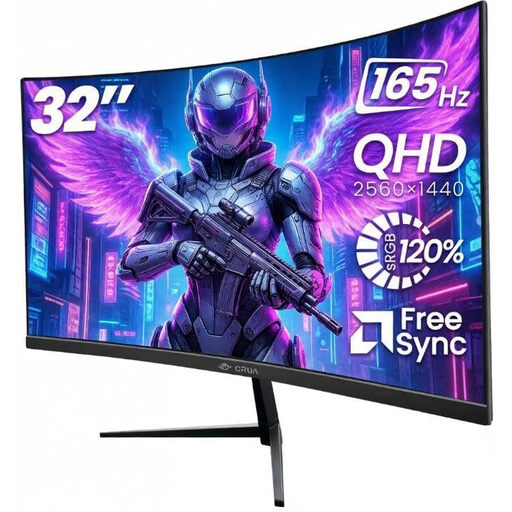
CRUA 32-inch curved QHD monitor, 2560 × 1440
The 32-inch QHD format could suit you if you want enough room to view project versions on one screen.
The product name lists 165 Hz and 100% sRGB. Connections: HDMI and DisplayPort.
Joybuy
 No image available
MSI Pro MP275Q, 27-inch QHD monitor
The stated QHD resolution gives you a specific layout to compare with other screen sizes when choosing a monitor for reviewing designs.
The product specifications list 2560 × 1440 pixels, an IPS panel and 100 Hz.
Joybuy
 No image available
MSI MAG 272QP QD-OLED X24, 26.5-inch WQHD
This model has a 26.5-inch WQHD screen. Compare its size and layout with the space you need to view versions.
The product name lists 2560 × 1440 pixels, 240 Hz and USB-C. The product description mentions a height-adjustable, tilting, swivelling and pivoting stand.
Joybuy
Frequently asked questions
Is 4K essential for comparing multiple portfolio versions?
No. The 27-inch models mentioned range from QHD at 2560 × 1440 pixels to 4K at 3840 × 2160 pixels. Choose based on the window layout you need and the scaling that keeps text readable for you.
Can a monitor with a wide colour gamut replace a printed proof?
No. To assess print work, you also need to consider a suitable monitor profile, the right output profiles and a check of the intended print. Adobe describes calibration and monitor profiling as parts of colour management.
How can I keep colour display reliable during my studies?
Use a colour mode that suits your work and keep the lighting conditions as consistent as possible when assessing colour. Check or recalibrate the monitor when making decisions based on colour differences. Adobe describes using a colourimeter and its associated software for this.
Will USB-C charging automatically work with my laptop?
No. Check whether the relevant laptop port supports video over USB-C and compare the power your laptop needs with the monitor’s rating. The models mentioned list up to 65 W or 96 W; check the specifications of your own laptop and the exact monitor model.
What are my rights when I buy a monitor online in the Netherlands?
For an eligible online consumer purchase, you generally have a statutory 14-day cooling-off period after delivery, according to ACM ConsuWijzer. Your statutory warranty is separate from any manufacturer’s warranty; if a product is faulty, the seller is responsible for providing an appropriate solution. Check the terms for your specific purchase.


