
Schema designer who works with multiple windows
Wants to arrange tables, relationships, documentation and an editor neatly side by side, so focuses mainly on usable screen width.


A 27-inch QHD monitor gives you a relatively compact main setup, while a 34-inch ultrawide screen offers more room for side-by-side windows. A 3:2 screen, meanwhile, prioritises vertical workspace. Then check that you can adjust the monitor properly when sitting and standing, and that its video output and any USB-C features are compatible with your laptop.
Wants to arrange tables, relationships, documentation and an editor neatly side by side, so focuses mainly on usable screen width.
Adjusts their workstation throughout the day and wants to be able to set the screen position properly in both working positions.
Reads a lot of code, field lists or documentation arranged vertically, and takes vertical screen space and text display into account when choosing.
A good fit if: you want a relatively compact main screen and regularly connect a laptop.
Trade-off: you get less horizontal workspace than on a 34-inch screen with 3440 × 1440 pixels. Also check that the power delivery is suitable for your laptop.
A good fit if: you often want to keep a schema, documentation and an editor open side by side, and have enough desk space.
Trade-off: a wide screen needs space; check the stand and connectivity options for each model.
A good fit if: viewing long schemas, code and documentation vertically is more important than a wide layout.
Trade-off: this aspect ratio doesn’t offer the same horizontal window space as an ultrawide screen. Claims about coding comfort are made by the manufacturer and aren’t proven results for every user.
| What to consider | What should you check? | Who is this most relevant to? |
|---|---|---|
| Room for windows | Compare the resolution and aspect ratio, measure the available desk space, and consider which windows you need to see at the same time. | I want to see the schema, documentation and editor side by side without constantly switching between windows. Around 36% of consumers give window layout the highest priority. |
| Adjustability when sitting and standing | Check the height and tilt adjustment on the exact model, and assess the screen position in both working positions. | When I switch between sitting and standing, I want to be able to adjust the monitor to suit me. For around 29% of consumers, adjustability is their main concern when buying. |
| Vertical reading space | Compare 3:2 with 16:9 or 21:9 in the applications you use, and check how text looks at your preferred scaling setting. | When working with long schemas, code and documentation, I want to see more content at once vertically. Around 21% of consumers prioritise this vertical reading space. |
| Connecting a laptop | Check the video output, the power delivery required, and which USB or network ports the exact monitor offers. | I want to connect my laptop without assuming what it can do based on a USB-C port alone. For around 14% of consumers, a suitable laptop connection is the top priority. |
A 34-inch 21:9 screen and a 3:2 programming monitor offer different layouts. Screen size alone doesn’t tell you which windows you can view at the same time.
Compare your usual window layout, aspect ratio and resolution, then measure the space on your desk.
When you change the desk height, you may need to adjust the screen position as well.
Check the adjustment options on the exact monitor and assess your setup both sitting and standing.
Depending on your existing setup, you may need a different stand or monitor arm.
Your laptop output and monitor need to support the video connection and power delivery you want. For the 346B1C/00, Philips also lists different supported refresh rates for two USB hub settings.
Compare your laptop port, cable and charging needs with the manual for the exact monitor model.
If your laptop and monitor don’t support the combination you want, you may need additional connectivity equipment.
ACM ConsuWijzer distinguishes between your statutory rights against the seller and any additional commercial warranty.
Check exactly what any additional cover includes, and keep your proof of purchase.
These examples refer to specific product ranges; a brand mention isn’t an endorsement of the entire brand or an indication of availability.
The P2725DE is a 27-inch QHD USB-C hub monitor for anyone looking for a relatively compact setup with laptop connectivity.
The 34U650A-B is a 34-inch 21:9 monitor designed for a wide window layout.
The RD280UG is a 28.2-inch 3:2 programming monitor for anyone who values vertical workspace.
The B Line 346B1C/00 is a 34-inch ultrawide monitor with USB-C.
The ViewFinity S6 S65TC is a 34-inch 21:9 model with Thunderbolt 4.
The models shown are mainly designed for a wide 21:9 workspace for schemas and additional windows, with a 26.5-inch QHD option as well. Check the adjustability and laptop connections for each model.
 No image available
The wide screen layout may suit you if you want to use a database schema alongside other windows.
34.1 inches, 21:9 and 3440 × 1440 pixels. The product description lists USB-C with up to 90 W, a USB hub, KVM, RJ45 and a stand with height, tilt and swivel adjustment.
 No image available
This widescreen model may suit you if you want to display a schema and several windows side by side.
The product description lists 3440 × 1440 pixels, a 21:9 aspect ratio, USB-C, a USB hub, RJ45 and a KVM switch. Check that the connections and charging options are suitable for your laptop.
 No image available
The 21:9 layout is designed for a wide workspace with multiple windows.
The product description lists USB-C with up to 140 W, a USB hub, KVM and RJ45. The stated Dual Mode combines WUHD 5120 × 2160 at 120 Hz with WFHD 2560 × 1080 at 240 Hz.
 No image available
This QHD option may suit you if you’re looking for a smaller main screen for your database schema.
The product title lists QD-OLED, 2560 × 1440 pixels and a height-adjustable stand.
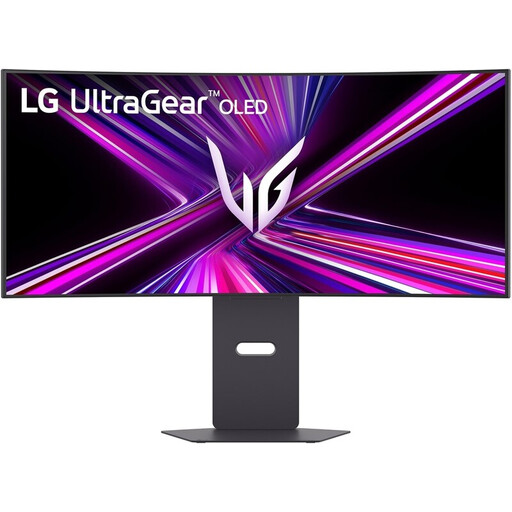 No image available
The wide aspect ratio may suit you if you want to position your schema and editor side by side.
The product description lists 3440 × 1440 pixels, 21:9, USB-C with up to 65 W and a USB hub. The product title lists a height-adjustable stand; check that the power delivery is suitable for your laptop.
Readjust the screen position when you change posture. Arboportaal advises placing the screen directly in front of you, setting the top just below eye level and tilting it so you can look straight at it.
No, it depends on the laptop and the monitor. Check whether the laptop can output video through the relevant port, and compare the power delivery required with what the monitor offers. The presence of a USB-C port alone doesn’t confirm that they’re compatible.
Compare the EU energy label and consult EPREL for model details. Also check what any additional service includes: according to ACM ConsuWijzer, statutory consumer purchase guarantees are separate from a commercial manufacturer’s or seller’s warranty.
For employees, Arboportaal outlines requirements for screen workstations, including a height-adjustable screen and alternating screen work with other tasks or a break. The stated workstation requirements for more than two hours of screen work per day aren’t product specifications for every private buyer.
According to ACM ConsuWijzer, regular online consumer purchases generally come with a statutory cooling-off period of up to 14 days after delivery, with some exceptions. Before buying, check whether this right applies to your situation and review the seller’s returns policy, particularly if you’re buying for business use.