An adjustable 27-inch QHD monitor is a good starting point if you mainly read data and want to adjust your screen position when sitting or standing. A 34-inch ultrawide is a better fit if you want to view data, a questionnaire and checks at the same time, and have enough desk space. Tweakers lists 27-inch WQHD as a general monitor option. Also check the adjustment range and, if you’re using USB-C, whether your computer supports video and the required charging power.
Who is this relevant for?
Data-heavy spreadsheet user
You compare lots of columns or keep a questionnaire and checks open alongside your data. A wider workspace can be useful, provided you have enough desk space. Samsung Netherlands explains the trade-off between seeing more content and the space taken up by a larger screen.
Sit-stand desk user
You adjust your desk height and want to position your screen accordingly. Arboportaal recommends adjusting your workstation to your own body measurements; changing position is different from standing still for long periods.
Laptop user who wants a single-cable setup
You regularly connect a laptop and peripherals, and want to check whether USB-C can handle video, data and enough charging power. The available features vary by monitor model and computer.
What should you look for when choosing?
Adjustable 27-inch QHD monitor
A good fit if: readable data and a screen position you can adjust for sitting and standing are your priorities.
The trade-off: there’s less horizontal space for multiple windows than with an ultrawide. Only pay for hub features you’ll use.
34-inch ultrawide
A good fit if: you want to view your data alongside, for example, a questionnaire or a checklist. Philips specifies a resolution of 3440 × 1440 for the 346E2CUAE/00.
The trade-off: check that it will fit on your desk and that you can arrange the windows comfortably at your preferred text size.
More compact monitor or existing setup
A good fit if: you have limited desk space or your current setup already gives you a good overview.
The trade-off: you may be able to view fewer data sets or windows at once. First, consider text size and screen positioning.
| Consideration |
What should you check? |
Who should pay particular attention? |
| Viewing lots of data at a glance |
Compare the resolution and aspect ratio with your window layout and preferred text size. Also measure the available desk width. |
If I want to read columns and check documents at the same time, I prioritise useful screen space over a compact setup. Around 31% of consumers place the greatest importance on having a clear overview. |
| Screen position when sitting and standing |
Check the height adjustment and any tilt or swivel functions. Make sure the screen is positioned correctly at both desk heights. |
If I adjust my desk during the working day, I want to be able to position the screen properly at both heights. For around 31% of consumers, adjustability is the most important factor. |
| Connecting a laptop and peripherals |
Check USB-C video support, the available Power Delivery output in W and the ports on the exact model variant. |
If I want to connect my laptop and peripherals through the monitor, I check that it supports video and power for my computer. Around 23% of consumers put connectivity first. |
| Choosing a size without unnecessary features |
Measure the space on your desk and compare the physical dimensions and features of the exact variants. |
If my desk has limited space or I don’t need a hub, I don’t want to pay for space or features I won’t use. Around 15% of consumers give compactness top priority. |
Pitfalls to avoid
-
Assuming the P2725D and P2725DE are the same model
These are separate Dell models. The P2725DE is the USB-C hub variant; the model name tells you which version you’re looking at.
Before you buy, check the full model number and the connections you need.
If your chosen version doesn’t have the connection you need, you may need a separate adapter or dock.
-
Choosing an ultrawide because more pixels must always be better
Extra width is only useful if it suits your window layout and the screen fits on your desk.
Measure the available space and think about how you want to arrange your data, questionnaire and checks side by side.
-
Confusing the manufacturer’s warranty with your full legal rights
The Dutch government distinguishes between a manufacturer’s warranty and your statutory rights. In the Netherlands, there is no fixed statutory warranty period; if a product is faulty, the retailer is your point of contact.
Read the terms of any additional cover and compare them with your statutory rights.
Brands to consider
Dell
The Pro 27 Plus models offer a 27-inch QHD option with height adjustment. The P2725D and P2725DE are different versions.
- Dell lists a resolution of 2560 × 1440 and height adjustment for both models.
- For the P2725DE, Dell specifies 90 W power delivery over USB-C and an RJ45 network port.
- Check the model variant: the hub version’s connectivity isn’t automatically available on the P2725D.
LG
According to LG, the 27BA65QB-B combines a 27-inch QHD screen with USB-C and an adjustable stand.
- LG specifies features including pivot and 65 W USB-C Power Delivery.
- Compare the stated charging power with your laptop’s requirements; the specification doesn’t guarantee that every device will charge appropriately.
Philips
The E Line 346E2CUAE/00 is a 34-inch ultrawide option for viewing multiple windows side by side.
- Philips specifies a resolution of 3440 × 1440, USB-C and MultiView for this model.
- Measure the available desk width and check that the connection is compatible with your computer.
BenQ
The GW2790QT is a 27-inch QHD option with USB-C and a range of adjustment options.
- BenQ specifies 65 W Power Delivery, 110 mm of height adjustment and 90° pivot.
- Consider whether the stated adjustment range suits your sitting and standing positions.
Joybuy monitors
These monitors are suited to data work at a sit-stand desk. There are adjustable 27-inch models for a setup centred around one main window, as well as wider 34-inch options for placing windows side by side. Check the connections and available desk space for each model.
 No image available
Philips 27E1N1800AE/00 27-inch 4K UHD monitor
An option to consider if you’re looking for a 27-inch high-resolution screen with an adjustable stand for a flexible desk setup.
4K UHD, 3840 × 2160; height-adjustable stand.
Joybuy
 No image available
Philips 34B2U5900C/00 34-inch curved dual-mode monitor
A wide workspace could suit you if you want to view data alongside a questionnaire or checks. Bear in mind how much space the screen takes up.
34-inch, 21:9 WUHD screen with adjustable stand.
The product information lists USB-C, a USB hub and a KVM switch. Check that your computer and cable support the features you want.
Joybuy
 No image available
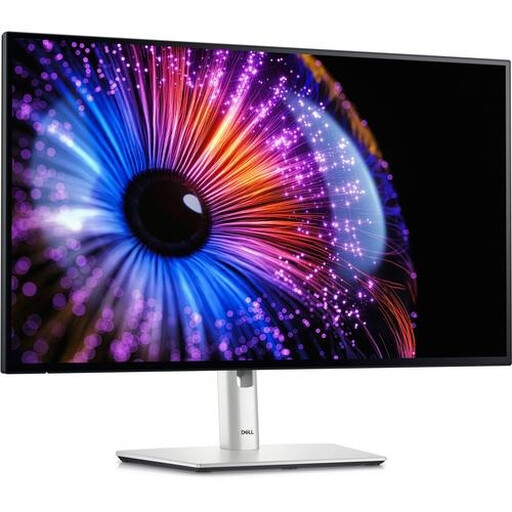
Dell UltraSharp U2724DE 27-inch QHD monitor
An adjustable QHD option for working with data, with USB-C or Thunderbolt connectivity to consider.
2560 × 1440; the product information lists Thunderbolt 4, USB-C, a hub and 90 W Power Delivery.
Check that your computer and cable are compatible with the connections and power delivery.
Joybuy
 No image available
Dell UltraSharp U2724D 27-inch QHD monitor
A 27-inch QHD model to consider if you want to read data and adjust the screen position to suit your working height.
2560 × 1440; the product information lists 150 mm of height adjustment, pivot and a USB hub.
Joybuy
 No image available
Philips E Line 346E2CUAE/00 34-inch ultrawide monitor
An ultrawide option if you want to view data and check documents at the same time and have enough desk width.
3440 × 1440; the product information lists USB-C, MultiView and an adjustable stand.
USB-C video and charging performance depend on the connected computer and the cable you use.
Joybuy
Frequently asked questions
How should you position your screen when alternating between sitting and standing?
Adjust your workstation to suit your own body measurements, and make sure the text remains readable and the screen is well positioned at both desk heights. Arboportaal recommends tailoring the workstation to the user. Alternate between positions rather than standing still for long periods.
Can one USB-C cable connect and charge your laptop?
Only if your laptop supports video through the relevant USB-C port and the monitor provides enough charging power. BenQ specifies DisplayPort Alt Mode and 65 W Power Delivery for the GW2790QT. Check your laptop’s requirements and the monitor’s connections.
What cooling-off period and warranty apply to an online purchase in the Netherlands?
According to the Dutch government, consumers buying online from a business generally have a 14-day cooling-off period. There is no fixed statutory warranty period in the Netherlands; if a product is faulty, the retailer is your point of contact. Check the terms of your specific purchase, especially if you’re buying as a business.
Do you need to choose a particular monitor model for your workstation?
The regulations don’t specify a particular brand or model. Arboportaal outlines requirements for workstations used for screen-based work, including conditions for employees who spend more than two hours a day working with a screen. The employer assesses how those rules apply to the workplace.


