
Writer with a small desk
You want to write and proofread a cover letter in comfort, without the screen taking over your desk. Size, text settings and positioning matter more to you than extra features.


If you mainly write and check a single document, start with a screen that fits your desk and lets you set the text comfortably for your viewing distance. If you often compare your letter with a job advert, a larger QHD screen may be better suited to viewing both windows side by side, provided you have room for it. Whichever option you choose, check its adjustability and whether the ports can transmit video and charge your laptop sufficiently: a USB-C port alone doesn’t guarantee this.
You want to write and proofread a cover letter in comfort, without the screen taking over your desk. Size, text settings and positioning matter more to you than extra features.
You often keep the job requirements and your draft open at the same time, and weigh the benefit of extra screen space against the room available on your desk.
You connect your laptop when writing at home and want to know in advance whether the monitor can transmit video and provide enough power through a single cable.
First decide whether you mainly read one document or want to view two windows side by side. Then compare the dimensions, text settings, adjustability and connections of the exact model.
A good fit if: you mainly write and proofread, and want to keep desk space free. Lenovo specifies a 23.8-inch Full HD screen for the ThinkVision S24i-30.
Trade-off: this screen size gives you less physical room to view two documents side by side than a larger screen.
A good fit if: you want to compare a compact screen with QHD resolution. Dell lists the P2425D as 23.8 inches, with 2560 × 1440 pixels.
Trade-off: more pixels don’t make the physical screen area any larger, so check how the text looks at your viewing distance.
A good fit if: you often want to view a job advert and draft side by side, and have enough space. Philips and BenQ list 2560 × 1440 pixels for the 27-inch models covered here.
Trade-off: measure the full setup, including the stand, and check video transmission and the required charging power when connecting a laptop.
| What to consider | What should you check? | Who is this most relevant to? |
|---|---|---|
| Readable letter text | View your own document at your usual viewing distance and compare screen size, resolution and text scaling. Dell lists the P2425D as 23.8 inches, with 2560 × 1440 pixels; this doesn’t automatically determine which text setting you’ll find comfortable. | If I’m mainly writing and proofreading one letter, I want to be able to adjust the text without giving up desk space unnecessarily. Around 33% of consumers give readable text top priority. |
| Two documents side by side | Measure the available width and depth, and think about how you want to arrange the job advert and letter. Philips and BenQ specify a 27-inch QHD screen for the models mentioned here. | When I often view the job requirements and draft at the same time, I look for room for two windows while taking the available desk space into account. Around 27% of consumers prioritise this window layout. |
| Positioning and adjustability | Check how adjustable the exact model is, how much space the stand takes up, and whether there may be reflections at your workstation. BenQ lists 110 mm of height adjustment for the GW2790QT. | If my desk or viewing position calls for a different screen height, I want to be able to position the monitor accordingly. Around 20% of consumers make positioning and adjustability their main priority. |
| Laptop connection | Check your laptop’s video output, the function of the monitor port and the charging power required. Dell states that the P2425’s USB-C downstream port supports data only; BenQ specifies DisplayPort Alt Mode and 65 W Power Delivery for the GW2790QT. | When I connect my laptop, I want to know in advance whether the connection suits my device and charging needs. Around 20% of consumers give this connection top priority. |
Port functions vary by model. Dell lists a USB-C downstream port on the P2425 that supports data only, while BenQ specifies video signal via DisplayPort Alt Mode and 65 W Power Delivery for the GW2790QT.
Compare the full model code and check video transmission and charging power separately.
If your laptop and monitor connections aren’t suitable for your preferred setup, you may need an extra video cable or adapter.
The diagonal doesn’t tell you the resolution, aspect ratio or adjustability. The Dell P2425 and P2425D models covered here have different screen layouts.
Measure your workspace and compare the specifications of the exact model with the document layout you want to use.
According to the Rijksoverheid, there is no fixed statutory end date for the legal guarantee in the Netherlands. If a product is faulty, the retailer is your point of contact for a solution.
Check what additional cover an extended warranty provides, and keep your proof of purchase.
The P-series models covered here offer different compact screen layouts; the P2425DE is a separate USB-C hub model.
The 27E1N1600AE/00 covered here is a 27-inch QHD model to consider if you’re looking for more screen space and USB-C.
According to BenQ, the GW2790QT combines a 27-inch QHD screen with an adjustable stand and USB-C features.
The ThinkVision S24i-30 covered here is a compact 23.8-inch Full HD option for everyday office tasks.
These product picks include compact monitors for a single document and larger QHD models for viewing a job advert and draft side by side.
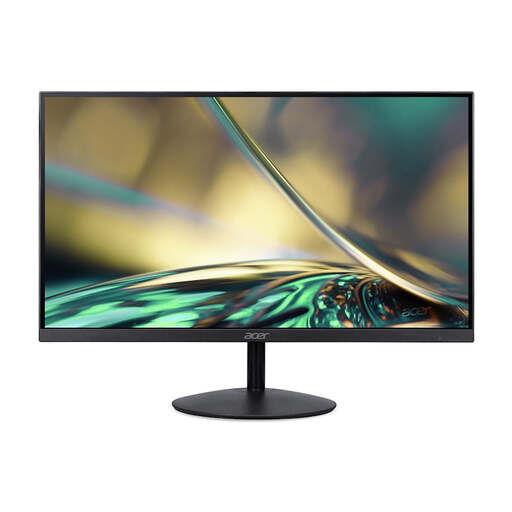 No image available
A compact screen option for anyone who mainly writes and proofreads a single document.
24 inches; Full HD; 100 Hz; 1 ms. According to the product description, the power adapter isn’t included as standard.
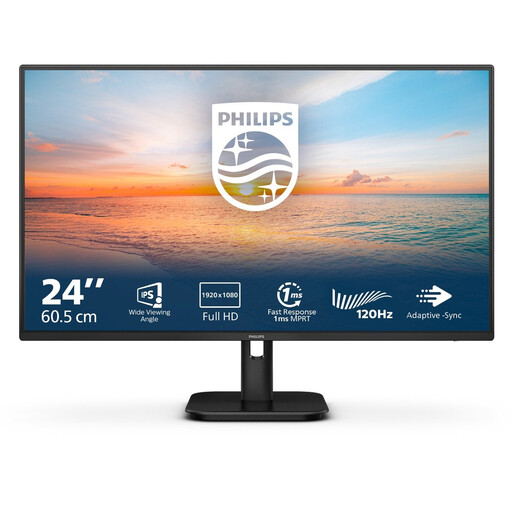 No image available
A compact Full HD option for writing letters at a desk with limited space.
24 inches; Full HD; IPS; 100 Hz; speakers.
 No image available
A larger QHD option for viewing a job advert and draft side by side, provided you have enough desk space.
27 inches; 2560 × 1440 pixels. The stated 65 W USB-C power delivery must be suitable for your laptop’s charging requirements.
 No image available
A compact QHD option to consider if you want more pixels without moving up to a 27-inch screen.
23.8 inches; 2560 × 1440 pixels. The stated 90 W USB-C power delivery must be suitable for your laptop’s charging requirements.
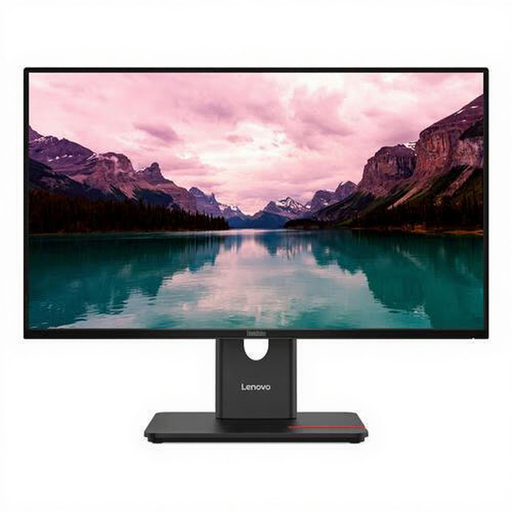 No image available
A compact Full HD option for anyone who mainly uses the screen for a single document.
23.8 inches; 1920 × 1080 pixels. The product information lists HDMI and VGA; check that these connections are suitable for your laptop.
Check the text size and screen settings using your own document at your usual viewing distance. A higher resolution doesn’t automatically mean the text will be a comfortable size; also consider reflections and screen positioning.
Only if both the laptop and monitor support the required video signal function, and the power supplied is suitable for your laptop. BenQ specifies DisplayPort Alt Mode and 65 W Power Delivery for the GW2790QT; Dell states that the P2425’s USB-C downstream port supports data only.
Adjust the screen position and lighting, reduce distracting reflections and take breaks from screen work. For employees who use a screen for more than two hours a day, Arboportaal states that the screen and keyboard must not be attached to each other; the applicable workplace health and safety rules depend on the working situation.
For electronic displays covered by EU rules, the energy label shows an efficiency class from A to G. The European Commission describes this scale; compare labels using the same stated basis of use.
For online consumer purchases, you generally have a 14-day cooling-off period after delivery, subject to legal exceptions. According to ACM ConsuWijzer, this period ends 14 days after delivery; statutory protection also applies to faulty products. The Rijksoverheid states that there is no fixed end date for the legal guarantee in the Netherlands, and that the retailer is your point of contact for a solution.