
Editors who carefully fine-tune colour
You want to assess food colours consistently for your chosen SDR output. So, look at the colour mode and calibration, rather than just a high wide-gamut percentage.


For a cooking tutorial with a timeline, video preview and recipe notes, a monitor with enough readable screen space is important. 4K can display more pixels, but it doesn’t automatically give you more physically readable space. For colour grading, choose a suitable mode and calibration approach for your output, and check that your laptop’s video connection and charging requirements are supported. An extra-wide colour gamut or HDR isn’t automatically necessary for SDR video.
You want to assess food colours consistently for your chosen SDR output. So, look at the colour mode and calibration, rather than just a high wide-gamut percentage.
While editing, you may want to keep a timeline, video preview, ingredients list and recipe notes to hand. The screen layout and readability matter too.
You switch between your laptop and editing setup, and want to know whether the monitor can also supply enough power to your laptop through a suitable connection.
First decide how much room you need for your timeline and references, then choose a resolution and colour settings to suit your editing and output. If you use a laptop, check the video connection and charging power too.
| What to consider | What to look for | Who it matters to |
|---|---|---|
| Colour assessment | For SDR, choose a suitable Rec.709 or sRGB mode and check how to calibrate the monitor. Adobe explains that your project’s output also helps determine the colour space you need to assess. | If I want to assess ingredient colours carefully, I look at the output mode and calibration. Around 36% of consumers put colour assessment first. |
| Room for references | Compare the screen size and resolution with your preferred window layout. A higher resolution displays more pixels, but the interface scaling you choose also affects how readable text and panels are. | If you want to read recipe notes, the timeline and the preview at the same time while editing, a suitable screen layout can help. Around 29% of consumers prioritise space for references. |
| Laptop connection | Check that the monitor’s USB-C port supports video and compare its charging power with your laptop’s requirements. ASUS and BenQ list 65 W for the models mentioned; LG lists up to 96 W for the 27UP850K-W. | If I edit at a dedicated laptop workstation, I want to know whether the chosen connection supports both video and power. Around 21% of consumers put laptop connectivity first. |
| Features you need | Match the resolution and colour features to your output and workflow. When comparing products in the EU, you can also consider the energy label; the European Commission uses classes from A to G for displays. | If you want to focus on essential features, consider whether extra pixels or a wider colour gamut will be useful in your editing workflow. Around 14% of consumers put buying only what they need first. |
A wide colour gamut and accurate assessment of SDR output aren’t the same thing. Your project’s output colour space and the display settings still matter.
First decide on your output format and check whether the monitor offers a suitable colour mode and calibration approach.
A USB-C port doesn’t guarantee that a particular laptop can output video or receive enough charging power.
Compare your laptop’s video output and charging requirements with the specifications of the exact monitor model.
If the power supply or cable isn’t suitable for your laptop, you may need a separate charger or a compatible cable.
A manufacturer’s warranty period doesn’t replace the rights you may have against the retailer. ACM ConsuWijzer distinguishes between a manufacturer’s warranty and the legal guarantee.
Keep your proof of purchase and contact the retailer if there’s a fault. The legal guarantee depends on what you could reasonably expect from the product.
The ProArt PA278CV and PA279CRV suit different resolution and colour workflows; the features listed apply to these models.
The PD2705U is a 27-inch 4K model for an SDR colour workflow.
The 27UP850K-W combines a 27-inch 4K screen with USB-C laptop charging.
The UltraSharp U2725QE is a 27-inch 4K model with a Thunderbolt hub.
The ColorEdge CS2740 is a 27-inch 4K model for workflows where hardware calibration matters.
This selection includes QHD and 4K monitors in a range of screen sizes, for anyone who wants to arrange video and references while editing. Check the specific model’s colour mode and connections to make sure they suit your workflow.
 Image unavailable
The 27-inch QHD resolution is an option for arranging your editing preview and references on one screen. Check that everything is readable at your preferred interface scaling.
2560 × 1440 pixels; 180 Hz; 1 ms; FreeSync Premium; HDR10; 2 HDMI 2.0 ports and 1 DisplayPort 1.4.
 Image unavailable
This 27-inch 4K model is an option if you want extra pixels for image and reference details. Check that text and editing panels remain easy to read at your chosen interface scaling.
4K; IPS panel.
 Image unavailable
A 27-inch 4K screen can suit an editing setup where you want to see fine image and reference details. Check which window layout is readable on your computer.
3840 × 2160 pixels; 60 Hz; 4 ms; HDMI and DisplayPort; height-adjustable stand.
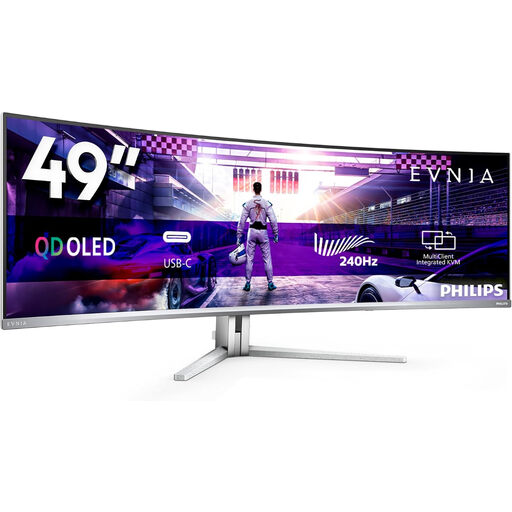 Image unavailable
The wide screen could be useful if you want to place several references alongside your editing preview. Check that the size suits your desk and preferred window layout.
DQHD; 240 Hz; FreeSync Premium Pro; QD-OLED; curved screen.
 Image unavailable
The wide 34-inch screen can give you room to place your timeline and references side by side. Check beforehand that the width suits your workspace and editing layout.
3440 × 1440 pixels; 21:9 aspect ratio; Fast VA panel; DisplayPort up to 180 Hz and HDMI up to 100 Hz; 300 cd/m²; 2 HDMI ports and DisplayPort.
No. A QHD monitor can display your timeline and references, while 4K offers more pixels for fine details. Check on your own computer that your chosen interface scaling leaves enough readable screen space.
Choose your project’s output colour space deliberately and use a suitable monitor mode. Adobe cites Rec.709 as a common output standard in Premiere; also check that source clips have been assigned the correct colour space. A suitable setting alone doesn’t guarantee accurate display on an uncalibrated screen.
No. The listed power delivery varies by model: BenQ lists 65 W for the PD2705U and LG up to 96 W for the 27UP850K-W. Compare this with your laptop’s charging requirements, and check video support and the cable too.
For displays, the EU energy label runs from class A to G, as explained by the European Commission. According to the Dutch government, online consumer purchases often come with a 14-day cooling-off period; check whether an exception applies. ACM ConsuWijzer explains that the legal guarantee exists alongside any manufacturer’s warranty and depends on what you could reasonably expect from the product.