
Image editor with limited desk space
Mainly compares versions for screen use and wants both the monitor and its stand to fit on the desk.


For comparing images intended for screen publishing, a monitor with a suitable sRGB mode is a different choice from a wide-gamut monitor for print preparation. Then compare the dimensions of the screen and stand, the resolution and the connections. Manufacturers’ colour specifications don’t replace checking your own colour workflow.
Mainly compares versions for screen use and wants both the monitor and its stand to fit on the desk.
Wants to assess Adobe RGB images or soft proofs, and looks for suitable colour modes and calibration options.
Wants a tidy desk and a monitor that can handle video and power over USB-C, provided they’re compatible.
Start with how you’ll use your images: screen publishing and print preparation call for different colour checks. Then measure the space for the screen, stand and any hood, and check that the connections are compatible with your laptop.
| What to consider | What should you check? | Who should pay particular attention? |
|---|---|---|
| Colour for screen publishing | Check the stated sRGB coverage and available sRGB mode. Compare images using the same settings. | If you mainly compare web images, you’ll want a suitable sRGB display mode. Consumers who prioritise screen colour make up around 33% of consumers in this breakdown of preferences. |
| Space for the screen and stand | Measure the available width and depth, then compare them with the dimensions including the stand and, if applicable, the hood. Also check that the resolution suits your image layout and editing panels. | If you have limited desk space, you’ll want to know in advance whether the whole setup will fit. Consumers who prioritise desk space make up around 27% of consumers in this breakdown of preferences. |
| Print colour space and calibration | Check the Adobe RGB coverage of the exact model, the available modes and the supported calibration method. | If you assess Adobe RGB files or soft proofs, you’ll want to know whether the colour mode and workflow are suitable. Consumers who prioritise print colour space make up around 20% of consumers in this breakdown of preferences. |
| Laptop connection | Check USB-C video support, the monitor’s power delivery and the requirements of your laptop and cable. | If you want to use a single cable, you’ll want to combine video and power without overlooking your colour requirements. Consumers who prioritise a laptop connection make up around 20% of consumers in this breakdown of preferences. |
The stand and any monitor hood also take up desk depth. The screen size alone won’t tell you whether the entire setup will fit.
Compare the stated external dimensions for the setup you actually intend to use.
You may need to rearrange your desk or use a suitable monitor arm.
sRGB and Adobe RGB coverage address different needs. A wider colour space is no substitute for a suitable colour mode and a consistent workflow.
Choose a colour space based on how you’ll use your files, and check how you’ll calibrate the monitor.
Power delivery varies by model, and your laptop must support the required video output.
Check your laptop, monitor and cable requirements before relying on a single connection.
Depending on those requirements, you may need a different cable or power solution.
The ProArt PA248QV is a 24.1-inch option for screen-focused colour editing on a small desk.
The 24.1-inch SW242Q is an option for combining Adobe RGB, a higher resolution and USB-C.
According to the manufacturer, EIZO’s ColorEdge CS2400S is aimed at photography, retouching and design, with wide gamut and hardware calibration.
This selection includes portable and desktop monitors. Check each model’s dimensions, colour specifications and connections to make sure they suit your desk and editing workflow.
 No image available
A portable screen to consider if you’re looking for a compact second monitor; the listed features alone don’t tell you anything about colour calibration.
16 inch, FHD, IPS, 144Hz, 16:10, FreeSync, HDR, 2 USB-C, Mini HDMI, stereo speakers and built-in kickstand.
 No image available
The stated 100% sRGB coverage makes this model worth considering for screen-focused editing. Also check that the monitor suits your colour workflow.
2.5K, 144Hz, IPS, 100% sRGB, 10-bit, 1.07 billion colours, 16:10, HDR, FreeSync, 2 USB-C, Mini HDMI, speakers and kickstand.
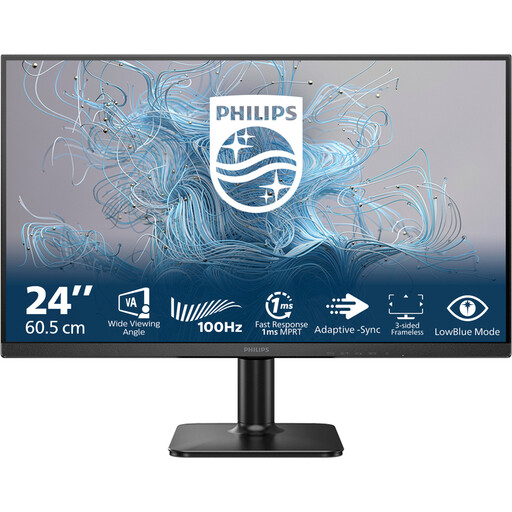 No image available
A 24-inch desktop monitor to compare if you’re looking for a fixed screen. Check the colour specifications against the editing you have in mind.
24 inch, Full HD, 100Hz and VA panel.
 No image available
A 24-inch desktop model to consider if that screen size suits your desk; check the colour specifications for colour editing.
200Hz; the product description lists an IPS panel and Full HD resolution.
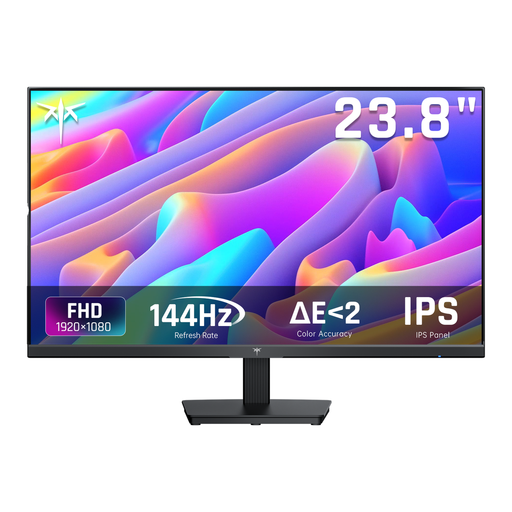 No image available
A 24-inch option to compare with your desk dimensions; check whether the stated colour space and connections suit your workflow.
144Hz, 1080P FHD, IPS and 116% sRGB.
If you’re assessing images for screen publishing in sRGB, sRGB coverage is a useful starting point. For Adobe RGB files or soft proofs, you’ll also need to check the relevant colour space and workflow; stated coverage doesn’t guarantee identical display on other devices.
Measure the space for the screen and stand, then compare it with the stated dimensions including the stand. If you want to use a hood, check the dimensions with the hood too; BenQ gives a different depth for the SW242Q with the hood fitted.
Only if the laptop supports the required video output and the power delivery is suitable for your laptop. BenQ lists USB-C with DisplayPort Alt Mode and 90 W Power Delivery for the SW242Q; EIZO lists up to 70 W power delivery for the CS2400S.
For a consumer purchase, you should contact the seller about your statutory rights. According to the Dutch government, there is no fixed statutory warranty period in the Netherlands; what matters is what you can reasonably expect from the product. A manufacturer’s warranty or an additional warranty you’ve bought is on top of this.
For an online consumer purchase from a business, the Dutch government says you’ll often have 14 days to change your mind, with some exceptions. According to the European Commission, computer monitors are covered by energy labelling rules for electronic displays. Compare the label for the exact model, and check who the seller is and what costs are listed before placing your order.