For visually assessing fast movement, a higher refresh rate may be useful. For viewing code, logs and a simulation side by side, resolution and workspace matter more. Also check that your computer can output the desired display mode through your chosen connection, and that you can adjust the screen to suit you. A higher monitor refresh rate does not prove that collisions are being calculated correctly: Unity and Godot describe physics steps separately from rendering.
Who is this choice relevant to?
Developer assessing movement
You’re mainly interested in how fast-moving objects and the visible results of collisions look on screen. Keep the simulation’s physics steps separate from the monitor’s refresh rate: Unity and Godot describe these as distinct processes.
Developer working with code and logs alongside the visuals
You want to be able to read source code, measurements and a simulation window at the same time while testing. So compare the resolution with the screen size and the layout you use.
Laptop user working from home
You want to connect the screen to your laptop and position it comfortably for regular screen-based work. The applicable workplace rules for employees depend on their circumstances; Arboportaal also explains employers’ responsibilities for home-working setups.
What should you look for?
Smoother visuals for checking movement
Choose this option: if you mainly want to assess how quickly moving objects and collisions appear on screen.
Keep in mind: check the refresh rate at your chosen resolution and what your computer can output; a higher refresh rate doesn’t mean the physics calculations are more accurate.
More detail for code and simulations
Choose this option: if clear text and multiple windows alongside the test image are your priority.
Keep in mind: more pixels don’t increase the physical size of the screen; also consider readability and scaling settings from your usual working distance.
QHD if 4K isn’t a priority
Choose this option: if 2560 × 1440 gives you enough space for your editor and test window.
Keep in mind: QHD has a lower resolution than the 4K models mentioned; compare the layout you need and the refresh rate available in each mode.
| Consideration |
What to look for |
Most important for |
| Movement on screen |
Check the refresh rate in each resolution mode and whether your computer supports that mode. |
If I want to assess fast-moving objects, I look at how they appear on screen without confusing this with the collision calculations. Around 36% of consumers give visual motion checks top priority. |
| Code, logs and test image |
Compare the resolution and screen size with your editor layout and how clearly text can be read. |
If I want to read code, logs and the simulation at the same time, detail and window layout are my main considerations. Around 29% of consumers prioritise this kind of workspace. |
| Adjustable workspace |
Check the height adjustment, desk space and screen position in relation to light and windows. |
If my desk space or screen position determines my setup, I look at the adjustment options. Around 21% of consumers make their workspace setup their main priority. |
| Connecting a laptop |
Check your laptop’s video output, the monitor connection and, if relevant, whether the screen can supply power. |
If I use a laptop, I want to know in advance whether the connection supports the display mode I want and suits the way I work. Around 14% of consumers put laptop connectivity first. |
Common buying mistakes
-
Assuming a high Hz rating means more accurate collision physics
A physics step and the rate at which a screen displays images are different things. A monitor specification therefore can’t tell you whether the collision calculations are correct.
Choose a monitor based on the visuals you want to assess, and test the calculations separately in your development environment.
-
Expecting a dual-mode screen to deliver both maximum specifications at once
For the GIGABYTE G27U, GIGABYTE specifies up to 160 Hz at UHD or 320 Hz at Full HD; these figures apply to different display modes.
Compare resolution and refresh rate as a combination, and check which mode your computer can drive.
-
Assuming USB-C provides the connection you need without checking
The display mode you can use also depends on your laptop and the connection. The connection and any power delivery need to be compatible with both devices.
Before buying, check the connection and power specifications for your laptop and monitor.
You may need a different cable or connection solution.
Relevant brands to consider
Dell
The Dell S2725QC is a 27-inch 4K USB-C option for anyone looking to combine text-based work with a simulation window.
- Dell specifies 3840 × 2160 at 120 Hz and a height-adjustable stand for the S2725QC.
- The stated refresh rate doesn’t mean that the collision calculations themselves run at that rate.
GIGABYTE
The G27U is a dual-mode option for anyone looking to use different resolution and refresh-rate modes for visual testing.
- GIGABYTE specifies up to 160 Hz at UHD or 320 Hz at Full HD, with DisplayPort and HDMI.
- The higher refresh rate is available at the lower resolution; also check which mode your computer can actually output.
LG
The LG UltraFine 27UP850K-W is a 27-inch 4K option for detailed windows and an adjustable setup.
- LG lists USB-C and a stand that can be adjusted for height, tilt and pivot.
- When comparing, check the full model name, including the suffix, so you’re looking at the right version.
Philips
The Philips Business Monitor 27B2G5500/00 is a QHD option for anyone who doesn’t need 4K resolution.
- Philips specifies a 27-inch screen, 2560 × 1440 resolution and up to 100 Hz for this model.
- Compare the QHD resolution with the amount of code and simulation you want to view at the same time.
Joybuy monitors for simulations and working from home
These monitors are suited to visually assessing simulation footage, with options for smooth visuals and for viewing code and multiple windows in detail.
 No image available
AOC AGON PRO AG326UD 32" 4K Ultra HD 165Hz OLED Gaming monitor
The stated 165 Hz refresh rate is suited to anyone looking to assess fast-moving visuals; it doesn’t indicate whether the collision calculations are correct.
32 inch; 3840 × 2160; 165 Hz; HDMI 2.1; DisplayPort 1.4; USB hub; stand adjustable for height, tilt and swivel.
Joybuy
 No image available
KTC M27P6 27-inch 4K MiniLED monitor
The dual-mode specifications offer different combinations for viewing detail and checking movement; check which mode your computer supports.
27 inch; up to 160 Hz at 4K UHD or 320 Hz at FHD; Type-C 65W; KVM; VESA; height-adjustable stand.
Joybuy
 No image available
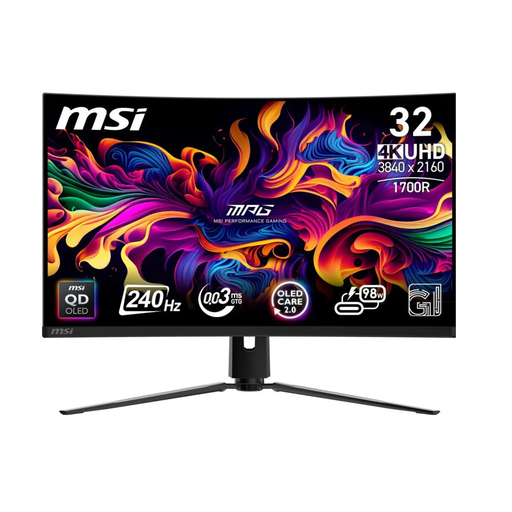
MSI MPG 321CURX QD-OLED 31.5-inch 4K monitor
This 4K model, with a stated refresh rate of 240 Hz, may suit anyone looking to assess both fine detail and fast-moving visuals.
31.5 inch; 3840 × 2160; 240 Hz; HDMI 2.1; DisplayPort 1.4; adjustable stand.
Joybuy
 No image available
INNOCN 2751S PLUS 27-inch QHD Mini LED monitor
The QHD resolution and stated 275 Hz refresh rate combine a QHD display mode with a high listed refresh rate for checking movement.
27 inch; QHD 2K; 275 Hz; HDMI 2.1; DisplayPort 1.4; stand adjustable for height, tilt, swivel and pivot.
Joybuy
 No image available
KTC H27E6S 27-inch QHD monitor
This QHD model is an option if you want to pair 2560 × 1440 with the stated high refresh rate.
27 inch; QHD 2560 × 1440; 240 Hz, overclockable to 275 Hz; HDMI 2.0; DisplayPort 1.4; height-adjustable stand.
Joybuy
Frequently asked questions
Can a monitor with a higher Hz rating prove that my collision calculations are correct?
No. A monitor displays rendered images; Unity and Godot describe physics steps separately from rendering. So check the collision logic in the simulation itself as well.
How should I set up a screen at home?
Choose a position you can adjust and minimise distracting reflections. Arboportaal explains why an adjustable setup matters for home-working spaces; the rules that apply depend on the employee’s circumstances.
What if a monitor I bought online turns out to be faulty?
According to the Dutch Government, the seller is responsible for providing a solution under the legal guarantee; there is no fixed statutory guarantee period in the Netherlands. In many cases, distance purchases also come with a 14-day cooling-off period. This is separate from getting a faulty product resolved, and the applicable terms may vary.
Is a height-adjustable monitor legally required for my home office?
Not for every private buyer. Arboportaal describes requirements for employees who work with a screen for more than 2 hours a day, and notes that it may be possible to depart from these requirements under certain conditions if safety and health are protected. Employers also have a duty of care when employees work from home; the specific working arrangements determine which rules apply.


