Which features matter most?
First decide how many windows you want to see at once. Then weigh up screen width, text detail, your workspace and connectivity against your computer and desk.
27-inch QHD
A good fit if: you want to place code and a browser preview side by side on an average desk. Tweakers recommends 27-inch WQHD as a starting point for an average desk.
Trade-off: you get less horizontal space than with 3440 × 1440. Try your usual window layout before relying on a single screen.
34-inch ultrawide
A good fit if: you like to keep code, previews and extra browser windows on one wide screen. LG specifies a resolution of 3440 × 1440 for the 34WR55QC-B.
Trade-off: the monitor takes up more horizontal space. Also check that your computer supports the desired resolution via your chosen connection.
27-inch 4K
A good fit if: fine text and checking small interface elements matter more to you than the width of a single ultrawide screen.
Trade-off: increasing the display scaling makes text larger, but means less interface content fits on screen at once. Also check that your computer and connection support 4K.
Two separate monitors
A good fit if: you want your development environment and browser preview on separate screens, and your computer supports two displays.
Trade-off: this setup needs more desk space and connections. Check that your computer and connections support the configuration you want.
| Consideration |
What to look for when buying |
Who is this important for? |
| Multiple windows |
Measure the screen width you need for your desk and test your layout with Microsoft Windows Snap. |
If I want to keep track of code, previews and test windows at the same time, what matters most is how much can fit on screen and remain readable. Around 36% of consumers prioritise keeping multiple windows visible. |
| Readable code and details |
Compare your preferred text size with the resolution and check whether your computer and connection support 4K. |
If I read a lot of code and check small interface elements, I want to assess the details without losing sight of text scaling. Around 29% of consumers give readability and detail checking top priority. |
| Adjustable workspace |
Check the height and tilt adjustment, and tailor the screen position, desk and lighting to your workspace. |
If I work at a screen for long periods, an adjustable viewing position that suits my workspace matters more than extra width. Around 21% of consumers prioritise workspace comfort. |
| Connecting a laptop |
Check the USB-C video output, the power needed for charging and the ports on the specific laptop and monitor. |
If I also need to connect peripherals to my laptop at a permanent workstation, I want to know in advance whether the connections and power are compatible. Around 14% of consumers give easy connectivity top priority. |
Joybuy monitors for this workspace
This selection includes a 34-inch ultrawide for multiple windows, and 27-inch QHD and 4K monitors for a more compact workspace or checking fine details.
 Image unavailable
LG 34WR50QK-B 34-inch 3440 × 1440 monitor
A good fit if you want to view code, previews and extra browser windows on one wide screen.
34 inches and 3440 × 1440. The stated screen width is 809 mm; measure your desk before choosing.
View at Joybuy
 Image unavailable
MSI Modern MD272UPHG 27-inch 4K 3840 × 2160 monitor
A good fit if fine details and visual checks are a priority on a 27-inch screen.
27 inches and 3840 × 2160. USB-C power delivery is specified at up to 98 W; check whether this meets your laptop’s charging needs.
View at Joybuy
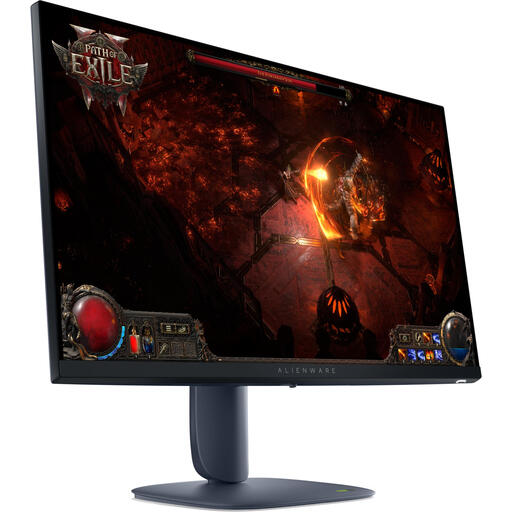 Image unavailable
Alienware AW2725DM 27-inch QHD 2560 × 1440 monitor
A good fit if you want to view code and a browser preview on an average desk, without the width of an ultrawide.
27 inches and 2560 × 1440. Check that this resolution and your preferred window layout suit your computer and working style.
View at Joybuy
Frequently asked questions
Do you need an ultrawide for three browser windows?
Not necessarily. Microsoft Support explains how to arrange windows side by side or in a grid. An ultrawide can give you more horizontal space, but it also needs a wider desk, so try your usual layout first.
Will video and charging always work through a single USB-C cable?
No, it depends on your laptop’s port and the power delivery of the specific monitor. Check whether your laptop’s USB-C port supports video output, then compare the power it needs with the monitor’s output: Dell lists 90 W for the P2725DE, HP 100 W for the 527pu and LG 65 W for the 34WR55QC-B.
How should you position a screen for long periods of work?
Place the screen directly in front of you and adjust it so you can look at it with a slight downward gaze. Arboportaal recommends positioning the top just below eye level and considering the rest of your workspace; this advice does not mean that any one monitor model will prevent discomfort.
What do the energy label and warranty mean for a monitor?
The EU energy label for electronic displays uses a scale from A to G; compare the label for the specific model. In the Netherlands, there is no fixed legal warranty period for a product that is in good condition. Your legal rights if a product is faulty still matter, and the seller is your point of contact; a manufacturer’s warranty is additional.
Are there Dutch rules for your screen-based workstation?
There are regulations on screen-based work for employees. According to Arboportaal, if you work at a screen for more than two hours a day, the screen and keyboard must be usable separately. This is not a general product specification for every private buyer; if necessary, discuss how it applies to an employee’s workstation with their employer.


