
Student working with lots of terminal output
You build and test a command-line tool and want to keep your code and terminal output clearly in view. Extra vertical pixels may be more useful to you than gaming features.


If you mainly work with long terminal windows and code files, compare a compact 16:10 screen with a resolution of 1920 × 1200 pixels with a Full HD model. For a small workspace, an adjustable 23.8-inch screen may be a better fit. Choose USB-C for video and power only if both your monitor and laptop support these features. A simpler Full HD screen may be enough if you don’t need extra vertical pixels or hub features.
You build and test a command-line tool and want to keep your code and terminal output clearly in view. Extra vertical pixels may be more useful to you than gaming features.
You need to fit a monitor and laptop into a limited workspace and want to position the screen just right.
You switch between working at your desk and elsewhere, and want to check whether a single USB-C cable can handle both video and power.
Start by considering how much vertical space you need for code and terminal output. Then check whether the stand and ports suit your desk and laptop.
| What to consider | What should you look for? | Who is this important for? |
|---|---|---|
| Room for code and terminal output | Compare the resolution, aspect ratio and screen size; check readability with your own text and scaling settings. | If I want to keep lots of terminal lines and code in view at once, I need enough vertical space. Around 31% of consumers make screen space their top priority. |
| Adjustability on a small desk | Measure the space available and check the stand and its height and tilt adjustments. | If my desk has limited space, I want to position the screen properly without making my workspace awkward. Around 25% of consumers prioritise their desk setup. |
| Features you need | Decide whether Full HD is enough or whether you need extra pixels or hub features; check which cables are included. | If one main window is enough, I don’t want to choose extra screen or hub features I won’t use. Around 25% of consumers prefer a simpler model. |
| Connecting to your laptop | Check the video output, monitor port and power requirements; don’t assume USB-C provides video and power just because the label says USB-C. | If I want to connect my laptop with one cable, that connection needs to support my laptop’s video and charging features. Around 19% of consumers make laptop connectivity their top priority. |
Dell describes the USB-C port on the P2425 as a downstream data port. Philips specifies video and power over USB-C for the 24E1N1300AE/01, so these features aren’t automatically available on every screen with USB-C.
Check what the port does on the exact monitor model, then make sure your laptop supports video over USB-C and can supply or receive enough power.
Depending on the connection you choose, you may also need a separate video cable, adapter or laptop charger.
The Philips listing for the 24E1N1100A states 100 Hz, while Philips lists 120 Hz for the 24E1N1100A/00. The model suffixes and specifications don’t fully match.
Before buying, check the full model number and compare the specifications with the manufacturer’s details.
According to the Dutch Government, there is no fixed statutory warranty period in the Netherlands. What you can expect from a product depends, among other things, on the product itself and the information provided at the time of sale. If a product is faulty, the retailer is your point of contact.
Check what cover a manufacturer’s or extended warranty provides, and keep it separate from your statutory rights.
The models mentioned include both a compact 16:10 screen and a 23.8-inch QHD monitor with USB-C hub features.
The 24BA450-B is a 23.8-inch Full HD model with an adjustable stand.
The 24E1N1100A/00 is a Full HD model; according to Philips, the 24E1N1300AE/01 supports video and power over USB-C with a compatible device.
This selection includes compact monitors for coding: models with extra vertical pixels, QHD models and a Full HD option.
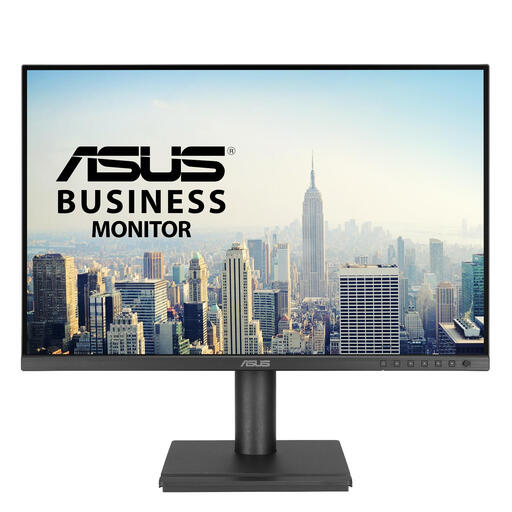 No image available
An option to compare if extra vertical space for code and terminal output is important to you.
1920 × 1200 pixels; WUXGA.
 No image available
A compact QHD option to compare if you want more pixels and the hub features of this model.
2560 × 1440 pixels; Dell lists a USB-C hub for this model.
 No image available
A QHD model to consider if extra pixels on a compact screen would suit your working windows.
2560 × 1440 pixels.
 No image available
A compact QHD option to compare if you’re looking for extra pixel space on a 23.8-inch screen.
2560 × 1440 pixels.
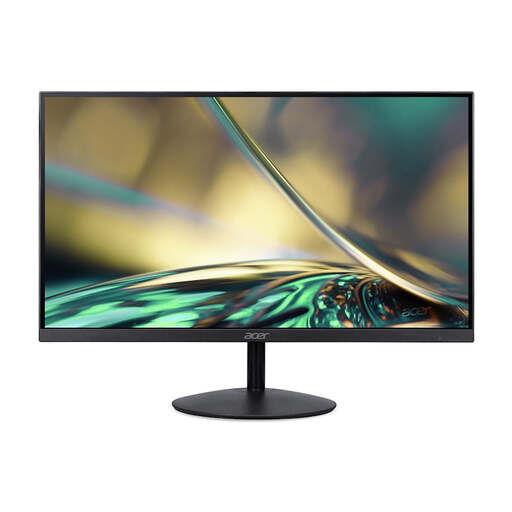 No image available
A straightforward Full HD option to consider if one main window is enough for your desk.
Full HD; 24 inches.
No. Dell describes the USB-C port on the P2425 as a downstream data port; Philips specifies video and power over USB-C for the 24E1N1300AE/01 when used with a compatible device. Check the features of both devices and make sure the cable supports them.
It depends on how many lines and windows you want to keep in view at once. Full HD may be suitable if one main window is enough. For extra vertical space, also compare a 1920 × 1200 screen and check how the text looks with your own scaling settings.
Position the screen directly in front of you and adjust it so you’re looking slightly downwards. Arboportaal also recommends changing your posture regularly. This is ergonomic guidance, not a promise that a particular monitor model will prevent discomfort.
An adjustable stand can help you find a comfortable viewing position at your desk. Measure the space available beforehand and check which adjustments the exact model offers.
No. According to the Dutch Government, there is no fixed statutory warranty period. What you can expect from a monitor depends, among other things, on the product and the information provided at the time of sale. If a product is faulty, the retailer is your point of contact. A manufacturer’s or extended warranty is separate from your statutory rights.