
PC builder with limited desk space
Needs to fit the monitor and stand alongside the keyboard and other items, rather than relying on screen size alone as a guide.


Start by measuring the free space on your desk, then compare it with the monitor’s dimensions, including the stand. A 16:10 monitor can give you more vertical space for code and terminal output, while QHD offers more pixels at a similar screen size; Dell lists these resolutions for the P2425E and P2425DE respectively. Choose a USB-C hub only if your computer supports the required video connection and, if needed, power delivery.
Needs to fit the monitor and stand alongside the keyboard and other items, rather than relying on screen size alone as a guide.
Switches between code, terminal output and documentation, and weighs up extra vertical space or QHD against keeping text comfortably readable.
Wants to keep desk cables to a minimum, provided the laptop can send video through the chosen connection and the monitor’s power delivery is suitable.
First measure the available space, then decide how much screen area, adjustability and connection convenience you need.
| What to consider | What should you check? | Who is this important for? |
|---|---|---|
| Monitor and stand on your desk | Measure the available width and depth, then compare them with the dimensions including the stand. Allow room for your keyboard and viewing distance. | If my desk is small, I want to know how much space the complete setup will take up. Around 31% of consumers prioritise finding a suitable space for the screen and stand. |
| Reading space for code | Compare 1920 × 1080, 1920 × 1200 and 2560 × 1440 at a similar screen size. Also check which text scaling setting on your computer keeps text comfortably readable. | When I use a terminal, editor and documentation side by side or stacked, I consider the usable text and window space. Around 25% of consumers prioritise this reading space. |
| Screen position | Check the height, tilt or pivot adjustments available on each model. Also consider where you’ll position the screen and lighting. | When working for long periods, I want to be able to position the screen comfortably. Around 25% of consumers place particular importance on how adjustable their setup is. |
| Connections and cables | Check which video output your computer has and whether any charging function provides enough power. Also check the connections on the exact monitor model. | If I want to use my laptop with as few separate cables as possible, video and, if needed, charging must work through the chosen connection. Around 19% of consumers focus mainly on connectivity and cable management. |
The stand takes up space too. A monitor that looks compact based on its screen size may not fit the available space once you add the stand.
Measure the available width and depth, then check the model’s dimensions with the stand. If you’re using an arm, make sure the mount and clearance will work too.
A USB-C connection doesn’t guarantee that every laptop can send video through it or receive enough power.
Compare your computer’s video output and power requirements with the monitor’s specifications.
More pixels can give you extra workspace, but readability also depends on the text scaling you set.
Compare the resolution and the text settings you actually want to use before choosing a model.
The Dutch government explains that the Netherlands has no fixed statutory warranty period. What you can reasonably expect from a product is also taken into account.
Assess any manufacturer’s warranty separately, and contact the seller if something goes wrong.
Dell describes the P2425E as a 24-inch 16:10 monitor with 1920 × 1200 pixels, and the P2425DE as a 23.8-inch QHD monitor with a USB-C hub.
The Philips 24E1N1300AE/01 is a 23.8-inch Full HD monitor with USB-C. Philips describes video and power delivery over a single cable for a compatible device.
According to iiyama, the ProLite XUB2492QSU-B1 combines a 24-inch QHD screen with a height-adjustable stand.
BenQ describes the RD240Q as a 24.1-inch monitor with 2560 × 1600 pixels and programming modes.
LG describes the 24BA750-B as a 23.8-inch Full HD business monitor with up to 65 W of USB-C power delivery and an adjustable stand.
This selection features compact Full HD and QHD monitors for terminal work, coding and multitasking across windows.
 Image unavailable
A compact QHD option if you want to spread your terminal, editor and documentation across more screen space.
23.8 inches and 2560 × 1440 pixels. Dell describes this model as a USB-C hub monitor; check that its connection is compatible with your computer.
 Image unavailable
A QHD option for arranging code and other windows on a compact screen.
The product name lists 61 cm (24 inches) and 2560 × 1440 pixels.
 Image unavailable
A compact QHD option if you want to use the same screen for code and terminal work alongside other windows.
The product name lists 60.5 cm (23.8 inches) and 2560 × 1440 pixels.
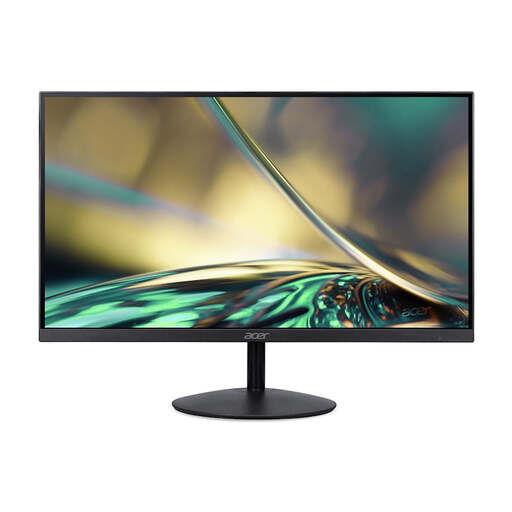 Image unavailable
A Full HD option for a compact setup where you mainly use a terminal or editor.
The product name lists a 24-inch screen. The product information states that the adapter is not included as standard.
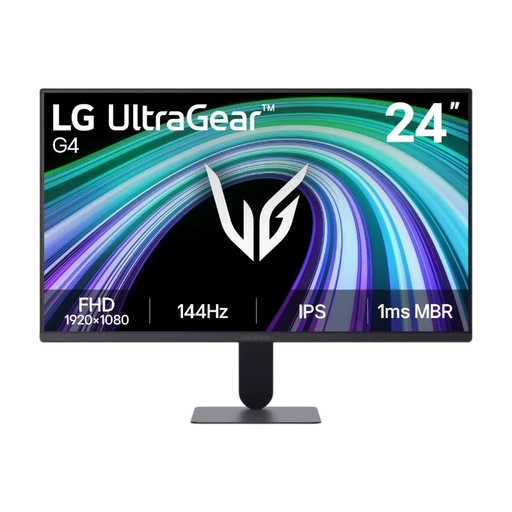 Image unavailable
A compact Full HD option if you want to do your terminal or editor work on a single screen.
The product name lists a 23.8-inch screen and Full HD resolution.
No. Measure the available width and depth, then compare them with the screen’s dimensions, including the stand. Resolution and text scaling also affect how much space is comfortable to use.
Not without checking your laptop’s connections and power requirements. Philips describes video and power delivery over a single cable for a compatible device; that doesn’t mean it will work with every laptop.
Check which height and tilt adjustments are available, and consider the screen’s position and lighting. Arboportaal states that for employees who work at a screen for more than two hours a day, the screen and keyboard must not be fixed together.
According to the European Commission, monitors are covered by the energy label for electronic displays. The label shows energy consumption in kWh per 1,000 hours; compare models on the same basis.
No. The Dutch government says there is no fixed statutory warranty period in the Netherlands: you can expect a product to do what it is supposed to do. Contact the seller if something goes wrong; any manufacturer’s warranty is separate.