An adjustable 27-inch QHD monitor is a good starting point for building a scheduling app if you want to view code and the schedule side by side. A 34-inch ultrawide is better suited to anyone who regularly keeps more windows open at once and has enough desk space. Dell Netherlands and LG Netherlands list a resolution of 2560 × 1440 pixels for the 27-inch QHD models mentioned here. Choose according to your preferred text scaling, connections and available space: more pixels, or simply having a USB-C port, doesn’t guarantee a more comfortable layout or compatibility with your laptop. Version control is handled by your development software, not by the monitor.
Who is this monitor for?
The multi-window developer
You want to compare code, the schedule view and changes, so start by deciding how much needs to be readable at once. Dell Netherlands describes models with 27-inch QHD and 34.1-inch ultrawide screens for different window layouts.
The developer at a permanent workstation
You work for extended periods and want to adjust the screen position, lighting and text size to suit your workspace. Arboportaal provides information on setting up workstations for screen-based work.
The laptop user
You want to connect your laptop easily and are weighing up a USB-C hub and charging power against your own computer’s video output and power requirements. Dell Netherlands, LG Netherlands and BenQ list different connection and charging options for each model.
What should you look for in a monitor for a scheduling app?
Start with the window layout you want to keep readable at the same time. Then check that the screen adjustment, connections and running costs suit your workspace.
| What to consider |
What should you check? |
Who is this important for? |
| Room for windows |
Try viewing code and the schedule side by side at your usual text scaling. Also check that the screen width and viewing position work with your desk. |
If I want to view code, the scheduling app and version differences at the same time, I need to know whether the text will remain readable. An estimated 40% of this group prioritise space for windows. |
| Posture and readability |
Check the height adjustment or mounting options, the space needed for the stand and any reflections caused by your lighting. |
For longer work sessions, I want to be able to adjust the screen position and text size to suit my workspace. An estimated 30% of this group prioritise posture. |
| Laptop connection |
Compare your laptop’s video output and charging requirements with the exact monitor port, its stated power output and the cable you need. |
If I use a laptop, I want to know in advance whether the connection I have in mind will provide video and, if needed, enough power. An estimated 20% of this group prioritise the laptop connection. |
| Total cost |
Compare the current total price of the exact model variant and check its EU energy label. Don’t infer the price from the resolution. |
If I mainly want a practical screen for work, I don’t want to pay for features I don’t need. An estimated 10% of this group prioritise total cost. |
Which buying mistakes can you avoid?
-
Assuming USB-C guarantees both a picture and enough power for your laptop
The monitor port and its stated charging power are only one side of the connection. Your laptop must also be able to output video through the port you use, and the power needs to match its charging requirements.
Before buying, check your laptop’s video output and power requirements, the specifications of the exact monitor model and the cable you need.
-
Choosing ultrawide or 4K based on pixel count alone
A higher resolution or wider screen doesn’t guarantee that code and other windows will be easier to read at your preferred text scaling. An ultrawide also takes up more desk space.
Try your usual combination of code, schedule and changes at a readable text size, and check that the screen will fit your workspace.
-
Treating a retailer’s listing as definitive confirmation of a model variant
The Joybuy listing for the LG 27BA65QB-B.AEU gives both 2560 × 1440 and 2560 × 1080 pixels, whereas LG Netherlands lists 2560 × 1440 for the 27BA65QB-B.
Compare the model code and specifications with the manufacturer’s information. Ask for clarification if the exact variant is important to your choice.
Which brands are worth considering?
Dell
The Pro Plus models mentioned offer different screen layouts: 27-inch QHD, 27-inch 4K and 34.1-inch ultrawide.
- Dell lists USB-C hub features and 90 W power delivery for the P2725DE. According to Dell, the P3425WE has a 34.1-inch screen with 3440 × 1440 pixels.
- The wider model needs more desk space. With 4K, check that text remains readable at your preferred scaling; these specifications apply to these models.
LG
The 27BA65QB-B is a 27-inch QHD model with USB-C, while the 27BA550-B is a 27-inch Full HD model.
- LG lists 2560 × 1440 pixels, 65 W USB-C power delivery and height, swivel and pivot adjustment for the 27BA65QB-B.
- LG lists 1920 × 1080 pixels for the 27BA550-B. Check that your preferred window layout works at your chosen text size; these models’ features don’t automatically apply to other LG monitors.
BenQ
The GW2790QT is a 27-inch QHD option for anyone who values adjustability, a matte finish and USB-C.
- BenQ lists 2560 × 1440 pixels, pivot, 110 mm height adjustment and USB-C with 65 W Power Delivery and DisplayPort Alt Mode for this model.
- Check that the connection and charging power are suitable for your laptop. BenQ’s Eye-Care branding isn’t independent evidence that eye strain will be prevented.
Philips
The 27E1N5600HE/00 is a 27-inch QHD model for anyone who wants a built-in webcam for meetings as well as app development.
- Philips lists a 5 MP webcam and USB-C power delivery for compatible devices for this model.
- A webcam isn’t needed for version control. Before buying, check that it has the exact connections and adjustment options you need.
Joybuy monitors for coding and multiple windows
This selection includes 27-inch QHD and 4K monitors, as well as 34-inch ultrawide models, for working with code, schedule views and multiple windows.
 No image available
MSI Modern MD272UPHG 27-inch 4K UHD monitor
A good fit if you’re considering a 27-inch 4K screen for code and multiple windows; check that text is comfortable to read at your computer’s scaling.
The product name lists 3840 × 2160 pixels.
View at Joybuy
 No image available
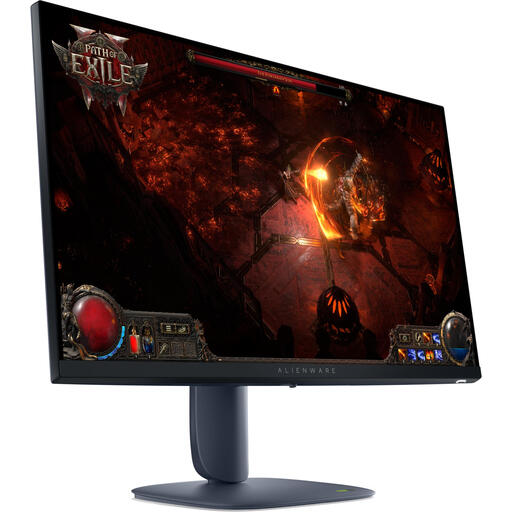
Alienware AW2725DM 27-inch QHD monitor
A 27-inch QHD option if you want to compare code and the schedule view side by side.
The product name lists 2560 × 1440 pixels.
View at Joybuy
 No image available
Dell Pro Plus P2725D 27-inch QHD monitor
A good fit if you’re looking for a 27-inch QHD screen to use with code and a schedule view; check that your preferred window layout works at your own text scaling.
The product name lists 2560 × 1440 pixels.
View at Joybuy
 No image available
Dell Pro Plus P3425WE 34.1-inch ultrawide monitor
A good fit if you often want to keep code, the schedule view and changes on screen at the same time; check that the wide screen will fit your desk first.
The product name lists 3440 × 1440 pixels.
View at Joybuy
 No image available
LG 34WR50QK-B 34-inch ultrawide monitor
An ultrawide option if you want to view several work windows side by side; consider the desk space you’ll need and your preferred text scaling.
The product name lists 3440 × 1440 pixels.
View at Joybuy
Frequently asked questions
Do I need a 4K monitor for version control?
No. Version control is handled by your software; it isn’t a monitor feature. A 4K model such as the Dell P2725QE has more pixels than the QHD P2725DE. Check whether code and change windows are comfortable to read at your preferred text scaling.
Can one USB-C cable always connect and charge my laptop?
No. Check whether your laptop outputs video through the port you plan to use, and compare its charging requirements with the stated power output of the exact monitor model. BenQ lists DisplayPort Alt Mode and 65 W Power Delivery for the GW2790QT; Dell lists 90 W for the P2725DE.
How should I set up my monitor for longer work sessions?
Adjust the screen position and text size, reduce distracting reflections by changing the screen’s position or using blinds, and break up screen-based work with other tasks. Arboportaal distinguishes between guidance and requirements for employees; an adjustable monitor alone doesn’t automatically make a workstation suitable.
What if a monitor I bought online isn’t suitable or breaks too soon?
According to ACM ConsuWijzer, online purchases generally come with a cooling-off period of up to 14 days after delivery, subject to exceptions you should check for your purchase. Dutch statutory warranty rights also apply: if a product used normally doesn’t do what you could reasonably expect, the seller is responsible for providing a suitable solution free of charge. That right doesn’t simply have a fixed two-year limit.
What rules apply to energy labels and screen-based work?
The European Commission describes an A–G energy label for electronic displays, including monitors. For employees, Arboportaal sets out requirements for screen-based workstations, including for those who work with screens for more than two hours a day. These workplace rules aren’t automatically personal purchasing requirements for every volunteer or hobbyist.


