
Booking-flow developer
You switch between code, booking screens and browser tools, so visible workspace and text layout come first. Chrome for Developers explains how Device Mode simulates a mobile view.


Choose a monitor based on what you most often need to view at the same time: code and browser windows, visual details, or a laptop setup with USB-C. A monitor helps you assess the desktop view, but it can’t replace testing on a real phone: Chrome for Developers describes Device Mode as an initial approximation of mobile use.
You switch between code, booking screens and browser tools, so visible workspace and text layout come first. Chrome for Developers explains how Device Mode simulates a mobile view.
You also assess photos, maps, buttons and colours, and want to take the stated colour gamut and calibration into account. ASUS and LG publish these details for specific monitor models.
You regularly connect your laptop and need suitable video connections, power delivery and an adjustable workstation. Philips and LG describe USB-C features for specific models; Arboportaal provides information about relevant workstation regulations.
First, decide which task needs the most screen space. For coding and previews, compare the resolution and aspect ratio; Dell Nederland and BenQ Nederland publish different specifications for their models.
| Buying concern | What to look for | Which shoppers this suits |
|---|---|---|
| Viewing code and a booking preview side by side | Compare the resolution and aspect ratio with the windows you want to have open at the same time. | If I want to view code, booking steps and a browser preview at the same time, workspace takes priority. Shoppers who put workspace first account for around 33%. |
| Assessing photos and interface colours | Check the colour gamut and any factory calibration for the exact model; also compare the website on other screens. | If I’m assessing photos, maps and UI colours, I want to know which colour specifications apply to my monitor. Shoppers who prioritise visual assessment account for around 25%. |
| Using a laptop with fewer separate connections | Check whether your laptop supports video over USB-C and compare the stated power delivery with your laptop’s requirements. | If I connect and disconnect my laptop often, I want to know whether the same connection can handle both the display and power. Shoppers who put laptop connectivity first account for around 25%. |
| Adjusting your workstation | Check how adjustable the stand is, and consider desk space and lighting. | If I work at a screen for long periods, I want to be able to position and adjust the monitor to suit me. Shoppers who prioritise workstation setup account for around 17%. |
A simulated mobile viewport won’t show you everything about how a website works on a real phone. Chrome for Developers describes Device Mode as an initial approximation.
Use viewport emulation while you’re building the site, and check key steps such as choosing dates and booking on a real mobile device too.
USB-C features and stated power delivery apply to specific monitor models and compatible devices.
Check that your laptop port supports video, and compare your laptop’s power requirements with the specifications for the exact monitor version.
Depending on the combination, you may still need a separate charger or another connection.
According to the Dutch Government, statutory guarantee in the Netherlands is separate from a manufacturer’s warranty or an extended warranty; there is no fixed statutory guarantee period.
Before taking out an extended warranty, check what additional cover it offers.
The UltraSharp U2724D is an example of a 27-inch QHD monitor for working with code and previews.
The Programming RD280U is worth comparing if extra vertical screen space matters to you.
The ProArt PA279CRV is designed for workflows where visual assessment matters.
The 27E1N5600AE/00 is a 27-inch QHD model worth comparing for a laptop setup with USB-C.
According to LG, the UltraFine 27UP850K-W combines 4K display with USB-C features.
These Joybuy models are suited to coding and browser previews, visual assessment or an adjustable laptop workstation.
 No image available
An option to compare if you want to view code and browser windows side by side.
34 inches, 3440 × 1440 pixels and 21:9. The description lists Thunderbolt 4, Smart KVM and USB Power Delivery of up to 100 W.
 No image available
An option for viewing code and a preview on one screen while considering a USB-C laptop setup.
27 inches, 3840 × 2160 pixels, IPS and a refresh rate of up to 120 Hz. The description lists USB-C with 65 W Power Delivery and a height-adjustable stand.
 No image available
An option for viewing code and previews on a 27-inch screen while taking the stated colour specifications into account.
2560 × 1440 pixels. The description lists 100% sRGB, factory calibration and USB-C with 65 W Power Delivery.
 No image available
An option for viewing code and previews if colour specifications and laptop power delivery also matter.
2560 × 1440 pixels. The product description lists Calman verification, 100% sRGB, 95% DCI-P3 and USB-C with 90 W Power Delivery.
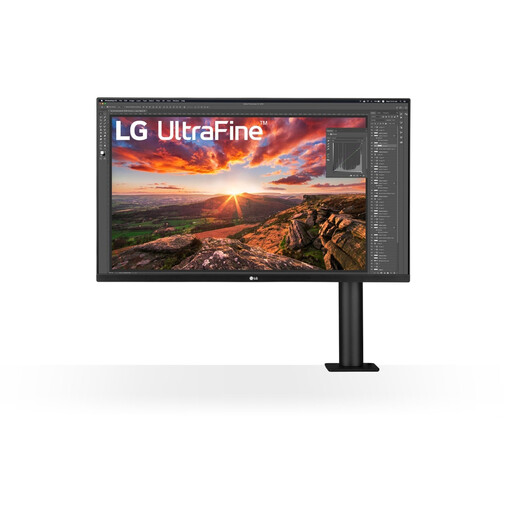 No image available
An option for viewing code and previews on a larger screen and adjusting the monitor’s position.
31.5 inches, 3840 × 2160 pixels and USB-C with 60 W Power Delivery. The description lists an adjustable monitor arm.
No, a large monitor isn’t a complete real-world mobile test. Use a responsive viewport in Chrome DevTools to view screen widths and breakpoints, and test key booking steps on a real phone too; Chrome for Developers describes Device Mode as an initial approximation.
Check that your laptop can output video through the port you’ve chosen, and that any USB-C power delivery is suitable for your laptop. Then position the monitor comfortably and watch out for reflections and lighting; for relevant workstations, Arboportaal also outlines regulations on adjustability.
The European Commission states that energy labelling and ecodesign rules apply to electronic displays, so compare the details for the exact monitor version. According to the Dutch Government, statutory guarantee in the Netherlands is separate from a manufacturer’s warranty, and there is no fixed statutory guarantee period.
According to the Dutch Government, purchases made remotely from a business usually come with a 14-day cooling-off period. Check the seller’s information and the terms that apply to your order.
Regulations apply to employers and relevant employee workstations. Arboportaal outlines, among other things, the need to vary tasks or take breaks, as well as specific workstation requirements when an employee works at a screen for more than two hours a day; this condition doesn’t automatically apply to every private monitor buyer.