What to consider when choosing
First decide how much workspace you need, then look for a comfortable setup and check that the connections are compatible with your computer.
| Factor |
What should you look for? |
Who is this important for? |
| Screen space and readability |
Compare screen size, native resolution, available desk space and your computer’s scaling settings. |
If I want to view code, my tracker and documentation at the same time, I prioritise room for windows; around 36% of consumers do the same. |
| Posture and reflections |
Check height adjustment, reflections, viewing distance and the light in your workspace. |
If I work at a screen for long periods, I want to adjust its position and read text easily; around 29% of consumers prioritise their working posture. |
| Connection to your computer |
Check the video output, the features supported by the USB-C port and cable, and the charging power your laptop needs. |
If I regularly connect my laptop, I want to know whether the chosen connection supports video and any power delivery I need; around 21% of consumers give connectivity top priority. |
| Cost and desk space |
Measure the available space and compare only models that meet your own connectivity and ergonomic requirements. |
If I’m mainly considering what fits my budget and desk, I don’t want to pay for features I don’t need; around 14% of consumers start with cost or desk space. |
Joybuy monitors
The models shown include QHD, 4K and ultrawide options for viewing code, a test window and locally stored documentation on one screen. Compare the screen space with your desk and check that the connections meet your computer’s needs.
 Image unavailable
MSI Modern MD272UPHG, 27 inch, 4K UHD, black
A good fit if you want to view fine detail on a 27-inch 4K screen; check readability with suitable text scaling and viewing distance.
27 inch; 3840 × 2160 pixels; 4K UHD.
For video and power from a laptop via USB-C, check that the laptop port and cable support the required features and power.
View at Joybuy
 Image unavailable
Dell Pro Plus P2425DE, 24 inch, QHD, black
This QHD option is worth considering if you’re looking at a 24-inch screen; think about whether it offers enough space for your windows.
24 inch; 2560 × 1440 pixels; QHD.
For video and power from a laptop, check that the laptop, cable and required charging power are compatible with the connection you choose.
View at Joybuy
 Image unavailable
Dell Plus S2725QC, 27 inch, 4K UHD, silver
This 27-inch 4K option is a good fit if you want to view fine detail; check that text scaling works comfortably at your viewing distance.
27 inch; 3840 × 2160 pixels; 4K UHD.
For video and power from a laptop via USB-C, check that the laptop port and cable support the required features and that the power output suits your laptop.
View at Joybuy
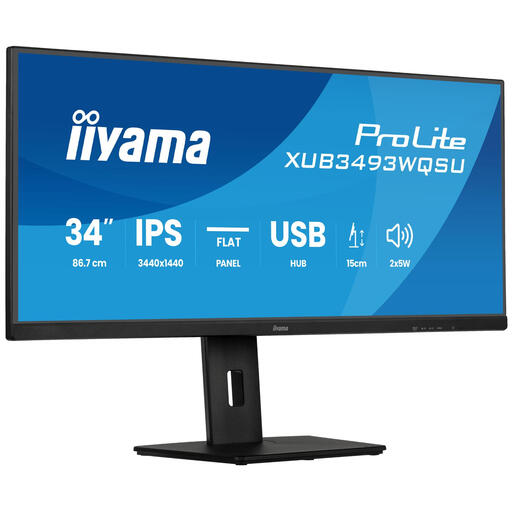 Image unavailable
iiyama ProLite, 34 inch IPS ultrawide, PiP and PbP
The ultrawide format suits anyone who wants to view several windows side by side; measure your desk first to check it will fit.
34 inch; IPS; ultrawide; PiP and PbP; height-adjustable stand.
View at Joybuy
 Image unavailable
Philips E Line 346E2CUAE/00, 34 inch, 3440 × 1440, black
The 34-inch screen and 3440 × 1440 pixels suit anyone who wants to view several windows side by side; check that you have enough desk space.
34 inch; 3440 × 1440 pixels; Wide Quad HD+.
For video and power from a laptop via USB-C, check that the laptop port and cable support the required features.
View at Joybuy
Frequently asked questions
Do I need internet on the monitor to read offline documentation?
No. Your computer needs to be able to open the documentation locally and send a suitable video signal to the monitor. Check your computer and documentation setup separately from your monitor purchase.
Can I connect my laptop with a single USB-C cable?
Only if the monitor, laptop port and cable support the required video feature. Also check that the available charging power is suitable for your laptop; AOC specifies DisplayPort Alternate Mode and up to 96 W Power Delivery for the Q27P4CV.
How should I set up my screen for longer work sessions?
Adjust the screen position, text size and lighting so that text is easy to read and reflections are kept to a minimum. Arboportaal highlights readability, glare, lighting and posture as factors to consider when working with a screen.
Do Dutch screen-work rules also apply to my hobby project?
The regulations described by Arboportaal are aimed at employers and employees; don’t assume they create a general legal obligation for a personal project. For employees who work at a screen for more than two hours a day, Arboportaal lists additional workplace requirements.
What are my rights when I buy a monitor online?
According to ACM ConsuWijzer, a standard online purchase usually comes with a statutory cooling-off period of up to 14 days after delivery, subject to applicable exceptions. Your statutory rights if a product is faulty are separate from a manufacturer’s warranty; check the terms that apply to your purchase.


