
Student who wants to see code and documentation side by side
Wants to keep both text windows visible while programming a study timer, so usable screen space is a top priority.


Choose based on the windows you want to see at the same time and the space available on your desk: a 27-inch QHD monitor offers more pixels for code and documentation than a 23.8-inch Full HD monitor, while a 34-inch ultrawide mainly gives you extra width. Also check that the screen fits on your desk and that your computer supports the resolution and connection you want. Only pay extra for USB-C docking if you’ll actually use it.
Wants to keep both text windows visible while programming a study timer, so usable screen space is a top priority.
Looking for an extra screen that’s comfortable to read but not too wide or awkward to position.
Regularly switches between a study space and using a laptop. A USB-C hub monitor is most relevant if the laptop supports the required video connection.
First decide how many windows you want to see at once and how much desk space you have. Then consider adjustability and connections that suit your computer.
| What to consider | What to look for | Who is this important to? |
|---|---|---|
| Code and documentation side by side | Compare the native resolution and aspect ratio with the window layout you want to use. | I want to read code and locally stored documentation at the same time, without constantly switching between windows; around 36% of consumers give this priority. |
| Desk space | Measure the available width and depth, including the monitor stand. | I want a screen that fits in my study space and don’t always need to display several windows side by side; around 29% of consumers prioritise a compact setup. |
| Adjustable viewing position | Check the height and tilt adjustments available on the exact model and whether the screen will fit your workspace. | I want to adjust the screen position to suit my desk and viewing position; around 21% of consumers consider adjustability their main priority. |
| Connecting a laptop | Check USB-C video support, your laptop’s charging requirements and the connections on the exact monitor variant. | I want to connect my compatible laptop easily and make real use of the hub features; around 14% of consumers prioritise convenient connections. |
For viewing code and documentation side by side, the available screen space and the window layout you want are direct selection criteria.
First compare the size and native resolution with how you plan to use the monitor. Then look at other display features.
A USB-C port on the monitor doesn’t prove that your laptop can output video through that port or work with the available charging power.
Compare your laptop’s port specifications and charging requirements with those of the exact monitor variant, and check which cable you’ll need.
A commercial manufacturer’s warranty doesn’t replace the seller’s legal responsibility. ACM ConsuWijzer explains that the seller must resolve an issue under the statutory guarantee if a product breaks too soon during normal use.
Keep your proof of purchase and contact the seller if there’s a problem.
The Pro Plus models reviewed offer a 27-inch QHD option, as well as a variant positioned as a USB-C hub monitor.
The 34WR55QC-B reviewed is an ultrawide option for anyone who wants to arrange several windows side by side.
The 24E1N1100A/00 reviewed is a more compact Full HD alternative.
The ThinkVision P27h-30 reviewed combines a 27-inch QHD screen with docking and connectivity features.
This selection includes monitors for code and locally stored documentation, from compact Full HD screens to QHD and ultrawide options.
 No image available
A good fit if you want to arrange code and documentation side by side across a wide screen and have enough desk space.
34 inches; 3440 × 1440 pixels; 21:9 aspect ratio.
 No image available
A 27-inch QHD option if you want to use a standard-sized screen for code and documentation; the USB-C hub is most useful if your laptop is compatible.
27 inches; 2560 × 1440 pixels. Dell positions this model as a USB-C hub monitor.
 No image available
A good choice if you want to view code and offline documentation side by side without opting for an ultrawide screen.
27 inches; 2560 × 1440 pixels. Dell lists this model as adjustable.
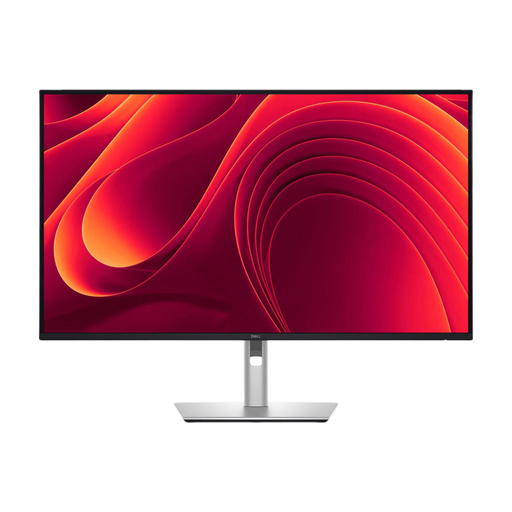 No image available
A larger QHD screen for anyone who wants more screen space and has checked that it will fit on their desk.
31.5 inches; 2560 × 1440 pixels.
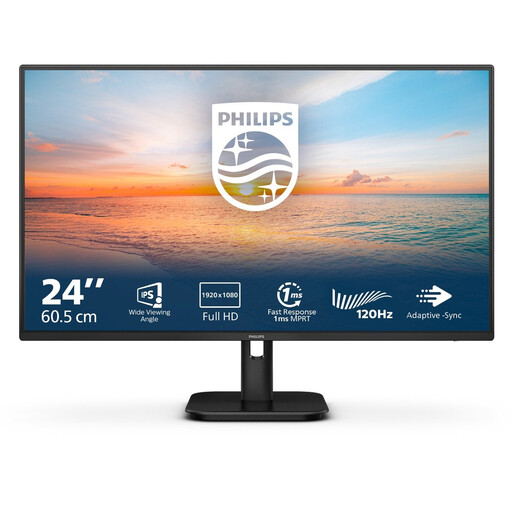 No image available
A more compact option if you usually work with one main window or switch between code and documentation.
24 inches; Full HD 1920 × 1080; IPS; 100 Hz; speakers.
The lower resolution offers fewer pixels for side-by-side windows than the QHD options mentioned.
Yes, a compact Full HD screen can be suitable if you usually work with one main window and regularly switch between windows. If you want to keep code and documentation side by side for long periods, compare QHD or ultrawide options too. Whether your documentation is stored locally doesn’t change how much screen space you need.
Choose a position that suits your workspace, and consider lighting and glare. Adjustability can help you set the screen position, but it’s no substitute for taking breaks or arranging your workspace appropriately. The rules for employers and employees don’t automatically apply to studying independently.
No, it depends on the laptop, monitor and cable. Check whether your laptop’s USB-C port can output video, how much charging power the laptop needs and which cable is suitable. LG lists 65 W USB-C power delivery for the 34WR55QC-B; this monitor specification alone doesn’t confirm compatibility with your laptop.
According to ACM ConsuWijzer, online purchases generally come with a statutory 14-day cooling-off period from delivery, subject to legal exceptions. The seller is also responsible under the statutory guarantee if, during normal use, the product doesn’t meet what you could reasonably expect. A manufacturer’s warranty doesn’t replace this right.
No, the obligations described by Arboportaal are aimed at employers and employees and don’t automatically apply to studying independently. If you also work as an employee and use a display screen for more than two hours a day, Arboportaal lists specific requirements for the workplace; assess that work situation separately.