What should you look for when choosing?
First decide how you want to arrange your code and documentation, then compare readability and connections with your workspace and computer.
| What to consider |
What should you check? |
Who is this important for? |
| Workspace for code and documentation |
Compare the screen aspect ratio, resolution and available desk space; check how readable text is at the scaling setting you intend to use. |
If you want to read your editor and locally stored reference material comfortably side by side or one above the other, the layout matters more than screen size alone. Around 36% of consumers say workspace is their main buying priority. |
| Adjustability and readability |
Check the height adjustment, position in relation to light sources and how readable symbols are at your chosen scaling setting. |
For longer coding sessions, you’ll want to adjust the screen to suit your viewing position and reduce reflections. Around 29% of consumers put adjustability and readability first. |
| Laptop connection and charging |
Check the video output, required charging power, cable and whether you need Ethernet or USB peripherals. |
If you want to connect your display and peripherals and charge your laptop at the same time, your laptop, monitor and cable must all support these features. Around 21% of consumers say the laptop connection is their main priority. |
| Features you need |
Make a note of the ports and adjustment options you actually need, and compare the full model numbers. |
If you’re mainly looking for the right basic features, a webcam or specialist mode may be unnecessary if you won’t use it. Around 14% of consumers prioritise features that suit their own workspace. |
Monitors at Joybuy
This selection includes QHD and 4K monitors for coding and locally stored documentation. Compare the screen layout and connections with your own workspace.
 No image available
MSI MAG 272QPF E20 27-inch WQHD monitor
A 27-inch QHD screen for anyone who wants to view code and documentation on a standard widescreen.
16:9 layout; 2560 × 1440 pixels; 200 Hz; Rapid IPS panel.
Joybuy
 No image available
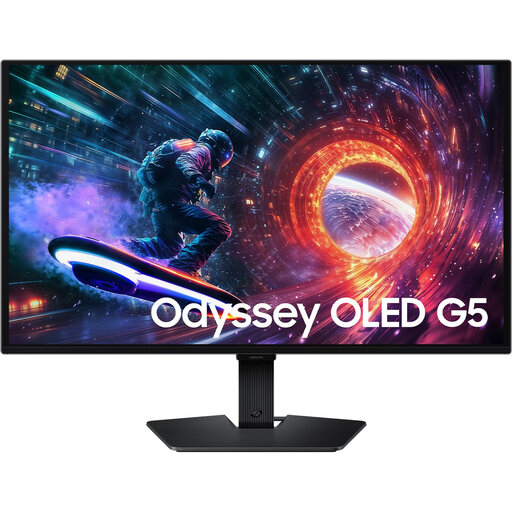
Samsung LS27FG500SUXEN 27-inch Quad HD monitor
The 27-inch QHD layout gives you a standard workspace for code and documentation, while the tilt adjustment lets you change the screen angle.
2560 × 1440 pixels; 180 Hz; OLED panel; tilt adjustment.
Joybuy
 No image available
Philips 32E1N1800LA 32-inch 4K UHD monitor
A 32-inch 4K screen for viewing code and documentation across a spacious workspace; check that it will fit your desk.
VA panel; 3840 × 2160 pixels at 60 Hz; 300 cd/m²; 2× HDMI and DisplayPort; tilt adjustment; speakers.
Joybuy
 No image available
AOC Gaming Q27G42XNE 27-inch Quad HD monitor
A 27-inch QHD monitor for anyone who wants to view code and documentation on a standard screen.
2560 × 1440 pixels; 180 Hz; 1 ms; FreeSync Premium; HDR10; 2× HDMI 2.0 and 1× DisplayPort 1.4.
Joybuy
 No image available
Philips Evnia 27M2N3500NF 27-inch QHD monitor
The 27-inch QHD layout suits anyone who wants to view code and documentation on a standard workspace.
16:9 layout; 2560 × 1440 pixels; IPS panel; 144 Hz; tilt adjustment.
Joybuy
Frequently asked questions
Does a monitor need to open offline documentation itself?
No. With this setup, you open locally stored files on the connected computer; choose a screen layout that lets you read them comfortably beside or above and below your editor. A USB-C port or a particular screen resolution doesn’t mean the monitor stores those files itself.
How should I set up a monitor for long periods of use?
Adjust the screen and text size to suit your viewing position, reduce reflections and keep light sources out of your field of vision. Arboportaal also recommends varying your tasks and taking short breaks; these measures don’t guarantee that you’ll avoid problems.
What should I check before using a USB-C monitor as a dock?
Check whether your laptop supports video through the relevant port, how much power it needs and which cable is included. Dell lists power delivery of up to 90 W for the P2725QE; that specification doesn’t confirm that every laptop will work with it using a single cable.
What rights do Dutch consumers have when buying online?
When you buy from a business at a distance, you’ll often have a 14-day cooling-off period; the Dutch government notes that exceptions may apply. Your statutory rights are separate from a manufacturer’s warranty: if a product doesn’t meet what you could reasonably expect, contact the seller.
Do workplace health and safety rules for display screen work apply to every home buyer?
No. Arboportaal outlines requirements for employers and employees’ workplaces. For employees who work at a screen for more than two hours a day, the rules include requirements for a separate screen or keyboard when using a laptop; these employer obligations don’t automatically apply to private use.


