
Developer who keeps the debugger beside the code
You want to arrange code, error messages and the running rota at a text size you can read comfortably. Dell, LG and BenQ model specifications offer different screen formats to compare.


An adjustable 27-inch QHD monitor is a compact way to try coding alongside a debugger on one screen. An ultrawide display gives you more horizontal space, while a 3:2 screen offers more vertical workspace. Check that your windows fit at a text size you can read comfortably, that your desk has enough room, and that the video output and charging power work with your laptop.
You want to arrange code, error messages and the running rota at a text size you can read comfortably. Dell, LG and BenQ model specifications offer different screen formats to compare.
You move between workspaces and want to know whether a monitor cable can carry video, connect peripherals and provide enough power to charge your laptop. Check what your laptop and monitor support; Dell, for example, sets out specific requirements for video over USB-C.
You pay attention to legible text, screen height and reflections during longer sessions. Arboportaal highlights readability, lighting and screen position as points to consider when working with a display.
Compare the screen layout with the text size you find comfortable. The aspect ratio helps determine how you can arrange your code, debugger and app preview.
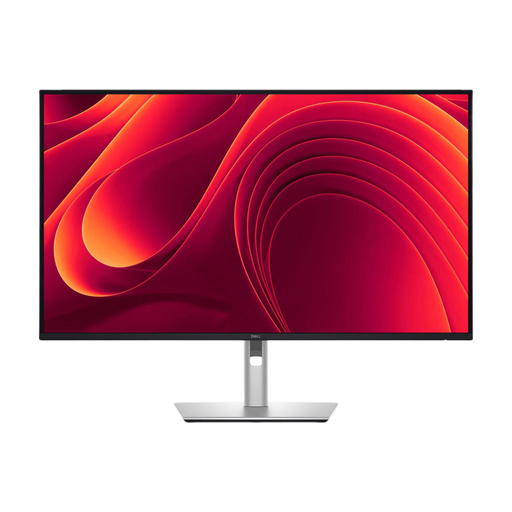
A good fit for: trying code and a debugger on one screen without immediately opting for an ultrawide format. Dell specifies a resolution of 2560 × 1440 pixels and an adjustable stand for the P2725DE.
Trade-off: this resolution has fewer pixels than the 27-inch 4K monitor considered here, and less horizontal space than a 34-inch ultrawide model.
A good fit for: anyone looking for more resolution for text and app details on a standard 27-inch-wide screen. Dell specifies a resolution of 3840 × 2160 pixels for the U2725QE.
Trade-off: 4K does not guarantee that you can fit more windows on screen: the text still needs to be readable at your chosen scaling setting.
A good fit for: arranging code, a debugger and an app preview side by side, if your desk can accommodate the width. LG specifies a resolution of 3440 × 1440 pixels for the 34BA85QE-B.
Trade-off: the screen takes up more desk space, while the vertical resolution remains 1440 pixels.
A good fit for: anyone who mainly wants to see more lines of code or debugger output vertically. BenQ specifies a resolution of 3840 × 2560 pixels in a 3:2 aspect ratio for the RD280U.
Trade-off: extra vertical space does not offer the same horizontal layout as an ultrawide screen. BenQ’s claims about a more comfortable coding experience are manufacturer claims, not a proven benefit for every user.
| Point to consider | What should you check? | Who is this for? |
|---|---|---|
| Code, debugger and app preview | Try arranging your windows at your usual text size, and compare the aspect ratio, resolution and physical screen width. | If I want to keep an eye on code, error messages and the rota at the same time, I look for a layout that fits my desk. Around 33% of consumers give window layout the highest priority. |
| Readability and screen position | Check the height adjustment, reflections in your workspace and how readable the code is at your chosen scaling setting. | For long coding sessions, I want text that is comfortable to read and a screen I can position properly. Around 27% of consumers put readability and setup first. |
| Laptop, video and charging | Check your laptop’s manual to see whether it supports video over USB-C or Thunderbolt, then compare the charging power you need with what the monitor provides. | If I want to connect my laptop with one cable, that combination needs to provide the features I need. Around 20% of consumers start by checking compatibility with their own laptop. |
| Space and purchase | Measure the available desk space and, before ordering, check the current price, returns policy and what the seller will do if the product is faulty. | I want the screen to fit physically and within my budget, with clear options if something goes wrong. Around 20% of consumers consider space and purchase cost their main factors. |
A higher resolution does not automatically mean that code, a debugger and an app preview will fit side by side. The screen’s aspect ratio, text scaling and available desk space all matter too.
Try your preferred window layout at the text size you actually want to use.
Video support and charging power depend on the specific ports and devices. A USB-C connection on its own does not confirm that a laptop can output video.
Compare your laptop and monitor manuals, and check the charging power you need before choosing a one-cable setup.
If the combination does not meet your needs, you may need a separate power adapter or a different video cable.
The listed availability and specifications need to match the exact monitor variant you want to order.
Before buying, check the model name, specifications, availability and product page again.
The models considered offer two different 27-inch options: QHD with the P2725DE and 4K with the U2725QE.
The 34BA85QE-B considered here is an ultrawide option for anyone who wants to arrange work windows horizontally.
The RD280U is a 3:2 option for anyone who wants to compare extra vertical workspace with a wider screen.
The 27E1N1600AE/00 is a 27-inch QHD model that you can compare with other screens using the model specifications.
This selection includes 27-inch QHD and 4K screens, larger QHD options and ultrawide monitors for arranging code, a debugger and an app preview.
 No image available
A compact 27-inch QHD option for trying code and a debugger on one screen.
27 inches; 2560 × 1440 pixels; Quad HD.
 No image available
A 27-inch 4K option to consider if you want more resolution for text and app details. Check that text remains comfortable to read at your chosen scaling setting.
27 inches; 3840 × 2160 pixels; 4K Ultra HD.
 No image available
An ultrawide option for trying code and a debugger side by side. Measure the available desk width first.
34.1 inches; 3440 × 1440 pixels; Wide Quad HD.
 No image available
A larger QHD option for arranging code, a debugger and an app preview on one screen.
31.5 inches; 80 cm; 2560 × 1440 pixels; Wide Quad HD.
 No image available
An ultrawide option for anyone who wants to compare a large horizontal workspace. Check that the screen will fit on your desk.
45 inches; Dual QHD; VA panel; KVM switch, USB-C dock and RJ45; height-adjustable stand.
No. First check whether your computer’s port supports video and whether the monitor provides enough charging power. Dell explains that its monitors require the USB-C port to support DisplayPort Alt Mode, or that you use a Thunderbolt port. Check the manuals for your particular setup.
Make sure text is readable at your chosen size, reduce reflections and adjust the screen height to suit your workspace. Arboportaal also recommends alternating screen work with other tasks or taking a break. A manufacturer’s display mode is no substitute for a properly arranged workspace.
When you buy online as a consumer, you generally have a statutory cooling-off period, with some exceptions. ACM ConsuWijzer states that this period ends 14 days after the product is delivered. If a product is faulty, the seller is responsible for the statutory guarantee; a manufacturer’s warranty does not replace that responsibility.
No. The subject of your app does not automatically determine your employment status. Arboportaal outlines specific rules for employees and explains that the Dutch Working Conditions Act does not fully apply to volunteers; the work being done and the relationship with an organisation are what matter. Advice on readability and setting up your workspace well can still help you choose a monitor.