
Code reviewer with a small desk
Wants to set up a separate screen in a student room without filling the desk. Dell Netherlands lists the P2425H as having a 23.8-inch diagonal and a stand that can be adjusted for height, tilt, swivel and pivot.


Start with the space on your desk and how you review code changes: an adjustable screen of around 24 inches is compact, while 16:10 gives you more vertical pixels and QHD offers more pixels for text and windows. Choose a USB-C hub only if its video connection and charging power are suitable for your laptop; a USB-C port alone doesn’t guarantee this.
Wants to set up a separate screen in a student room without filling the desk. Dell Netherlands lists the P2425H as having a 23.8-inch diagonal and a stand that can be adjusted for height, tilt, swivel and pivot.
Wants to view code, changes and context clearly side by side, so is comparing extra vertical space with QHD. Dell Netherlands lists the P2425 as having 1920 × 1200 pixels; Dell Netherlands and LG Netherlands also describe compact QHD models.
Wants to connect a laptop to an external screen easily and needs to check whether the monitor also supports video and sufficient charging power via USB-C. Dell Netherlands distinguishes between a USB-C port for data and a connection for laptop video on the P2425H.
First, measure the available space and decide how much code or how many windows you want to see at once. Then check that the connections are compatible with your laptop.
| What to consider | What to look for when buying | Who is this important for? |
|---|---|---|
| Viewing code and changes clearly | Compare 1920 × 1080, 1920 × 1200 and 2560 × 1440 at a screen size that will fit on your desk. | If I want to read code and a diff side by side, I need enough pixels to arrange windows without making the text unnecessarily small. Around 30% of consumers prioritise a clear view of code and changes. |
| Space and adjustability | Measure the space for the screen and stand; check height adjustment and tilt on the exact model. | On a small desk, I want a screen that fits and can be adjusted easily, even if I don’t need a higher resolution. Around 30% of consumers prioritise a good fit and adjustability in a small workspace. |
| Laptop connection | Check your laptop’s video output, the function of the USB-C port, the charging power required and which cables are included. | If I want to connect my laptop with one cable, I need to know for certain that the connection supports video and provides enough charging power. Around 20% of consumers give the laptop connection top priority. |
| Accessories and energy consumption | Check which cables or adapters you’ll need and look at the EU energy label for the exact model; the European Commission uses a scale from A to G for electronic displays. | I want to know in advance what extra connections my workspace requires and be able to take energy consumption into account. Around 20% of consumers prioritise the accessories they need and energy consumption. |
According to Dell Netherlands, the USB-C port on the Dell P2425H is a downstream data port providing up to 15 W; this doesn’t confirm that it can provide video or enough power for your laptop.
Check the function of the port on the exact monitor model and compare it with your laptop’s video output and charging requirements.
You may need a separate charger, video cable or adapter.
The compact models listed have different resolutions and aspect ratios: Full HD isn’t the same as 1920 × 1200 or QHD, even if the screen diagonals are similar.
Compare the resolution and aspect ratio before choosing based on screen size alone. Bear in mind that the preferred text size varies from person to person.
Philips lists a maximum of 120 Hz for the 24E1N1100A/00; a Joybuy listing using the shortened name 24E1N1100A states 100 Hz. The model names alone don’t mean these specifications are interchangeable.
Compare the full manufacturer code and the specifications for the exact version before relying on a particular feature.
In this model range, Dell Netherlands describes compact Full HD, 16:10 and QHD options.
LG Netherlands lists a compact 23.8-inch QHD option and a larger 27-inch QHD model.
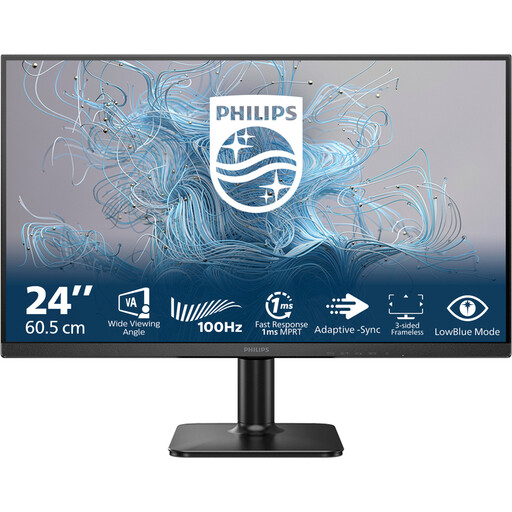
The Philips 24E1N1100A/00 is a 23.8-inch Full HD model to compare with other options.
This Joybuy selection includes compact Full HD and 16:10 monitors, as well as QHD models, including a larger 27-inch screen. Compare the dimensions, resolution and connections with your desk and laptop.
 No image available
A compact Full HD option to compare for reading code in a small workspace.
Full HD: 1920 × 1080 pixels. The product description lists HDMI and VGA connections.
 No image available
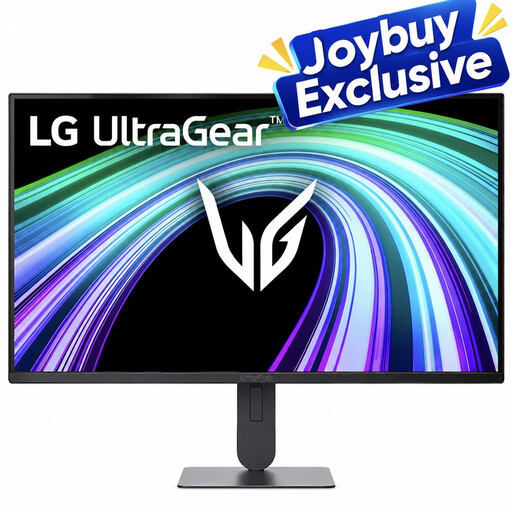
A compact Full HD option for anyone who also wants to consider stand adjustability when reading code.
Full HD resolution and IPS panel. The product description lists a height-adjustable, tiltable stand and VESA mounting.
 No image available
A larger QHD screen to consider if your desk and viewing distance can accommodate a 27-inch diagonal.
27 inches, 2560 × 1440 pixels and an IPS panel. Its larger diagonal takes up more space than the compact options.
 No image available
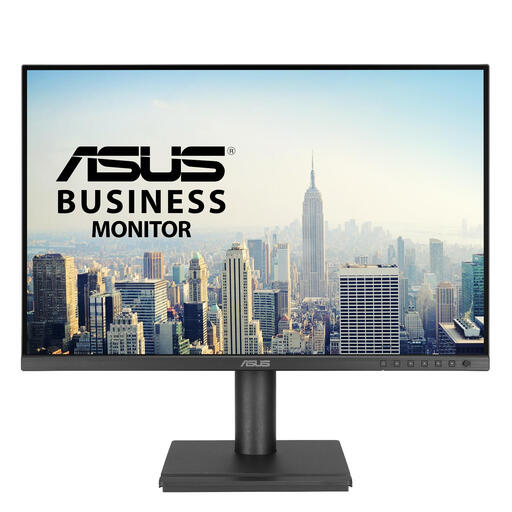
A compact 16:10 option for anyone who wants to compare extra vertical screen space with Full HD and QHD.
24.1 inches and 1920 × 1200 pixels. The product description lists a height-adjustable stand and a USB hub with four USB-A ports.
 No image available
A compact QHD option for viewing code and other windows side by side; check that USB-C is compatible with your laptop.
23.8 inches and 2560 × 1440 pixels. The product description lists USB-C for video and data with 90 W Power Delivery, plus an adjustable stand. Video and charging via USB-C depend on the laptop and cable used.
Choose 16:10 if you mainly want more vertical screen space for lines of code; the Dell P2425 has 1920 × 1200 pixels. If you want to compare more pixels across multiple windows, the Dell P2425DE offers 2560 × 1440 pixels. Also consider what text size you find comfortable to read.
No, a USB-C port alone doesn’t confirm that the monitor supports laptop video and sufficient power through a single cable. Dell lists the P2425H’s USB-C downstream port as data-only, with a maximum of 15 W. For a hub monitor, check your laptop’s video support, the cable and the charging power you need.
Position the screen securely and adjust its height, tilt, resolution and text size to suit your workspace. Arboportaal warns that prolonged screen work can cause health problems; an adjustable stand doesn’t guarantee that you’ll avoid them.
According to ACM ConsuWijzer, for a standard online consumer purchase you generally have a statutory cooling-off period of up to 14 days after delivery. If, under normal use, a product doesn’t meet what you could reasonably expect, ACM ConsuWijzer says the seller must put it right free of charge. The cooling-off period and statutory guarantee are separate rights; check which rules and exceptions apply to your purchase.
Not automatically: the regulations cited by Arboportaal apply to employees and employers and don’t necessarily apply when you’re studying solely for personal reasons. For employees who work with a screen for more than two hours a day, Arboportaal describes specific workplace requirements; whether they apply depends on your work situation.