First, measure the available width and depth, including the monitor stand: the screen’s diagonal measurement doesn’t tell you how much room the complete setup will take up. Choose a smaller screen if space is limited, a 16:10 screen if you want to see more timetable rows at once, or a suitable USB-C model if your laptop’s connection is the deciding factor. Always check the connections and adjustability of the exact model.
Who is this guide for?
Timetable planner with limited desk space
You need to fit your screen, keyboard and perhaps some paperwork on a small desk. Measure the overall dimensions, including the stand: the screen’s diagonal measurement alone won’t tell you whether the setup will fit.
Timetable planner comparing lots of rows
You want to see more timetable rows at once while planning, and have room for a larger screen. According to Dell, the Dell P2425 is one option, with a 16:10 aspect ratio and extra vertical pixels.
Timetable planner using a laptop
You regularly connect a laptop and want to know whether a single USB-C cable can carry both the picture and power. This depends on the capabilities of both your laptop and the exact monitor connection.
What should you look for when choosing?
Compact screen
Best for: a desk where width and depth are the main constraints, and where you don’t need to view several documents alongside the timetable all the time.
Bear in mind: a smaller screen shows less content at once; also measure the stand of the exact model.
More vertical workspace
Best for: timetables with lots of rows, if your desk can accommodate a screen of around 24 inches. According to Dell, the Dell P2425 has a 16:10 aspect ratio and a resolution of 1920 × 1200 pixels. At the same display scaling, that gives you 120 more vertical pixels than 1920 × 1080.
Bear in mind: check the overall dimensions and viewing distance. Dell lists data transfer at up to 15 W for the P2425’s USB-C downstream port; this does not confirm that it supports laptop video or provides enough power to charge a laptop through one cable.
USB-C for a laptop
Best for: anyone who regularly connects a laptop and wants to reduce the number of cables. Philips describes USB-C with power delivery for the exact variant 24E1N1300AE/01.
Bear in mind: USB-C alone doesn’t guarantee video support or enough power for charging. Check that your laptop can output video over USB-C and that the power delivery meets its requirements.
| What to consider |
What should you check? |
Who is this most relevant to? |
| A setup that fits |
Measure the available width and depth, then compare them with the overall dimensions, including the stand. If you’re using a monitor arm, check the mounting details too. |
I want to leave room on my small desk for my keyboard and paperwork, so the whole setup needs to fit. Around 36% of consumers say desk space is their top purchasing priority. |
| A clear view of the timetable |
Compare the aspect ratio, vertical pixel resolution and screen size. Also check whether the text size and window layout you want are comfortable to use. |
I want to compare more timetable rows at once while planning, so the right screen size and enough vertical space matter. Around 29% of consumers put a clear view of their timetable first. |
| An adjustable working position |
Check the height and tilt adjustments on the exact version, and make sure the stand leaves enough room. |
I want to adjust the screen to suit my workspace and viewing position without the stand taking up the whole desk. Around 21% of consumers name adjustability as their top priority. |
| A suitable laptop connection |
Compare your computer’s video output with the monitor’s connections. For USB-C, also check video support, power delivery and which cables are included. |
I regularly connect my laptop and want to know whether a simpler cable setup will work with my devices. Around 14% of consumers prioritise laptop connectivity and fewer cables. |
Common mistakes when choosing
-
Choosing by screen size alone
The monitor’s width and depth, including its stand, determine how much room is left for your keyboard and timetable paperwork. A smaller diagonal measurement alone doesn’t tell you whether the stand will fit on your desk.
Measure your desktop and compare it with the dimensions of the complete monitor setup before choosing a size. If you’re considering an arm, check the mounting details too.
-
Assuming every USB-C port carries video and enough power
According to Dell, the Dell P2425 has a USB-C downstream port for data at up to 15 W. Philips describes USB-C with power delivery for a different, specifically identified model: the 24E1N1300AE/01.
Check the USB-C features available on each model and variant, and what your laptop needs for video and charging.
Depending on the combination, you may also need a separate charger, cable or adapter.
-
Confusing a model number with its successor’s
iiyama marks the XUB2493HS-B6 as discontinued and names the XB2491HS-B1 as its successor. Specifications for one model don’t automatically apply to the other.
Check the full model number and specifications of the version you’re actually planning to buy.
Brands to consider
Dell
The Dell models reviewed include both a 21.5-inch option and a 16:10 screen with more vertical pixels.
- Dell lists an adjustable stand for the E2225HSM and P2425 models reviewed.
- For the P2425, check the difference between its USB-C downstream data port and a connection for laptop video and power. Measure the stand too.
Philips
The Philips 24E1N1300AE/01 reviewed is worth considering if your laptop has a compatible USB-C connection.
- For the 24E1N1300AE/01, Philips describes USB-C 3.2 with power delivery and use with a single cable.
- Check that your laptop supports the required features and suitable power delivery. Don’t assume a variant with a different suffix has the same specifications.
AOC
The AOC 22E2UMF reviewed combines a 21.5-inch screen with an adjustable stand.
- AOC lists height adjustment and a USB hub for this model.
- Check the overall dimensions and video inputs separately: a USB hub isn’t automatically a USB-C connection for laptop video or power.
iiyama
The ProLite XUB2493HS-B6 is an example of an office-focused screen with an adjustable stand.
- For the XUB2493HS-B6, iiyama lists Full HD, IPS, 150 mm height adjustment and pivot.
- iiyama marks this exact model as discontinued and names the XB2491HS-B1 as its successor. Check the successor’s specifications separately.
Joybuy products
These Joybuy options are compact screens for a small workspace; most of the selection consists of portable monitors. Before choosing, check that the screen size, connection and included setup are right for your club timetable and desk.
 No image available
TECLAST V16Q portable monitor
A 16-inch screen for a compact setup where extra vertical screen space is useful.
16:10, 2560 × 1600 pixels, 2.5K, 144 Hz, IPS, USB-C and Mini HDMI.
View at Joybuy
 No image available
TECLAST V16H 16-inch portable monitor
A compact screen with a built-in stand, designed to fit on a small desk.
16:10, FHD, IPS, 144 Hz, two USB-C ports and Mini HDMI.
View at Joybuy
 No image available
UPERFECT 16-inch portable monitor
A portable screen for a compact workspace where more vertical screen space would be useful.
16:10, 2560 × 1600 pixels, 2K, 144 Hz, QLED, Mini HDMI and Type-C.
View at Joybuy
 No image available
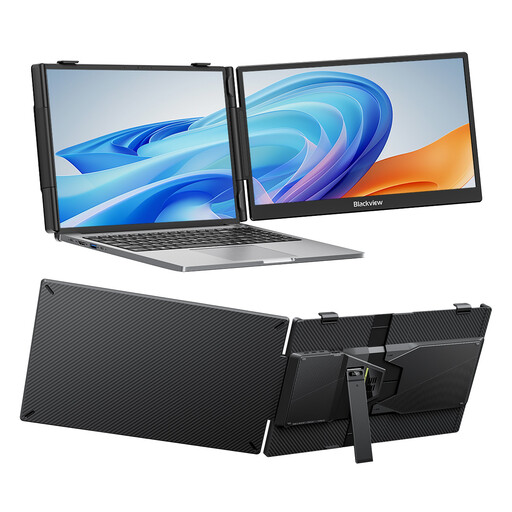
Blackview SCM5 14-inch FHD IPS monitor
A 14-inch portable screen for a workspace with limited room; the product title mentions an adjustable stand.
FHD, IPS and an adjustable stand. The title states that it’s compatible with laptops from 13 to 17.3 inches.
View at Joybuy
 No image available
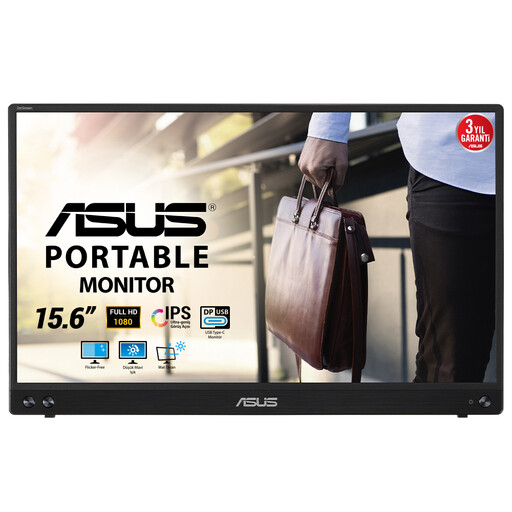
ASUS MB16ACV 15.6-inch FHD monitor
A compact extra screen for a laptop setup, provided your devices support the connection specified.
1920 × 1080 pixels, Full HD and USB-C for video and power with compatible devices. According to the product description, a driver is required for the USB Type-A connection.
View at Joybuy
Frequently asked questions
How should you set up your screen if you spend long periods working on a timetable?
Position the screen to support a suitable working posture, and break up long periods of sitting and screen work. Arboportaal highlights the risks of a poorly set-up workstation; employers also have obligations relating to screen work. These obligations aren’t product specifications for every individual buyer.
Can any USB-C monitor connect to and charge your laptop with one cable?
No, it depends on the features of both the monitor and the laptop. Philips describes USB-C with power delivery for the 24E1N1300AE/01; Dell lists a USB-C downstream data port of up to 15 W for the P2425. Check that both devices support video and the power delivery you need.
How can you compare power consumption and an extended warranty?
Compare the EU energy label for the exact monitor. According to the European Commission, the scale for electronic displays runs from A to G. The Dutch government states that you’re entitled to a product that works properly, and that you should contact the seller if it doesn’t. When considering a paid extended warranty, check what additional rights it actually offers.
What Dutch rules apply to screen work and online purchases?
The screen-work obligations described by Arboportaal apply to employers and employees; they don’t automatically apply to volunteers who occasionally put together a club timetable at home. For eligible consumer purchases made online, the Dutch government says you’ll often have a 14-day cooling-off period.


