Choose a compact, adjustable monitor if several people use the same desk and need to reposition the screen each time. If you want to view the rota alongside source documents, a larger screen may be more suitable, provided your desk and viewing distance allow for it. If different laptops will be used, check the exact port specifications too: USB-C does not automatically mean the connection will carry video and charge the laptop.
Who is this monitor suitable for?
People using a shared workspace
If you share a desk with others, it’s useful to be able to readjust the screen height and viewing angle each time you take your turn. Arboportaal advises setting up your workspace again when you sit in a different place.
Rota planners working with multiple documents
If you want to refer to source information while planning, consider how much room you have to place windows side by side. The right screen size also depends on your desk space and viewing distance.
Club members using different laptops
If different members connect their own laptops, check that both the monitor and the laptop support the video and charging functions you need through the same connection.
What should you look for when choosing?
Compact and adjustable
Choose this if: several people use the same desk and the screen needs to be readjusted each time.
Bear in mind: the screen and stand need to fit on the desk; check the ports on the exact model too.
More room for work windows
Choose this if: you want to view the rota alongside source documents and have enough desk space and viewing distance.
Bear in mind: a larger screen takes up more room, and screen size alone doesn’t tell you whether text in your rota app will be easy to read.
USB-C for switching between laptops
Choose this if: club members regularly connect a compatible laptop and you want to use one cable for video and charging.
Bear in mind: check laptop compatibility and the full model code. According to Dell, the USB-C port on the Dell P2425 is for data only.
| What to consider |
What to look for |
Who is this important for? |
| Readjusting the screen |
Check the height, tilt and swivel adjustments, and how much desk space the stand takes up. |
If I share a desk with others, I want to adjust the screen position to suit my working posture. Around 36% of consumers prioritise adjustability for different users. |
| Viewing the rota and source documents |
Compare screen size, resolution and viewing distance, and check how readable text is at the size you want. |
If I want to see the rota alongside another document, I need room for both windows without the text becoming too small to read. Around 29% of consumers prioritise having this overview. |
| Connecting different laptops |
Check the video output, video inputs, USB-C charging function and the charging power required by each laptop and monitor. |
When members bring their own laptops, I want to know whether the connection will work with every device in use. Around 21% of consumers give easy switching between compatible laptops top priority. |
| Desk space |
Measure the available space and compare it with the monitor’s dimensions, including the stand. |
If there’s little free space on the desk, I want to know whether the monitor will fit before choosing a larger screen. Around 14% of consumers prioritise a compact set-up and keeping costs down. |
What to look out for when buying
-
Assuming every USB-C port carries video and power
According to Dell, the USB-C port on the Dell P2425 is for data only. Philips, by contrast, describes the 243B9/00 as supporting video and charging via USB-C.
Compare the port functions on the full monitor model with the laptop’s connections and capabilities.
-
Looking only at the screen size
The stand and viewing distance also affect whether a monitor will fit on a shared desk and can be positioned comfortably for rota planning.
Measure the available workspace and check the model’s dimensions, including the stand, before choosing a larger monitor.
-
Assuming a model name without its full suffix refers to the same version
iiyama lists the XUB2493HS-B6 as end of life and names the XB2491HS-B1 as its successor; the model codes are different.
Check the full model code and the specifications of the version on offer.
Relevant monitor brands
Dell
The P2425 is a 24.07-inch office monitor with a 16:10 aspect ratio, designed for anyone looking for adjustability and room for documents in a compact format.
- Dell lists a resolution of 1920 × 1200, with height, tilt, swivel and pivot adjustment.
- According to Dell, the USB-C downstream port supports data only and is not a video input for a laptop.
Philips
The Business Monitor 243B9/00 is worth considering if you want to connect your laptop and charge it through one USB-C connection.
- Philips lists Full HD, a height-adjustable SmartErgoBase, and video and charging via USB-C.
- Your laptop must support the necessary USB-C functions; check the connections on the exact model.
LG
The UltraFine 27UP850K-W is a 27-inch option for anyone with the space who needs a larger screen.
- LG lists a resolution of 3840 × 2160, USB-C and a height-adjustable, tilting stand with pivot function.
- A 27-inch monitor takes up more room, so measure the available space before choosing.
iiyama
The ProLite range includes adjustable office monitors; check the full model code for each product listing.
- For the XUB2493HS-B6, iiyama lists a 24-inch Full HD IPS screen with a height-adjustable stand.
- iiyama marks the XUB2493HS-B6 as end of life and names the XB2491HS-B1 as its successor. The full suffix is important for identifying the version.
Monitors at Joybuy
These Joybuy monitors cater to different needs at a shared desk: a compact, adjustable set-up, more room for work windows or connecting laptops via USB-C. Before you buy, check that the size and connections suit your workspace and the laptops you use.
 No image available
Philips 27E1N1800AE/00 27-inch 4K UHD IPS monitor
This 27-inch model could suit you if you want extra screen space for viewing a rota alongside source documents.
4K UHD: 3840 × 2160 pixels; 60 Hz; 4 ms; height-adjustable stand.
View at Joybuy
 No image available
INNOCN CB27U1 27-inch 4K UHD monitor
This could be a good fit if you’re looking for a larger viewing area and a USB-C connection for a compatible laptop.
27 inches; 3840 × 2160 pixels; IPS; 120 Hz; USB-C with 90 W Power Delivery; height, tilt, swivel and pivot adjustment.
Check that the laptop you use supports video via USB-C.
View at Joybuy
 No image available
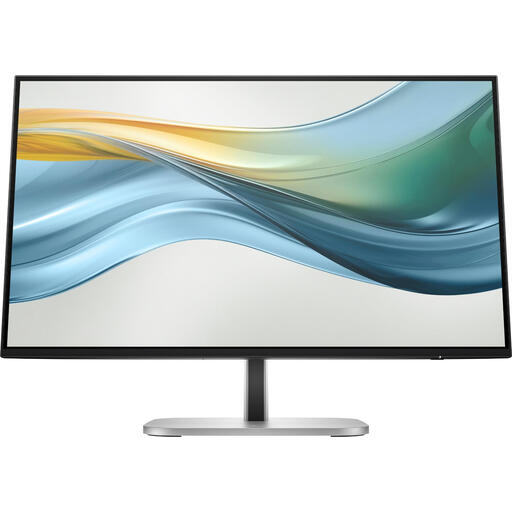
HP Series 5 Pro 524pu 23.8-inch FHD USB-C monitor
The 23.8-inch screen and adjustable stand could suit a shared desk where the screen position needs to change regularly.
Full HD IPS; 100 Hz; USB-C with up to 100 W Power Delivery; height, tilt and swivel adjustment.
The product information states that the charger is not included as standard and must be purchased separately.
View at Joybuy
 No image available
Dell Pro Plus P2425DE 24-inch QHD monitor
This 24-inch monitor could suit you if you’re looking for a relatively compact screen with QHD resolution for working with documents.
2560 × 1440 pixels; USB-C with 90 W Power Delivery; RJ45 connection; height and tilt adjustment.
Check your laptop’s USB-C functions before relying on one cable for video and charging.
View at Joybuy
 No image available
Philips E Line 346E2CUAE/00 34-inch ultra-wide monitor
The wide screen could suit you if you want to view the rota alongside source documents and have enough desk space.
21:9; 3440 × 1440 pixels; USB-C with 65 W Power Delivery; height adjustment.
The product information lists a width of 807 mm including the stand. Measure your available space first.
View at Joybuy
Frequently asked questions
How should you adjust the screen after someone else has used the desk?
Set up the workspace again each time you change users. Arboportaal advises placing the screen directly in front of you and tilting it so you can look at it straight on. Check the height and position from your own seat too. This is set-up advice, not a guarantee that a monitor will prevent discomfort.
Can any laptop display video and charge through one USB-C cable?
No, it depends on the functions supported by both the laptop and the monitor. Philips describes the 243B9/00 as supporting video and charging via USB-C, while Dell specifies the USB-C port on the P2425 as a data connection. Check the full model code and laptop compatibility before choosing your cable set-up.
What rules apply to screen work at a club?
Arboportaal’s information about employers’ obligations applies to employees and does not necessarily apply to volunteer work alone. For employees who work with a screen for more than two hours a day, Arboportaal states that the screen and keyboard must not be fixed together. The working environment and employment relationship are also relevant.
What about the cooling-off period and warranty when buying online?
According to ACM ConsuWijzer, consumers who buy online generally have a statutory cooling-off period of up to 14 days after delivery, subject to exceptions. The statutory warranty is separate from any manufacturer’s warranty. If a club is buying as an organisation, check which rules apply to the purchase; consumer rules do not automatically apply in the same way to business purchases.


